Update Device Applications
This page will walk you through the process of updating Device Applications within your IEM, ensuring your operations always run on the most current software.
This topic describes the regular update flow in the IEM UI.
If the target application version includes an Installation Guidance bundle uploaded in IE Hub, IEM performs additional checks when you start the update. In this case, IEM can allow the update, show a warning, or block the update based on the rules from that bundle.
For details about these additional Installation Guidance checks and when they apply, see Application update journey.
Overview
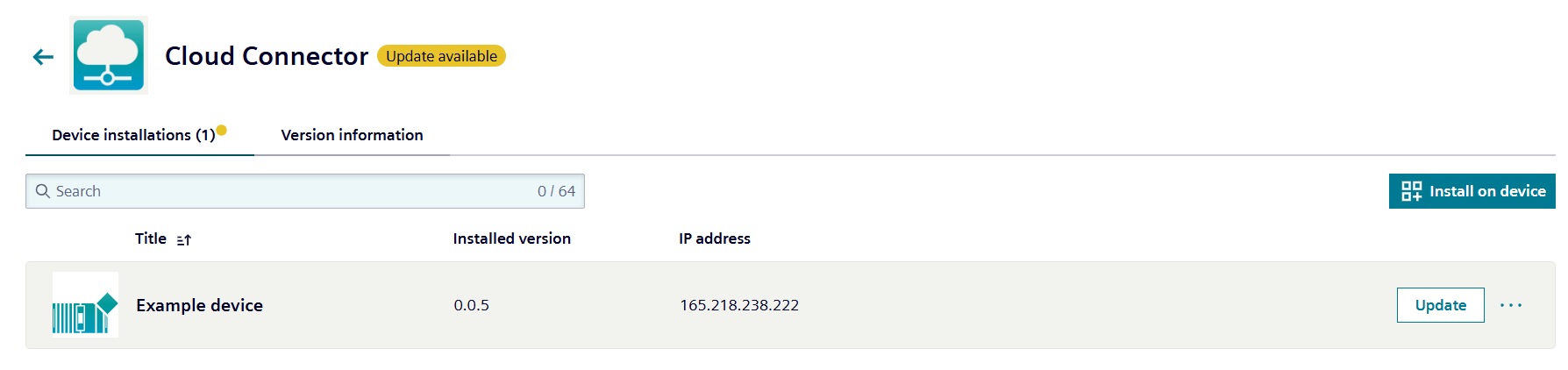
When an installed application version differs from the public version in the IEM, you will notice:
- A prominent
Updatebutton - A yellow
Update availablelabel
Additionally, the action menu always provides access to the Update page, regardless of version status.
Note that an update may involve either upgrading to a newer version or downgrading to a previous version of the application.
Update a Device Application
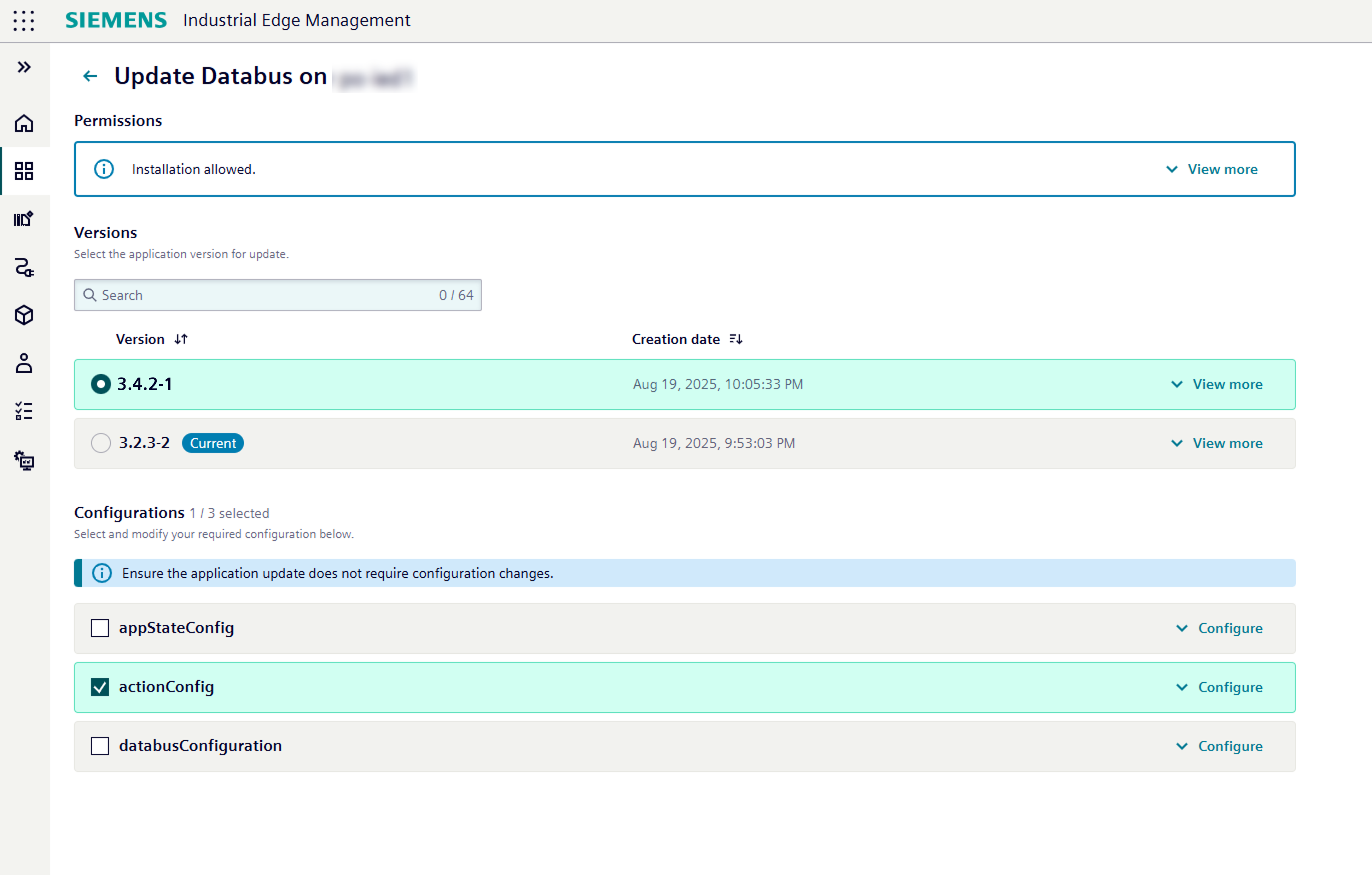
When you click the Update button, you'll be directed to the update application page where you can:
- View application version permissions.
- See version information (current and latest available).
- Edit the application's configuration to be applied during the update.
The permissions display and configuration editing process during updates mirror those used during initial application installation.
Update an app configuration
For installed applications, you can also update configurations independently through either the Device Applications details page or the Device details page.
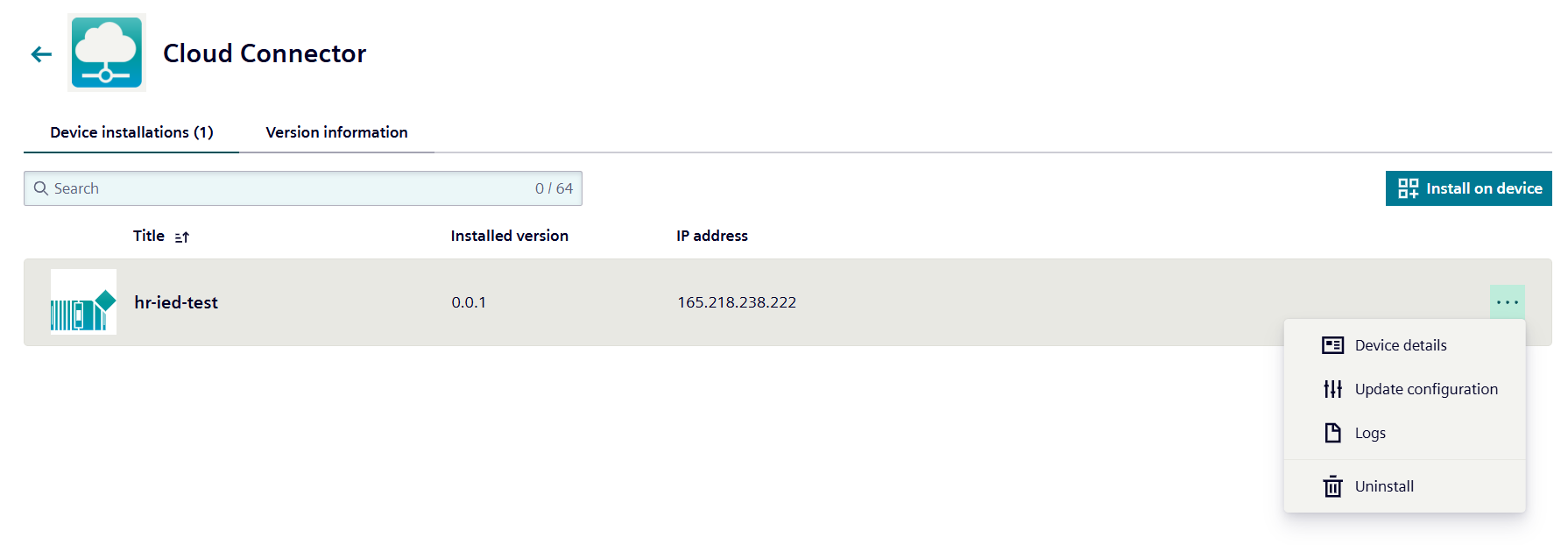
Clicking the Update configuration button takes you to the update configuration page.
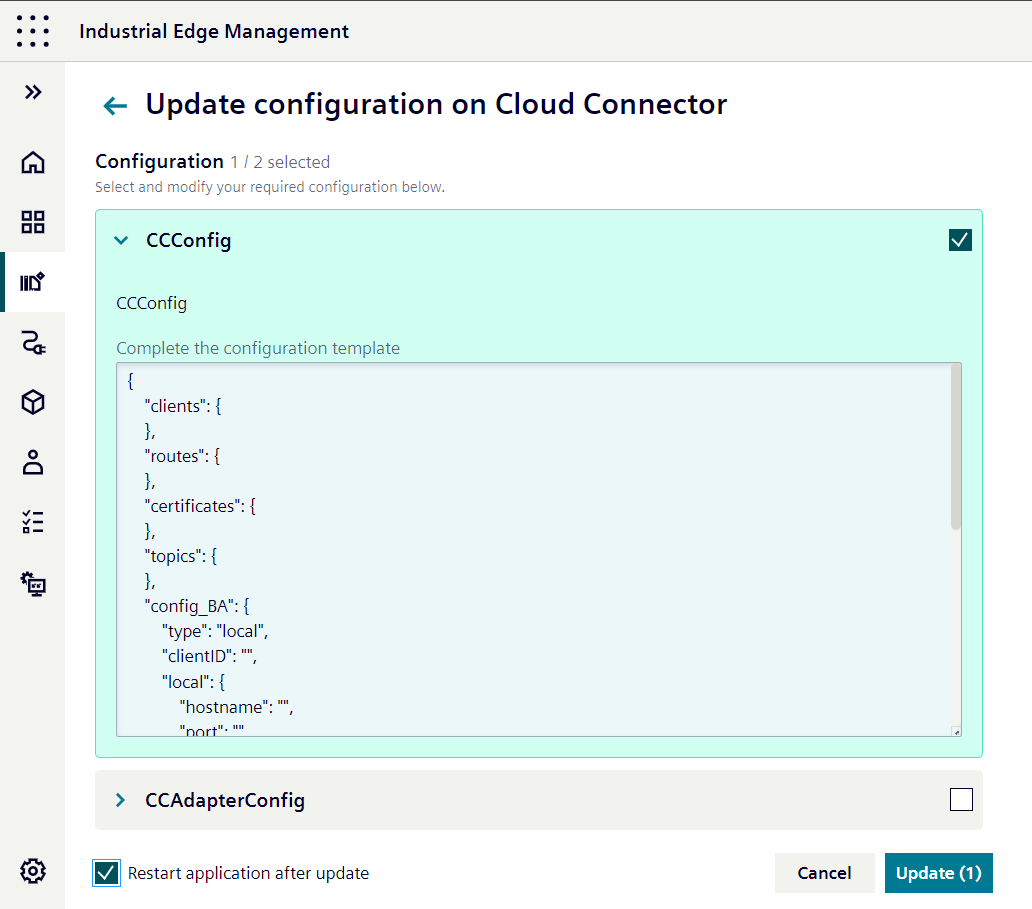
You can edit and select configurations that shall be updated.
Optionally, you can define that a restart of the application will be performed as part of the configuration update.