Roles in Keycloak
It is possible to grant users access to the IEM via roles in Keycloak.
IEM roles
Predefined IEM Roles
There are two predefined IEM roles for the ie-management client
- Admin
- User
see Assign role
NOTICE
Each user must be assigned at least one of these predefined roles to ensure proper access to IEM.
Admin
The Admin role gives IAM users access to the Edge Management, Edge Management Admin, and Application Manager. Additionally, it makes the “Identity & Access Management” tile visible. The Admin role includes all the permissions of the User role, as well as additional service-specific permissions.
User
The User role gives IAM user access to the Edge management. It enables users to create and manage their own resources, such as devices and apps. Additionally, it serves as a prerequisite for accessing the app catalog.
Custom roles
In addition to the predefined roles, users with the Admin role of the ie-management client can also create their own fine-grained access control roles. This is possible via the Role Management.
Mapping Users to Group Roles and Default Roles
Add default group to users
You can also create a new group with the same Role Mappings.
To do this, navigate to Groups and create a new group.
First you need to give the group a name.
After that, you can also set Role Mappings for this group.
Click on the group name in the group list. Switch to the Role mapping tab and click on Assign role.
Switch the filter to Filter by clients and select from that list the roles you want to assign. The roles for the Industrial Edge Management App have the client id ie-management. After clicking Assign the selected roles will be assigned to the group.
Now you can add this group to the Default Groups.
Go to Realm settings and switch to the User registration tab. Select Default groups and select the group you created from the list. Click on Add.
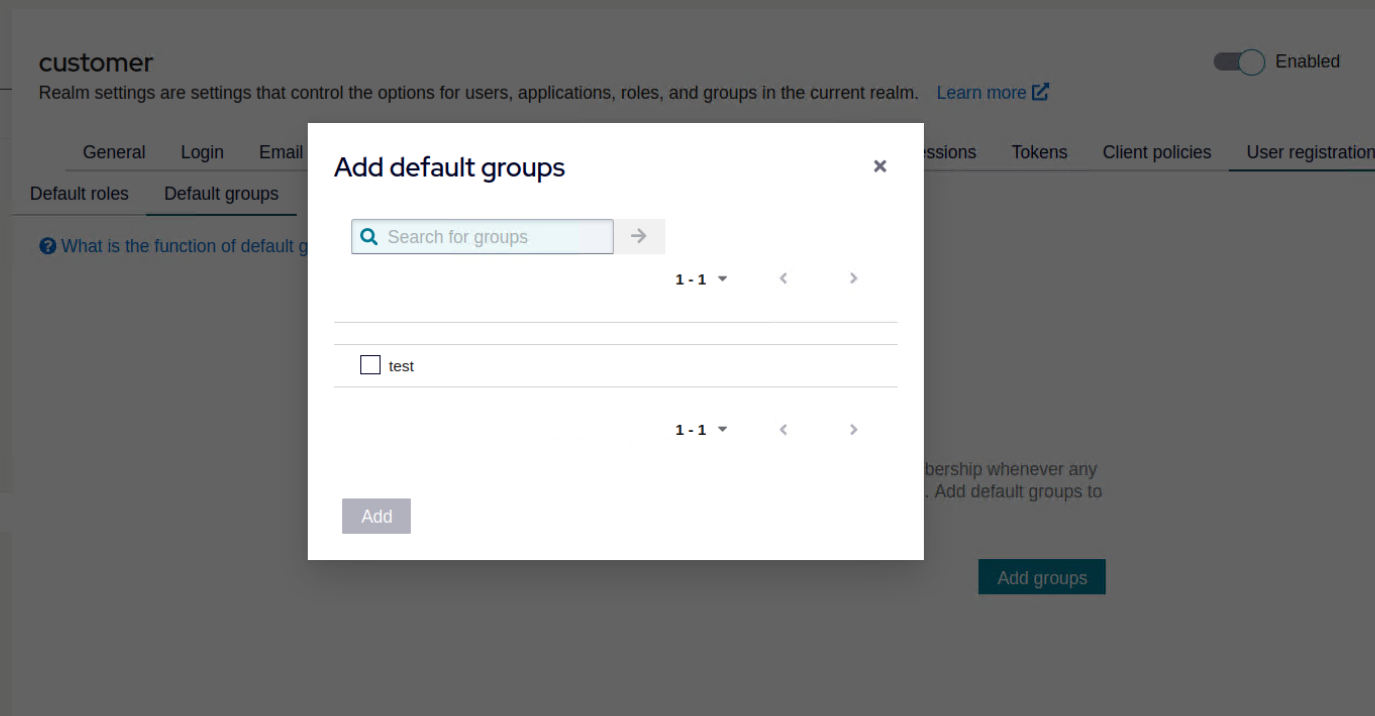
Any new user will be a member of this default group and will have the added roles.