Audit Event
On the Audit Event page, you can download audit logs, enable or disable the audit service, configure a remote Syslog server, and limit local audit log storage.
Overview
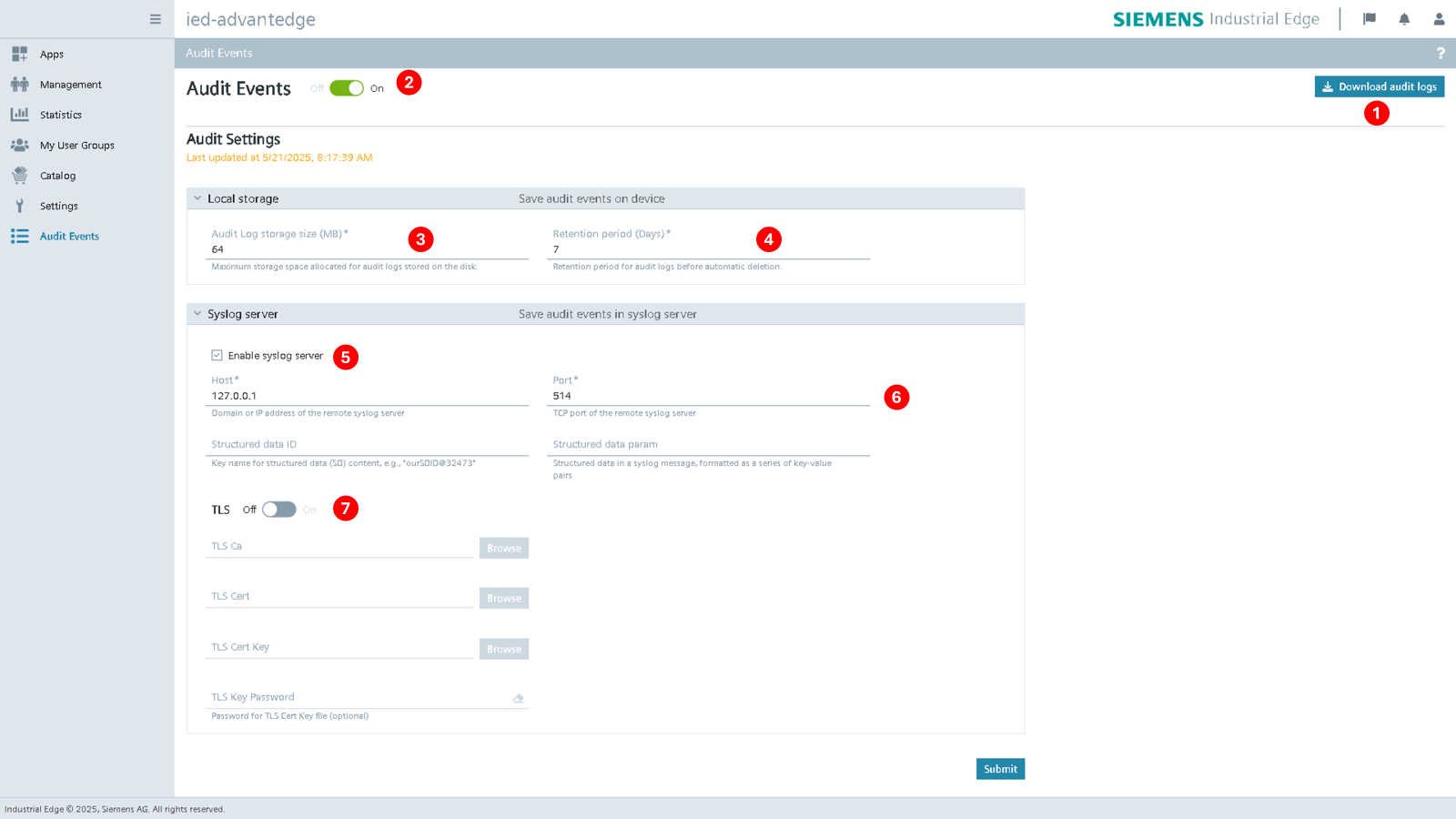
The following image shows the Audit Event user interface.
| No. | Items |
|---|---|
| ① | Click to download the audit logs as a .tar archive. The archive contains rotated log files. |
| ② | Enable/disable audit service. If disabled, audit logs are no longer recorded. The default is enabled. |
The downloaded .tar archive contains rotated log files such as the following:
-
A rotated file:
- audit.log-20250206-1738842431
-
An audit event in this file:
{
  "appName": "metrics-agent",
  "device@4329.6.100.6": {
    "FWVersion": "1.21.0-5",
    "devID": "c727e0c09f1f44caa3a731aeed78877b",
    "devName": "IED",
    "devProduct": "Edge Device",
    "devVendor": "Siemens"
  },
  "eventID": "ID58",
  "eventType": "SE_AUDIT_CFG_CHANGED",
  "function@4329.6.100.6": {
    "fct": "ie.device.software.metrics.configuration.update",
    "result": "success"
  },
  "hostName": "10.1.31.103",
  "message": "update settings to : flush=5 intervalSec=5",
  "session@4329.6.100.6": {
    "src": "119.161.122.17",
    "userName": "iem.user@siemens.com"
  },
  "severity": 5,
  "severityType": "NOTICE",
  "timestamp": "2025-02-06 05:20:21.956200373 +0000 UTC",
  "userName": "iem.user@siemens.com"
}
Permissions
Only users with the admin or security officer role can see the Audit Event page. Device co-admin users cannot see this page. For information on creating and editing user groups, see Creating and editing a group.
NOTICE
If remote SSH is enabled on the Industrial Edge Device, audit logs may be modified.
Settings
| No. | Items |
|---|---|
| ③ | Set the maximum storage size for audit logs (in MB). The allowed range is 16MB (minimum) to 512MB (maximum), with a default of 64MB. By default, audit logs are stored in /data/audit/log and the active log file (audit.log) is rotated when it reaches 8MB in size or daily, whichever comes first. If the total directory size exceeds the configured maximum storage size limit, old logs will be automatically deleted. |
| ④ | Set the retention period for audit logs (in days). The allowed range is 1 day (minimum) to 30 days (maximum), with a default of 7 days. The audit log files are rotated based on the number of days, and the rotation is "smart", meaning it automatically removes the oldest files when either the maximum storage size or the retention period is reached, whichever comes first. |
| ⑤ | Enable/disable access to Syslog server. If enabled, audit logs are forwarded to a remote Syslog server using the RFC5424 protocol. Default is disabled. Currently, only Syslog server is supported. |
| ⑥ | The default output port is TCP/514. The Structure data ID and Structure data param fields allow user to fill in an SD-Element object according to RFC5424, if a valid SD-Element is submitted, it will be appended to all audit events before being sent to the Syslog server. |
| ⑦ | Enable/disable TLS for the remote Syslog server. When enabled, TLS verification is also enforced. The default is disabled. |
Confirmation dialogs
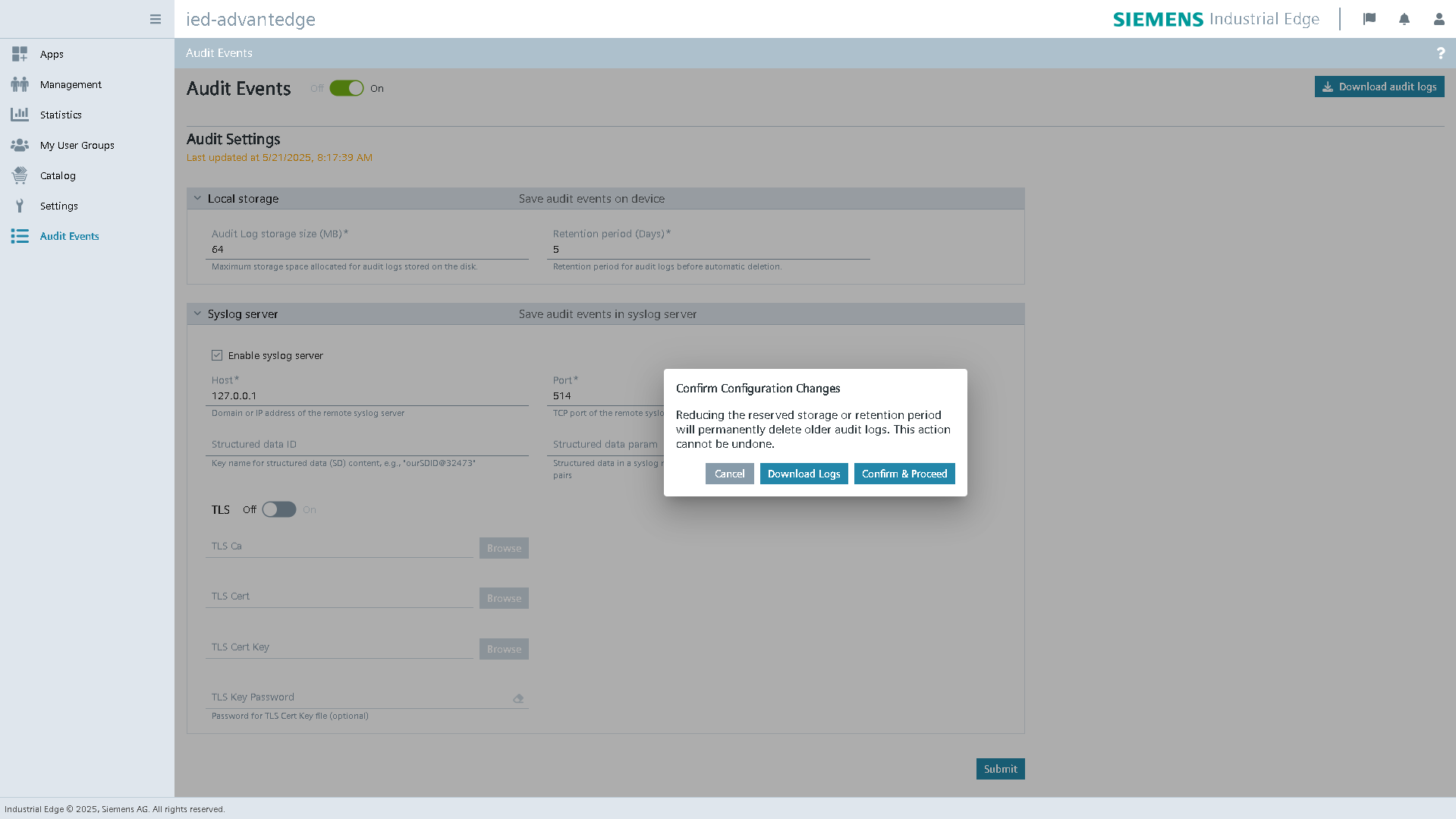
When you reduce the Audit Log storage size or Retention period, a confirmation dialog appears before the system applies the changes. The dialog warns that older audit logs may be permanently deleted and that you cannot undo the action. You can download the existing logs as a .tar archive or cancel the change.
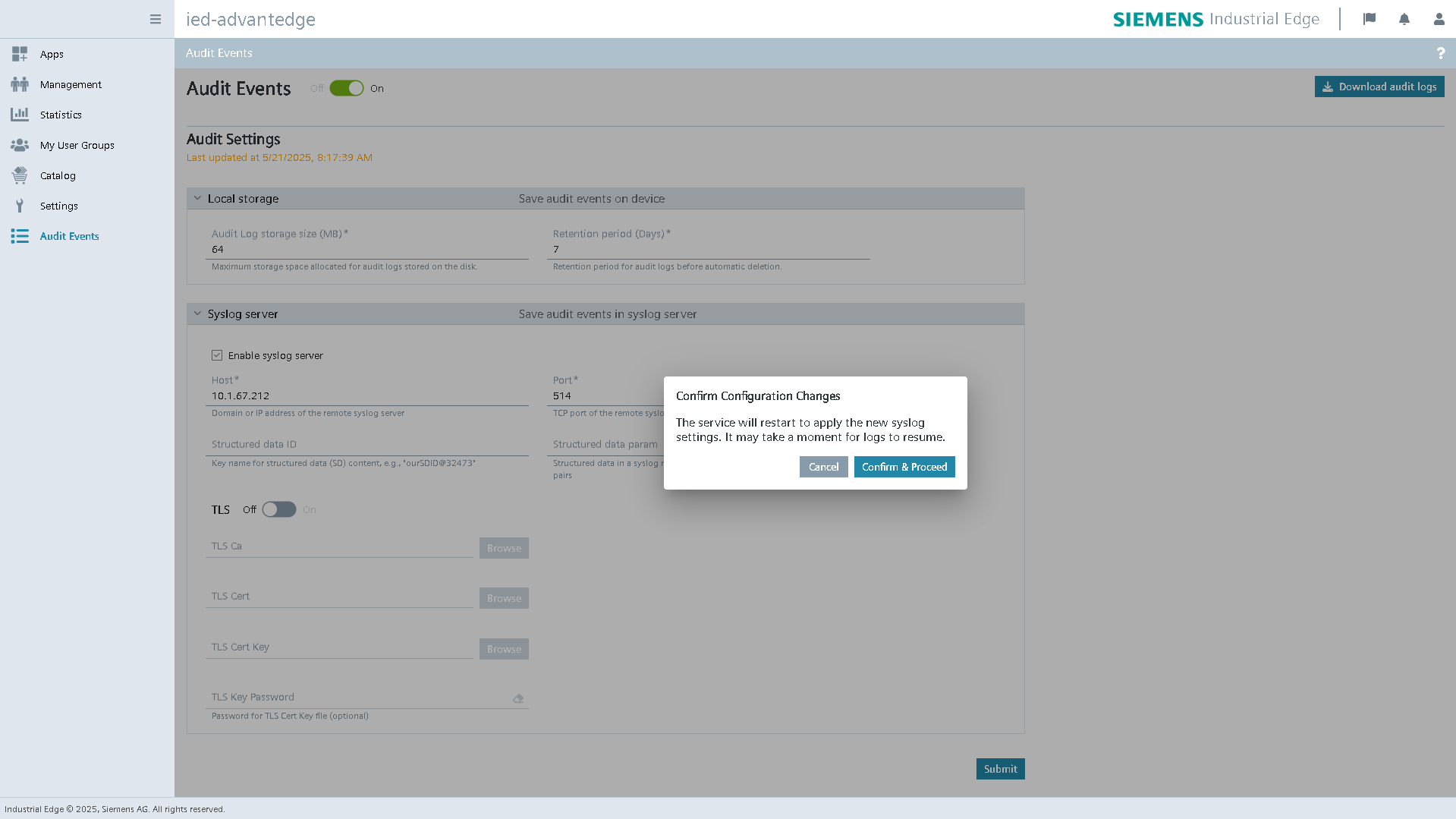
When you change the Syslog server settings and a Fluent Bit restart is required, a confirmation dialog appears. The dialog tells you that log forwarding may be interrupted for a short time after the restart.
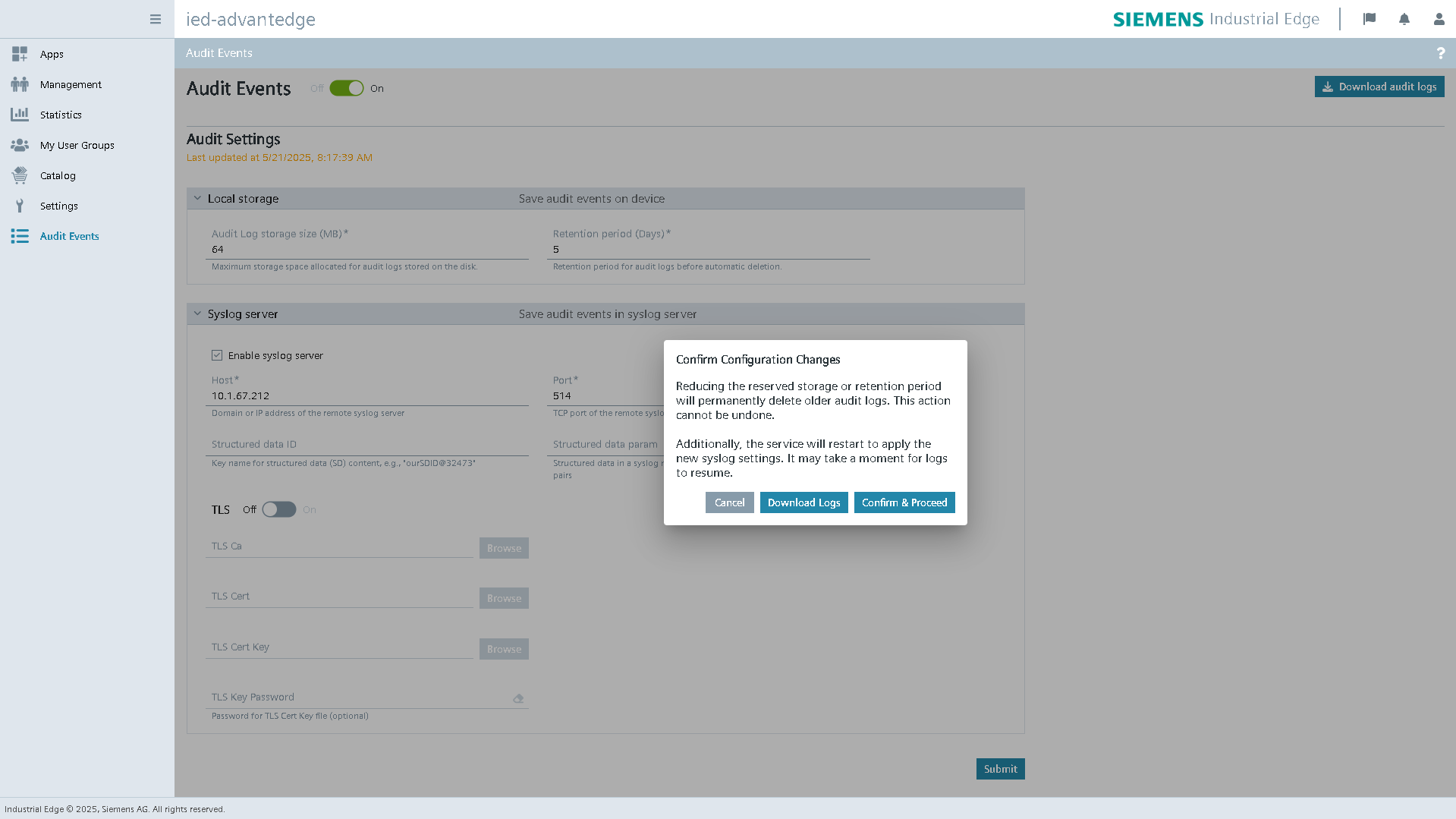
When you change both the local storage settings and the Syslog server settings at the same time, one confirmation dialog shows both warnings. The dialog tells you that older audit logs will be permanently deleted and that log forwarding may pause during the Fluent Bit restart.
Service and event status notifications
The Recent Events panel shows changes to the service status, event recording status, and event streaming status. These notifications help security officers understand the current audit service state and identify issues.
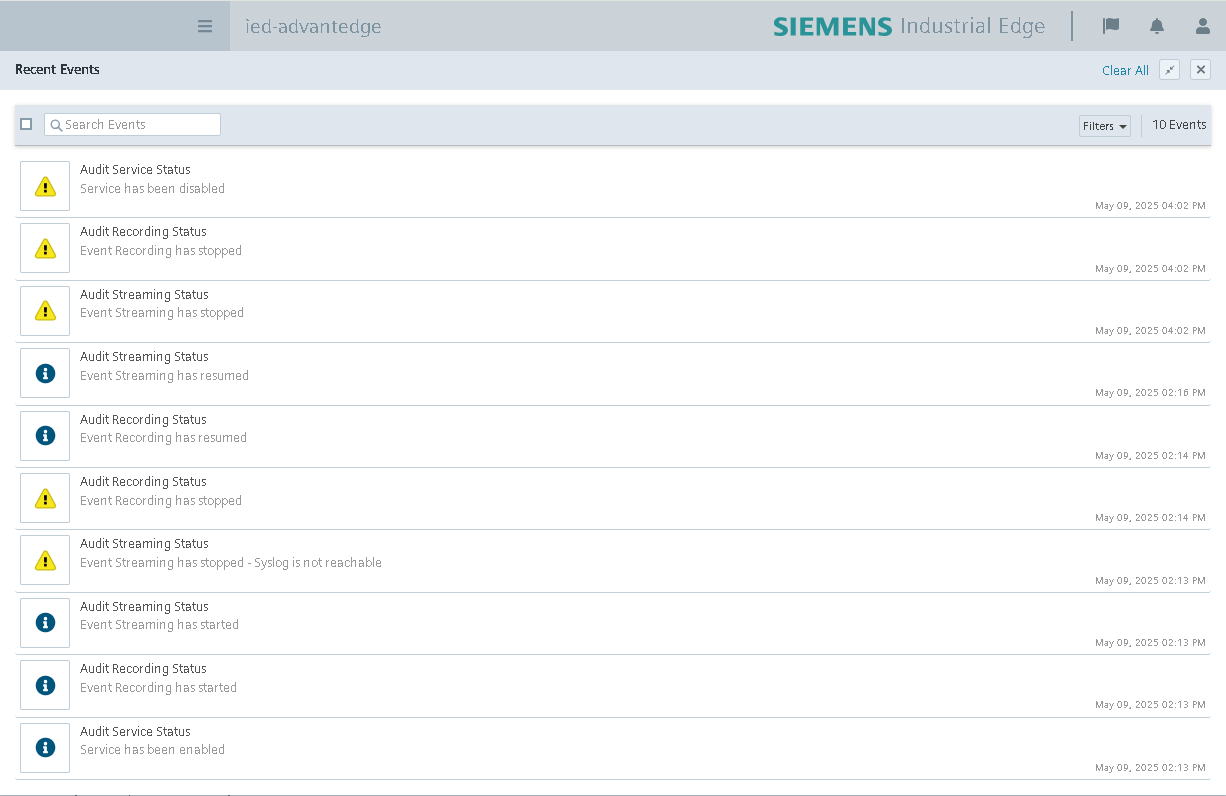
The following table summarizes the main status messages for the audit service, event recording, and event streaming.
| Title | Message | Description |
|---|---|---|
| Audit Service Status | Service has been enabled | The audit service has been successfully activated and is operational. |
| Service has been disabled | The audit service has been deactivated and is no longer processing events. | |
| Audit Recording Status | Event Recording has started | Event recording has been successfully initiated and is capturing events locally. |
| Event Recording has resumed | Event recording has resumed after a temporary interruption and is continuing to capture events. | |
| Event Recording has stopped | Event recording has stopped, possibly due to internal service failure or configuration issues. | |
| Audit Streaming Status | Event Streaming has started | Event streaming has been successfully initiated, and audit events are being processed and forwarded as configured. |
| Event Streaming has resumed | Event streaming has resumed after a temporary interruption. Events are once again being delivered. | |
| Event Streaming has stopped | Event streaming has been halted, possibly due to a system misconfiguration or internal failure. | |
| Event Streaming has stopped - Syslog is not reachable | Event streaming has stopped because the system could not reach the configured Syslog server or the Syslog settings are invalid. |
Related documentation
- Audit Event Syslog Format — Syslog message structure and field descriptions.
- Audit Event List — Available audit event functions and security event types.
- Creating and editing a group — Managing user group access.