Overview
It is possible to be registered in several hubs.
In the User management section, you get an overview of all registered users in the logged hub and also a list of invited users who have not yet accepted the invitation to access this hub.
You can invite new users to this hub, delete users from the hub and manage roles assigned to the users.
The User management screen is displayed as follows for example:
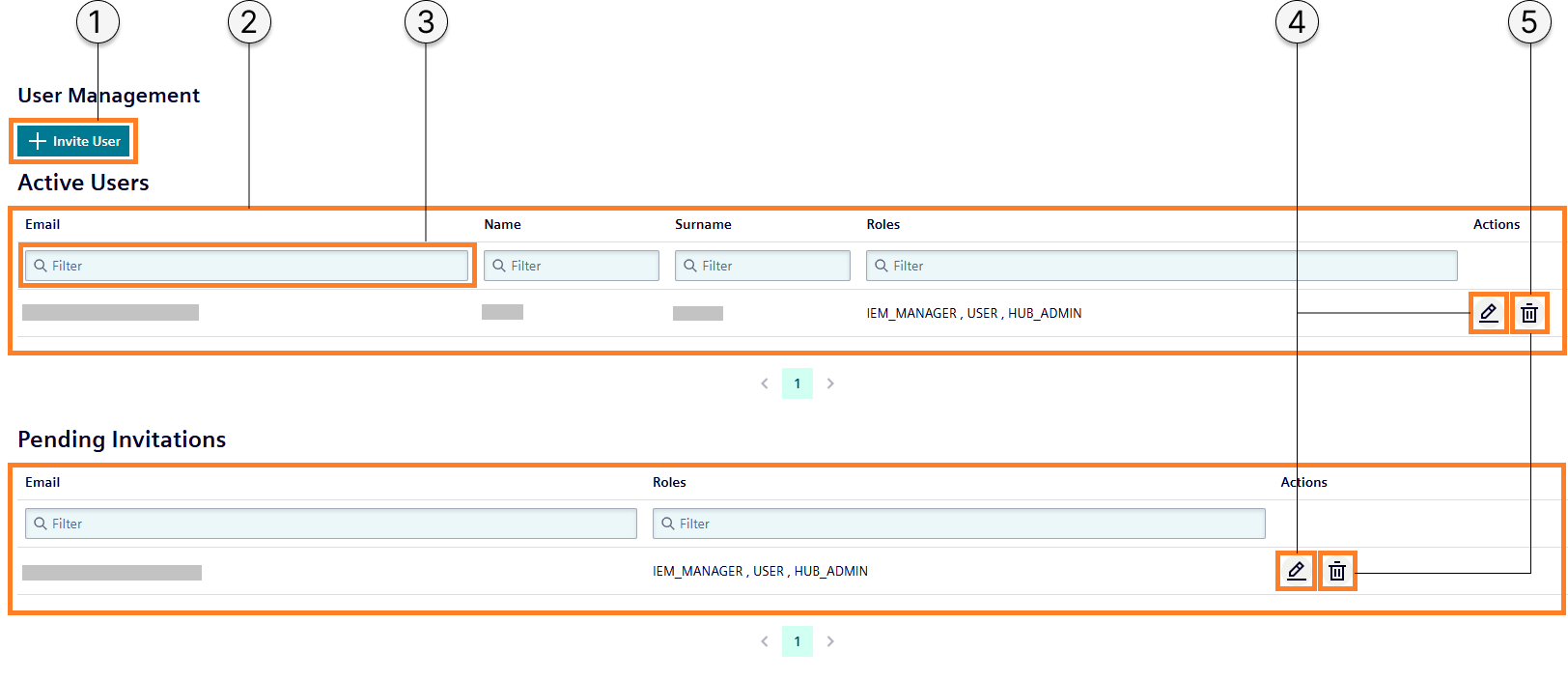
| ① | Invite new users to your hub |
| ② | Registered users |
| ③ | Filter respective column |
| ④ | Manage user roles |
| ⑤ | Delete user |
| ⑥ | Pending users |
NOTICE
Filtering can also be combined with several columns.
Inviting new users, deleting users and managing user roles is only available for users with the HUB_ADMIN role.
Invite a new user
Requirements
The HUB_ADMIN role is assigned to you.
Procedure
-
Click
Invite User. TheInvite Userscreen is displayed.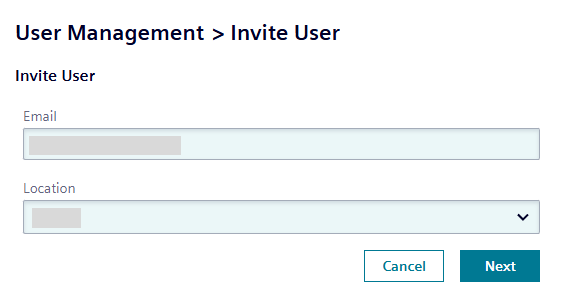
-
In the
Emailinput field, enter the email address of the user you want to invite to the hub. -
In the
Locationdrop-down list, select the location of the respective user. -
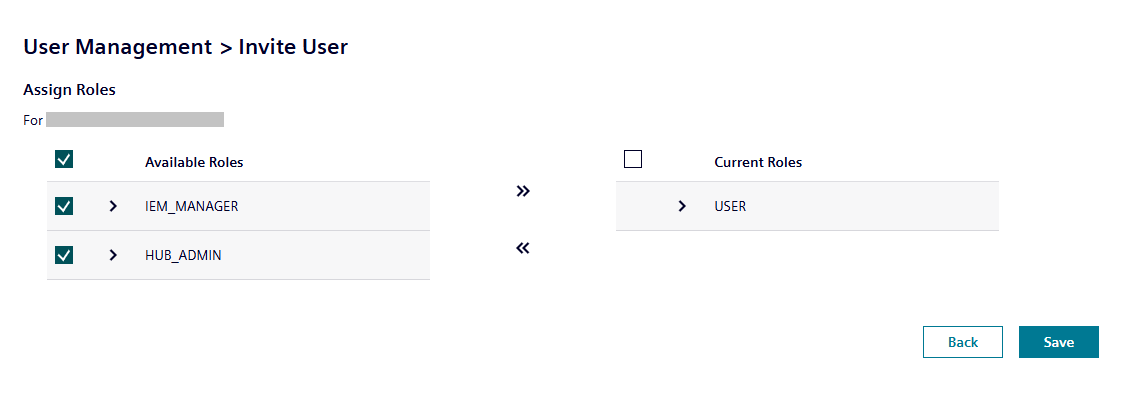
Select the roles you want to assign to the user.
NOTICE
By clicking the
 icon next to a role, all permissions assigned to the role are displayed.
The
USERrole is assigned by default to the invited user. TheHUB_ADMINrole will be automatically assigned to the first registered user of the hub. In addition to these roles, some other roles with specific features and content, for example theDEVICE_BUILDERorAPP_SELLERrole, do also exist. To enable these roles in your hub, contact the IE Ecosystem. -
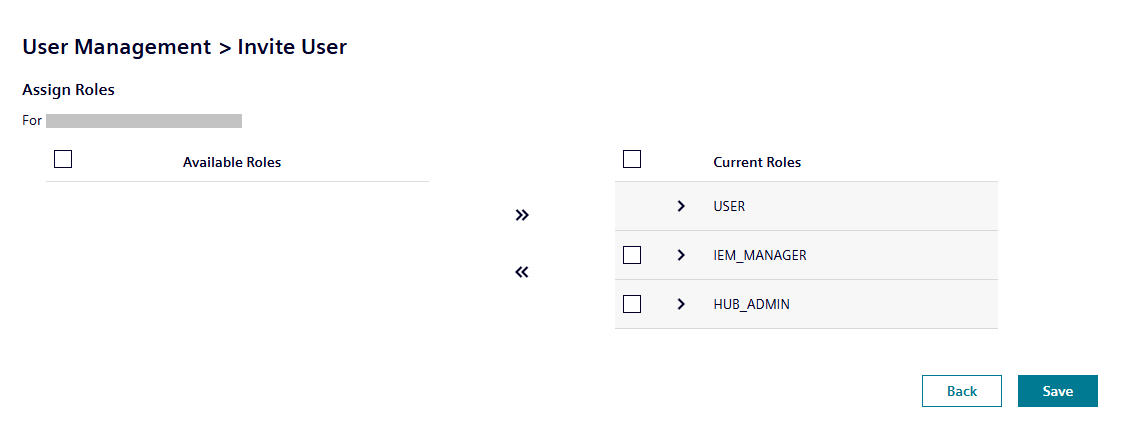
Add the selected roles to the user by clicking the
 icon.
icon.
-
Click
Save. A warning is displayed related to access of resources. -
Click again
Save.
The invitee will be added to the Pending Invitations list and an email will be sent to the invitee.
The invitee then must activate his account by signing up to the IE Hub.
After the invitee has activated his account, the invitee will move to the Active Users list and is able to access the IE Hub with the roles that are assigned to the user.
Manage user roles
Requirement
The HUB_ADMIN role is assigned to you.
Procedure
-
Click the
 icon of the user whose roles you want to manage.
The
icon of the user whose roles you want to manage.
The Edit Rolesscreen is displayed. -
Add new roles to the user by selecting the respective roles from the
Available Roleslist and by clicking the
icon. -
Remove assigned roles from the user by selecting the respective roles from the
Current Roleslist and by clicking the icon.
icon. -
To save your changes, click
Save.
User roles
The following user roles are available.
| User | Basic role for using the IE Hub. Includes read-only access to IE Hub resources. |
| Device Builder | Role for Device Builders which enables access to specific content on the IE Hub for Device Builders. |
| Hub Admin | Administrative role of the hub. This role enables creation, modification and deletion of users, IEM instances and hub resources. |
| App Seller | Role for app sellers. This role enables publishing apps to the IE Marketplace and deleting apps from there. |
| IEM Manager | Required role to manage IEM instances on the IE Hub and to download the IEM configuration file. |
| Unsubscribed User | Role for users who belong to a canceled IE Hub subscription. The role has limited scope to access certain IE Hub resources. |
Permissions
| User role | Permissions |
|---|---|
| User |
|
| Device Builder |
|
| Hub Admin |
|
| App Seller |
|
| IEM Manager |
|
| Unsubscribed User |
|