Device Applications
This section will guide you through understanding and navigating your Device Applications within the IEM.
Overview
Device Applications are the powerful software components that run directly on your Industrial Edge Devices. These applications can be separated into two types of apps: Hub Applications and Custom Applications. Understanding their differences is key to managing them effectively.
Hub Applications
These are applications you have downloaded directly from the Industrial Edge Hub. They come with several advantages and characteristics, designed for ease of use and reliability:
- Central distribution: Device Applications are distributed globally via the Industrial Edge Hub. Updates, versions, and the overall lifecycle of these applications are centrally controlled in the Industrial Edge Hub.
- Automatically shared and published: The applications are automatically available for all users in the IEM. Only one version can be published at the same time. Typically, the latest version downloaded.
- Already virus scanned and signed: These apps come with digital signatures, ensuring their authenticity and integrity. They have undergone security scans, providing an added layer of trust.
NOTICE
Add application via IEM UI
If you upload Device Applications directly through the IEM UI using the Add Application button, they will behave like Hub Applications.
NOTICE
Browse Hub applications via IEM UI
Now you can browse and download Industrial Edge Hub applications directly by clicking Browse Industrial Edge Hub button from page header.
Custom Applications
These are applications you have developed yourself, acquired from other sources, or customized, and then sideloaded (uploaded directly) to your IEM. They require a bit more hands-on management:
- Sideloading: You bring these applications into your IEM using specific tools such as the Industrial Edge App Publisher or the IECTL.
- Multiple versions: You can upload and manage multiple versions of an application simultaneously.
- Manual publishing and sharing required: To make a specific version of your custom application available to all other users, you'll need to manually publish it. Similarly, sharing specific versions or the entire application with individual users requires manual action.
It's good to note that depending on how an application was brought into your IEM, its behavior and management options might differ slightly. You can find more details on this in the Upload applications section.
Device Application overview
NOTICE
Initially Add application button is disabled. To enable import of device applications, update global HELM configurations.
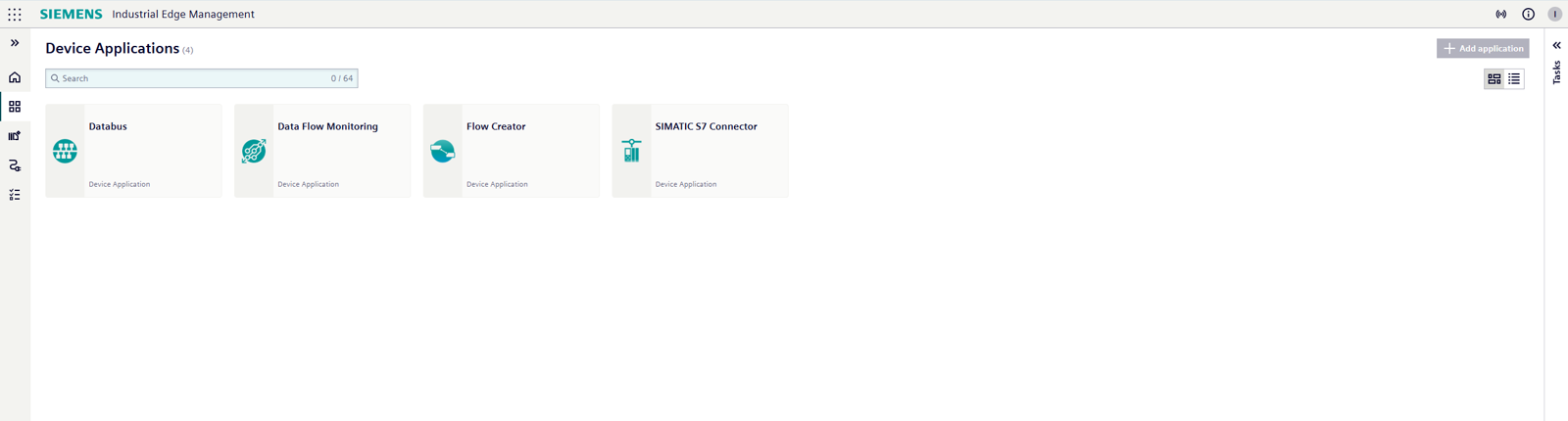
The Device Applications overview page is your go-to place for managing all Device Applications within your IEM. It's designed to give you a clear and intuitive view of your entire application landscape. You can choose how you want to see your applications with two flexible display options:
- Card view: Displays applications as visual cards for an intuitive, graphical representation
- List view: Presents applications in a structured list format for efficient scanning and sorting
Device Application details
When viewing a specific application, the details page provides comprehensive information organized into three main sections:
- Version information
- Device installations
- Additional information

Version information
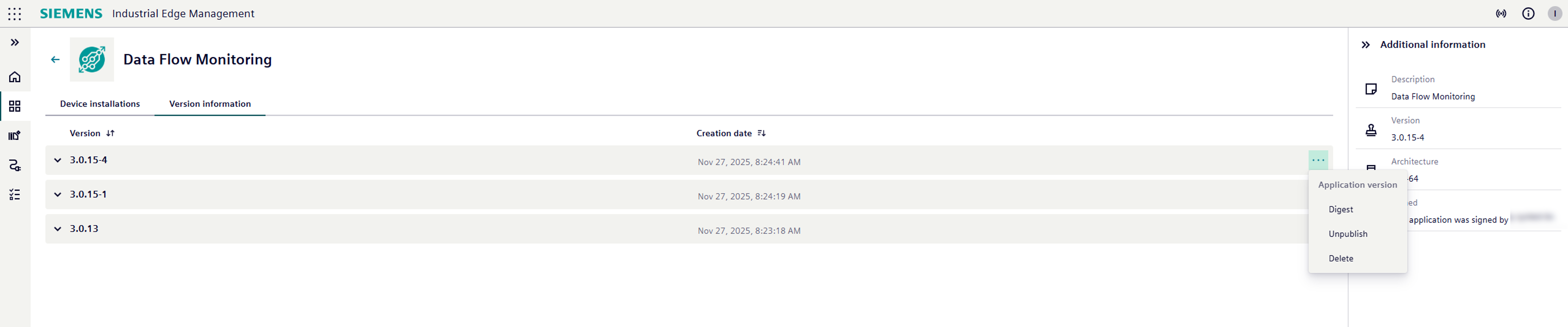
In this tab, you can review and manage the available versions of your application.
| Information | Description |
|---|---|
| Release notes | Review the release notes for each version to see what changed. |
| Version actions | Share, publish, or delete a version. |
| Image details | Open the action menu for a version to view the underlying images and their digest. |
Device installations
This tab displays where your application is deployed. It shows you all the Industrial Edge Devices that currently have this application installed. For each device, you see:
- The installed version of the application.
- The IP address of the device.
- An action menu with quick options, such as:
- Updating the application on that specific device.
- Accessing the
Device detailspage for more information about the device itself. - Updating the application's configuration.
- Downloading application logs for troubleshooting or monitoring.
- Uninstalling the application from the device.

You can also initiate new device application installations directly from this view. For step-by-step installation instructions, refer to the Install applications section.
Additional information
This section provides supplementary details that give you a broader understanding of the application:
- A concise app description.
- The current published (live) version - if applicable.
- Important architecture specifications to ensure compatibility.
- The trusted vendor who signed the application - applicable for Hub apps.