Connectivity Check
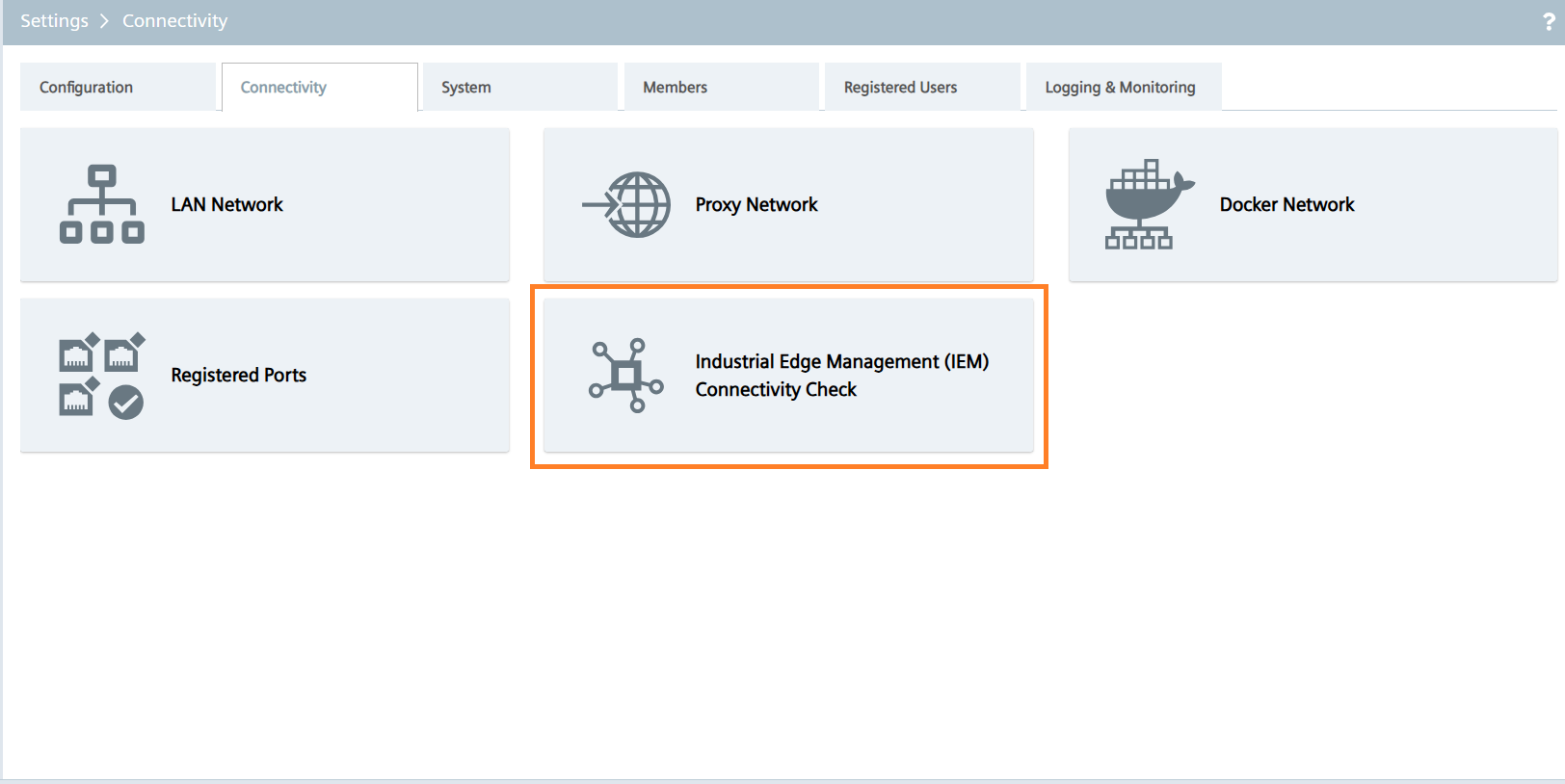
The Edge device interface, aimed at identifying and resolving connectivity issues between the Industrial Edge Device and either Industrial Edge Management or external data sources.
This feature performs an initial connectivity assessment and offers the option for a more comprehensive analysis on demand.
IEM Connectivity
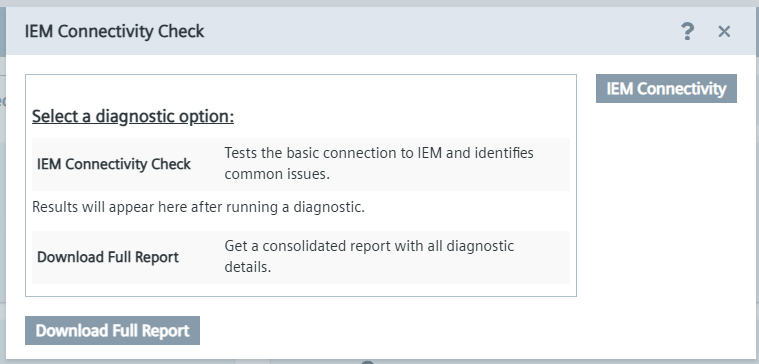
Clicking the "Connectivity Check" tile opens the Connectivity window. By default, this window shows two options:
-
Industrial Edge Management (Primary Check)Attempts to establish a secure HTTPS connection to Industrial Edge Management. It verifies the TLS handshake to ensure security, checks if the HTTP response status is successful (such as 200 or redirects like 3xx), and confirms that the certificate is valid and trustworthy. -
Industrial Edge Management (Advanced Check)Ensures the DNS server is reachable and can successfully resolve the Industrial Edge Management hostname to its IP address. It then checks the endpoint's reachability using TCP on port 443 to ensure the connection can be established.
NOTICE
The DNS diagnose will try to resolve the IEM hostname using all configured DNS servers, and then execute a tcp connection test to the resolved IPs.
External Connectivity
TCP diagnoses and identifies potential network connectivity issues by attempting to establish connections to a list of target hosts and ports. For each connection attempt, it returns either basic or detailed results, indicating whether the connection was successful or failed and providing relevant diagnostic information such as latency.
External endpoints
Attempts to establish a TCP-based connection from your device to a user-defined external endpoint. This verifies the reachability of specified destinations, such as PLCs, MQTT brokers, and databases, to diagnose network issues relating to custom services or outbound internet access.
NOTICE
External endpoints Up to 10 entries are allowed. Separate them with commas. Endpoints name should only use address:port syntax and not include a protocol prefix (e.g., http:// or https://). A TCP check is available from version 1.29.0-1 onwards.
Run connectivity check
Clicking the Run connectivity check button will trigger a real-time test of the connection with the IEM.
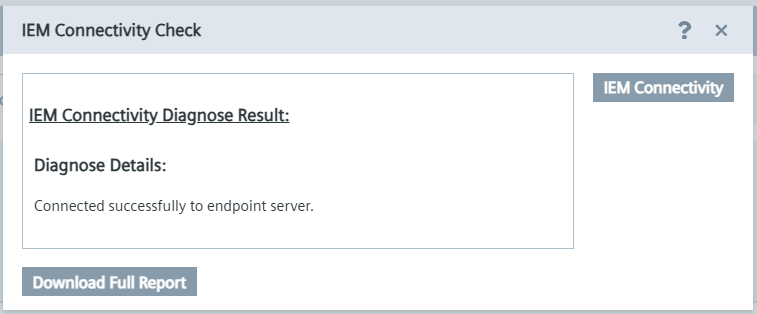
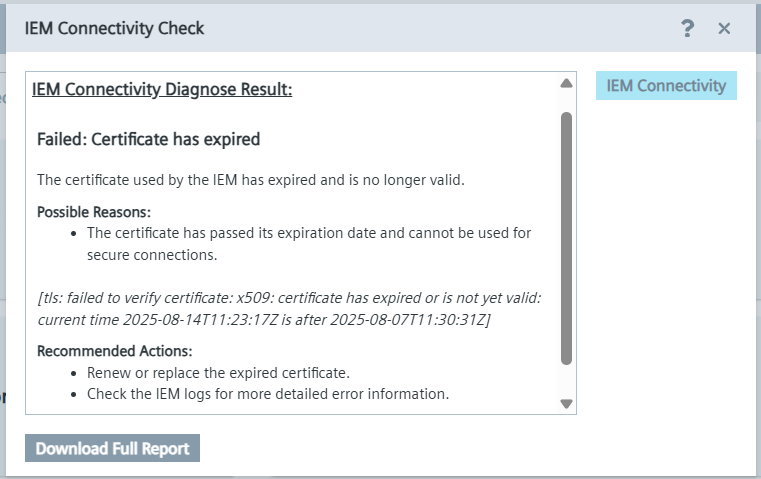
You will then see a response according to the connectivity status, indicating whether it was successful or not.
An example of success response shown below along with the Download full report button.
An example of error response shown below along with the Download full report and Retry buttons.
Download full report
Clicking the Download full report button generates and downloads a comprehensive diagnostic report.
This report includes detailed information, such as specific error messages and the response data exchanged between the Industrial Edge Device and IEM, regardless of whether the connectivity check succeeded or failed.
Retry
If a connectivity check fails, clicking the Retry button will allow you to run the connectivity test again without restarting the entire process.
Clicking this button performs the same connectivity check again using the previously selected options, helping you to verify whether the connection issue was temporary or whether any network changes have resolved the problem.
NOTICE
Diagnostic results may be influenced by your network configuration, including (but not limited to) the following factors:
- IP address spoofing settings
- Proxy server configurations
- Access Control Lists
- Network routing or topology
- Firewall settings
- NAT/PAT configurations
Consider these aspects when evaluating diagnostic results. For the detailed report user can download the diagnose report.
NOTICE
The Connectivity Check feature is available in IEDK v1.26.0-5 or later. The enhanced UI for Connectivity Check is available starting from IEDK v1.27.0-5. DNS check is available from the version 1.28.0-1