Install Device Applications
This page will walk you through the process of installing Device Applications within your IEM. We will cover the different starting points and important considerations to ensure a successful deployment.
This topic describes the regular installation flow in the IEM UI.
If the selected application version includes an Installation Guidance bundle uploaded in IE Hub, IEM performs additional checks when you click Install. In this case, IEM can allow the installation, show a warning, or block the installation based on the rules from that bundle.
For details about these additional Installation Guidance checks and when they apply, see Application installation journey.
Overview
When it comes to installing Device Applications, you have a couple of convenient starting points, depending on your goal:
- Installing one application on one or multiple devices: If you have a specific application in mind and want to deploy it to several devices, you typically start from the Device Application details page.
- Installing one or multiple applications on one device: If you are setting up a new device or updating an existing one and want to equip it with several applications, you start from the Device details page.
NOTICE
At the moment, it is not possible to install multiple applications on multiple devices in one go.
Regardless of your starting point, once you have made your initial selections, the installation process follows a very similar workflow.
Installing one application on multiple devices
This scenario is perfect when you want to roll out a single application across several compatible devices.
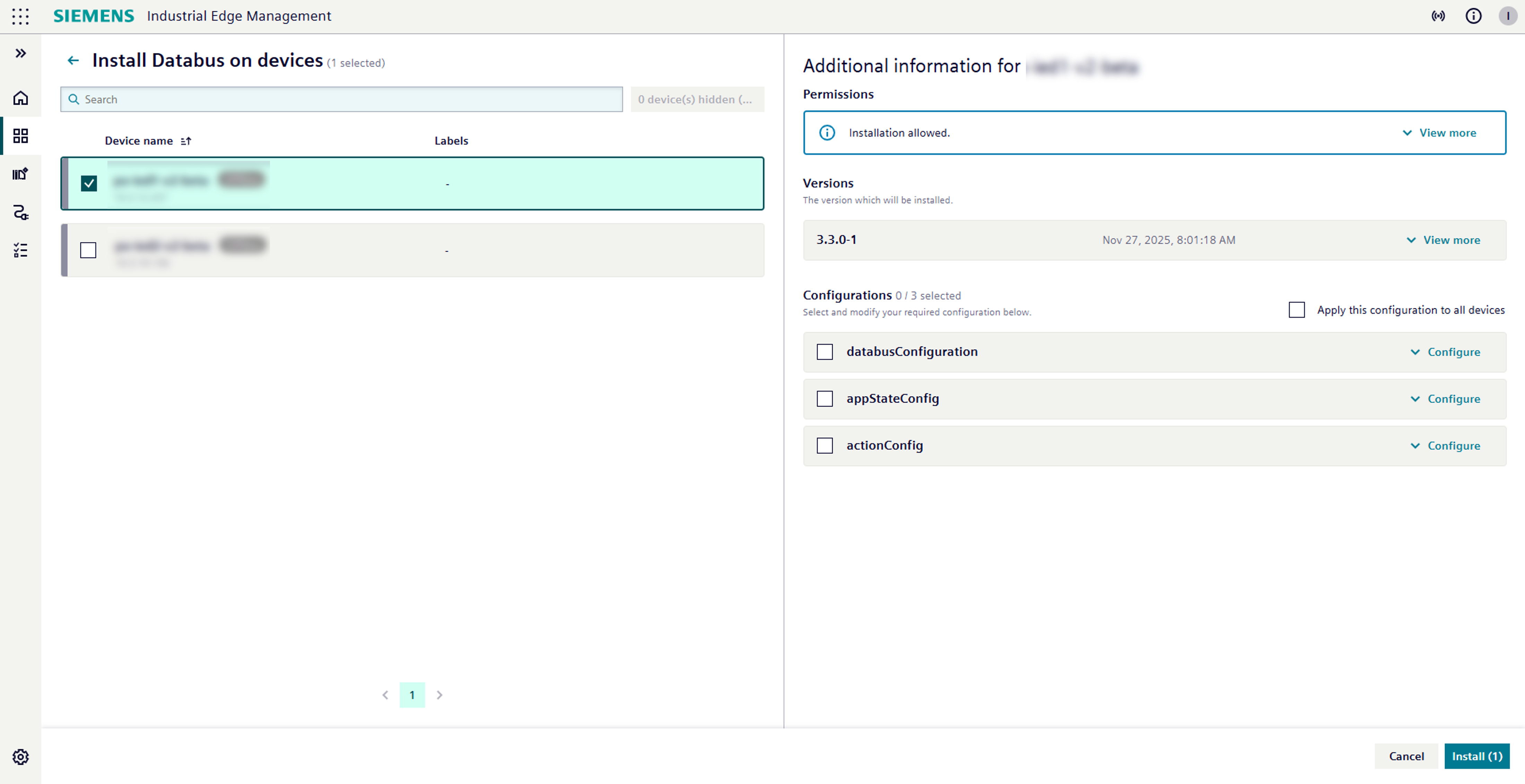
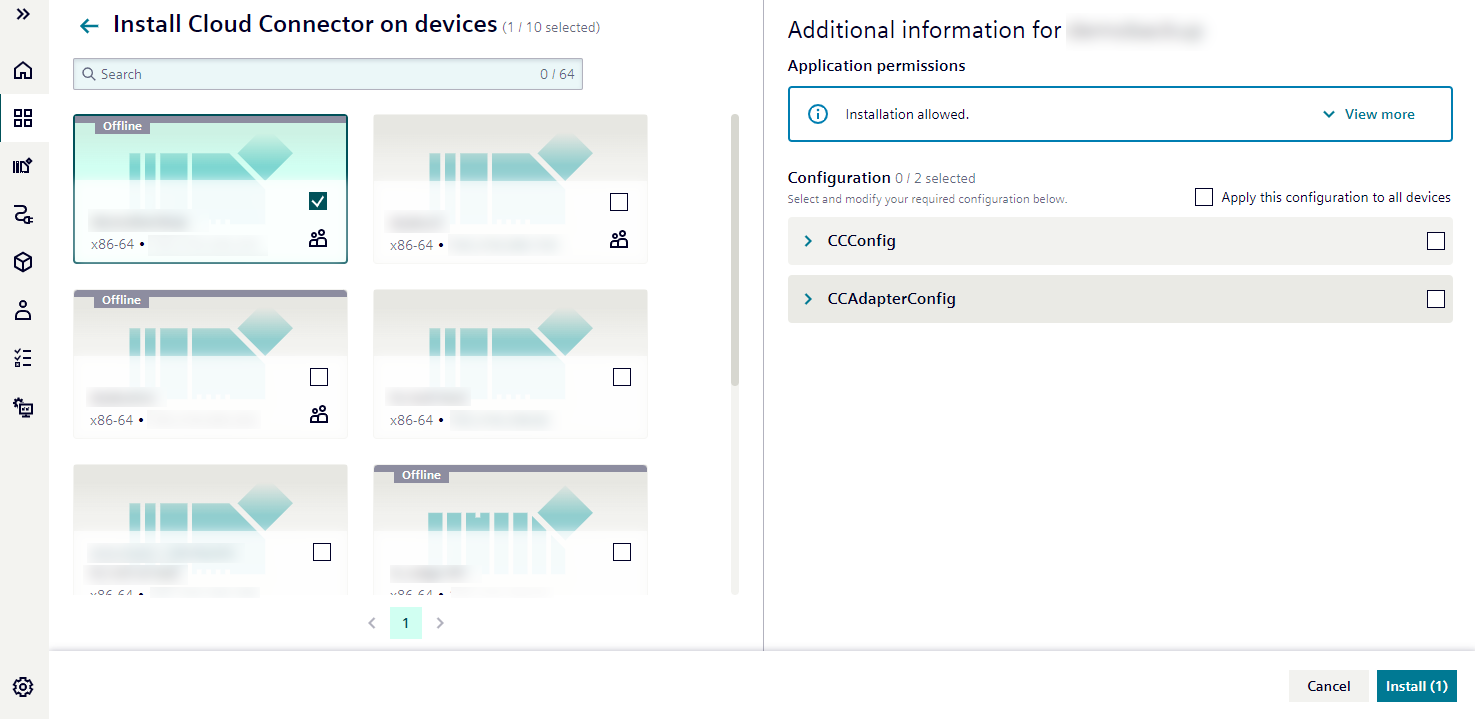
- Select your devices: You will see a list of devices that are compatible with your chosen application's architecture. Simply select the devices where you want to install the app.
- Visual confirmation: As you select devices, their cards will become highlighted, giving you a clear visual confirmation of your choices.
- Configuration panel appears: An information panel will pop up on the right side of your screen. Here, you will find important details like:
- Application permissions: A crucial overview of what the app can do.
- Application version and release notes: Each version comes with its release notes, thoughtfully provided by the app developer. These notes act as a helpful summary of what's new, improved, or fixed in that specific version.
- Configuration options: Specific settings tailored for the selected device.
- Tailor configurations: Need to set up different configurations for different devices? Just change your device selection on the left, and the configuration panel will update to show options for that newly selected device.
Installing multiple applications on one device
If you are focusing on a single device and want to equip it with several applications, this is your go-to method.
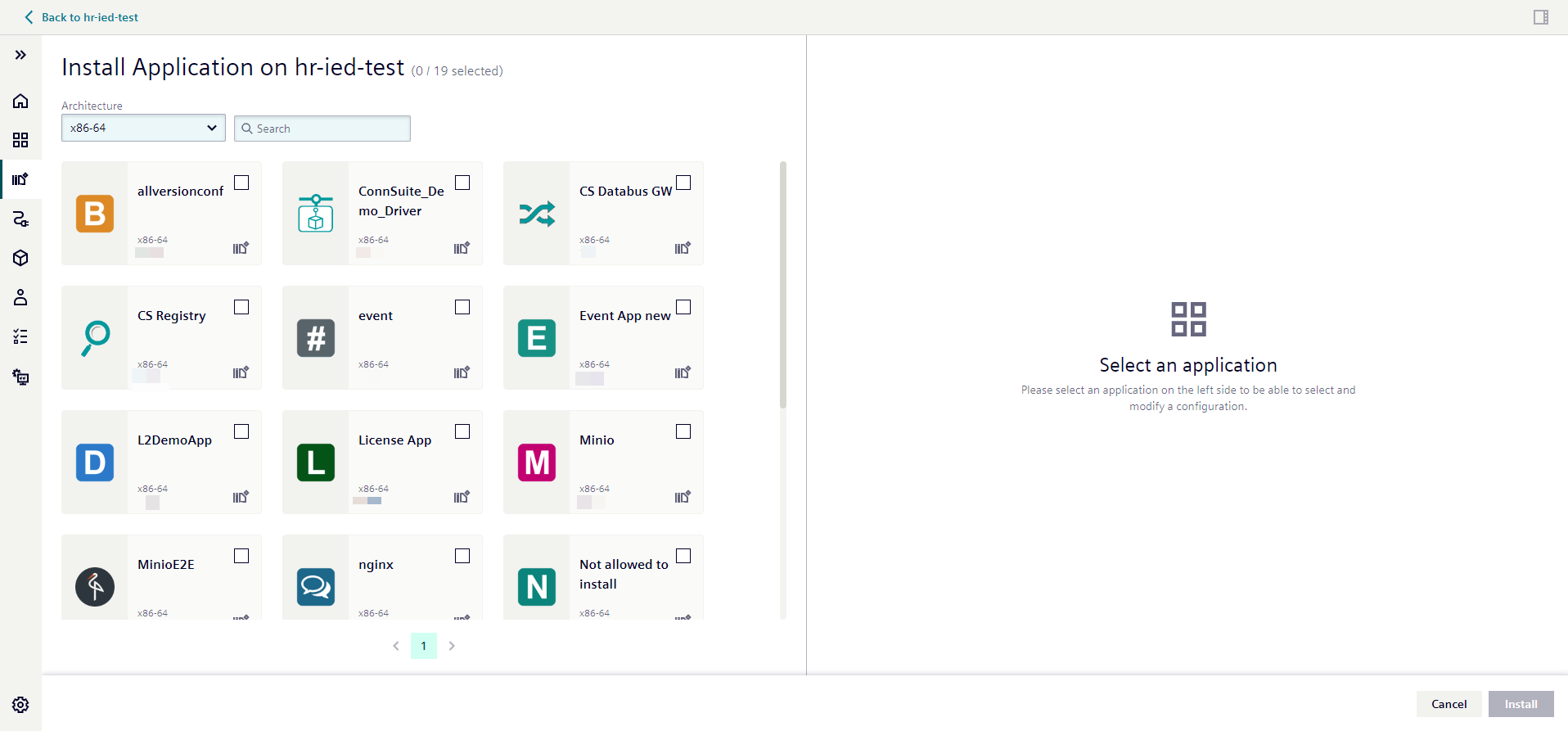
- Select your applications: You will see a list of apps that are compatible with your chosen device's architecture. Pick all the applications you want to install.
- Visual confirmation: The cards for your selected applications will become highlighted, making it easy to track your choices.
- Configuration panel appears: An information panel will appear on the right, displaying:
- Application permissions: What each selected app is allowed to do.
- Application version and release notes: Each version comes with its release notes, thoughtfully provided by the app developer. These notes act as a helpful summary of what's new, improved, or fixed in that specific version.
- Configuration options: Settings specific to the currently highlighted application.
- Configure each app: To adjust the settings for a different application, simply click on its highlighted tile in the selection area.
Application permissions
An application can have three types of permissions: Allowed, Warning or Blocked.
If any app version has Blocked permissions, the device card will show the label Not allowed to be installed and can not be selected for installation. These appversions cannot be selected for installation, ensuring your system's integrity.
Configurations
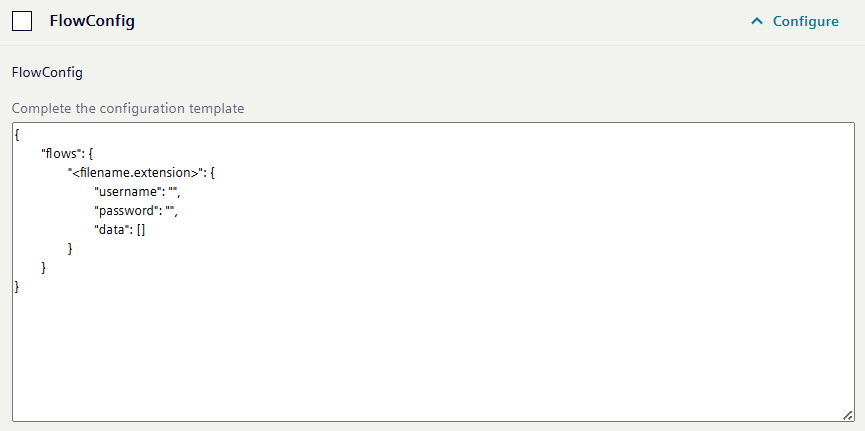
Applications often come with various configuration options to tailor them to your specific needs. These can be:
-
Version based configuration: Setting tied to a particular application version.
-
File based configuration: Configurations managed through specific files.
-
Template based configuration: Settings applied using predefined templates.
Apply configurations
To activate any configuration, simply check the checkbox next to each configuration option or start chaning the configuration directly to automatically apply the configuration before proceeding with the installation.
When installing one application to many devices, you'll find a very helpful option: Apply this configuration to all devices. Checking this box allows you to quickly apply a consistent configuration across all your selected devices, saving you time and effort.
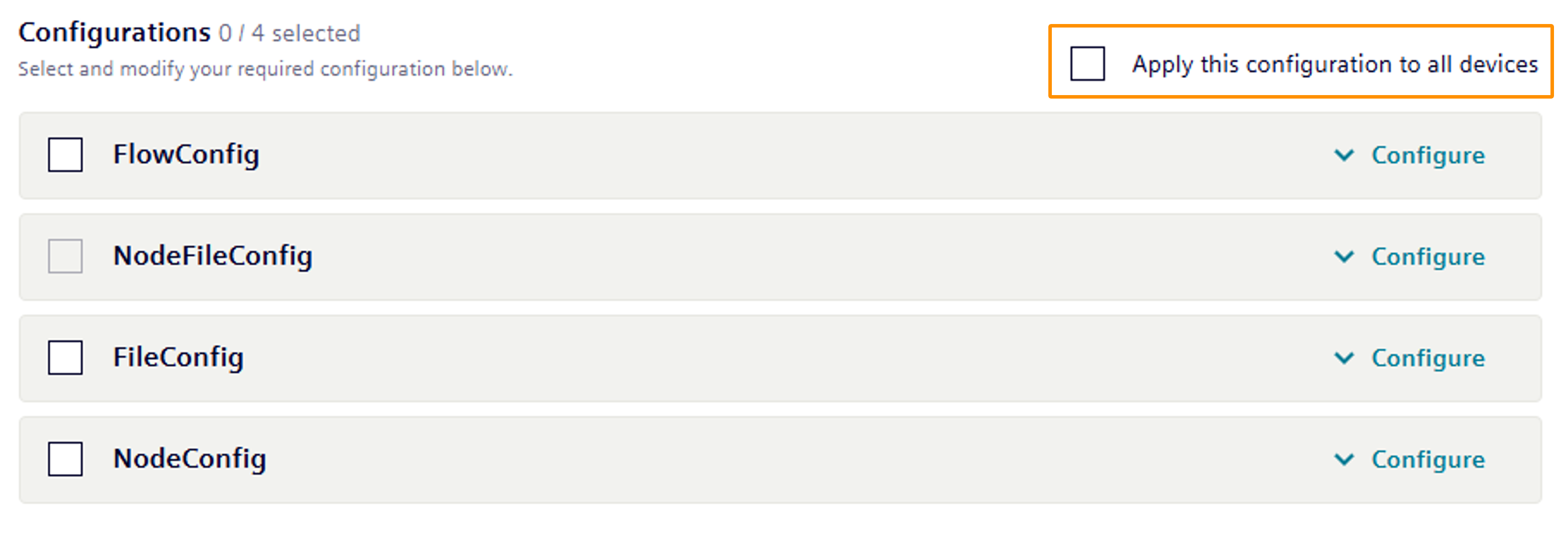
NOTICE
If you try to change a configuration that you have already selected, the system will always prompt you for confirmation. This helps prevent accidental overwrites.
Initiate the installation
Once you've made all your selections and configurations, it's time to initiate the installation! Simply click the Install button.
You will receive a helpful notification at the bottom right of your screen confirming that your installation request has been submitted.
App validation
Before an application is installed on your device, the IEM performs a thorough analysis of its configuration and runtime behavior. This process helps ensure security and compatibility. You will be notified about key aspects such as expected resource claims, requested privileges, and access to networks or volumes.
Here is a breakdown of some important validation messages you might encounter:
Unsupported Docker Compose Version
| Code: | compose_version.IED.warn |
| Summary: | This warning indicates that the application is defined using a Docker Compose specification version that is might not be compatible with the Industrial Edge Device (IE Device). The application might use docker compose features which will not work properly on the device, but the application might still be installable. This might lead to operational inconsistencies. |
| Recommendation: | Update the IE Device firmware to a version that supports this Compose file, or use a compatible version of the app. |
Privileged App from Unverified Vendor
| Code: | privilege_check.warn |
| Summary: | This warning indicates that the application requests elevated system privileges (e.g., privileged: true) and is not published by a verified or trusted vendor. Such permissions can bypass container isolation and access core system resources.td> |
| Recommendation: | Only proceed if you fully trust the app and vendor. Prefer alternatives from verified sources. |
Access to Sensitive Host Volumes
| Code: | volume_check.warn |
| Summary: | This warning indicates that the application is configured to mount sensitive host directories (e.g., /etc, /var/run, /proc) into the container, potentially giving it access to critical system files. The app may read or modify system configuration and runtime data. Access to host volumes can be exploited to escalate privileges or persist malicious code. Additionally, the application originates from an unverified vendor. |
| Recommendation: | Install only if the source is trustworthy. Otherwise, select an alternative or verify the vendor. |
Use of Host Network
| Code: | host_network.warn |
| Summary: | This warning indicates that the application is configured to use the host network (network_mode: host), allowing it direct access to the network stack of the Industrial Edge Device (IE Device). The app can monitor or interfere with network traffic, potentially leaking or altering data. |
| Recommendation: | Use only if necessary and if the vendor is known and trusted. |
Host Process Interaction
| Code: | pid_host.warn |
| Summary: | This warning indicates that the application is configured in a way that allows it to interact with host-level processes or execute commands directly on the host system, leading to potential system instability or compromise. It could exploit host access to escalate its privileges or gain persistence. |
| Recommendation: | Avoid installation unless absolutely required and the vendor is verified. |
Use of Reserved Ports
| Code: | host_port.block |
| Summary: | This error indicates that the application attempts to bind to one or more restricted ports (e.g. 443, ports reserved by the system or used for critical services). These ports are protected to prevent conflicts or security issues on the Industrial Edge Device (IE Device).
Reserved Ports:
22, 80, 443, 4443, 8081, 8443, 9443
2020, 2379, 2380, 4505, 4506
6443, 6783, 6784, 10250, 10255, 10256
|
| Recommendation: | The app developer must reconfigure the port usage to avoid reserved ports. |
Restricted Volume Mounts
| Code: | driver_opts.block |
| Summary: | This warning indicates that the application is configured to mount one or more restricted host directories into its container. These directories typically include sensitive system paths or runtime data that should not be exposed to applications. Additionally, usage of relative or path traversal characters such as ./, ../, $, or .\ is not allowed, as it may lead to unintended access outside the container context. |
| Recommendation: | Update volume definitions to use valid, allowed paths. |
Application Uses Layer 2 Network
| Code: | l2Network.warn |
| Summary: | This warning indicates that the application is configured to operate at the Layer 2 (Data Link Layer) of the OSI model, for example using MACVLAN or similar network drivers. This grants the application low-level access to the device’s network interface and allows it to send or receive Ethernet frames directly. Layer 2 access can be used to perform network sniffing, ARP spoofing, or other attacks. |
| Recommendation: | Use only if absolutely needed and vendor is trusted. |
CPU Core Reservation
| Code: | cpu_core_reservation.warn |
| Summary: | This warning indicates that the application requests exclusive CPU core allocation for certain services or processes. Reserving CPU cores can impact the overall performance and resource availability on the Industrial Edge Device (IE Device). CPU core allocation is typically required for real-time performance guarantees. |
| Recommendation: | Verify the app’s need for this reservation. Confirm the vendor is reliable. |
Exclusive NIC Access
| Code: | privilegedNicAccess.warn |
| Summary: | This warning indicates that the application is requesting exclusive access to a network interfaces (NICs) on the Industrial Edge Device (IE Device). Exclusive NIC access grants the application direct control over the network hardware, bypassing normal sharing and isolation mechanisms. Exclusive access may block other applications or system components from using the network interface. |
| Recommendation: | Confirm necessity with the vendor. Proceed only if they are trusted. |
GPU Resource Reservation
| Code: | gpu_reservation.warn |
| Summary: | This warning indicates that the application requests exclusive or shared access to GPU resources on the Industrial Edge Device (IE Device). Typical use cases include AI applications such as machine learning inference, as well as video processing tasks. |
| Recommendation: | Confirm the resource requirements and trustworthiness of the app provider. |