Browsing Industrial Edge Hub
This section describes how to browse and download applications from Industrial Edge Hub in your IEM.
Overview
With the "Browse Industrial Edge Hub" feature, you can browse and download applications without leaving your IEM.
To open this feature, click "Browse Industrial Edge Hub" in the header of the Device Applications page.
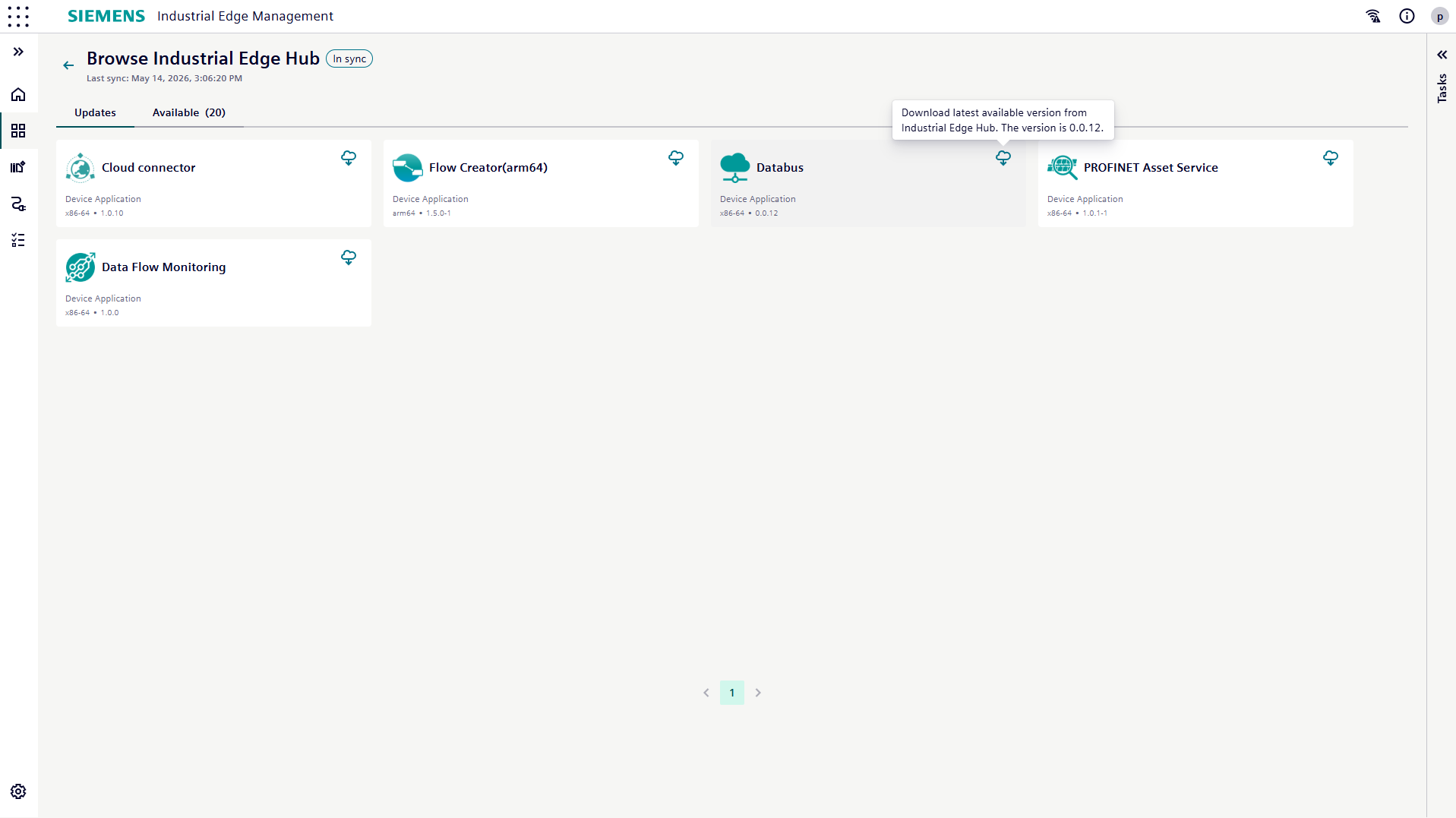
The browse view contains the following tabs:
Update
This tab lists applications that are already available on your IEM and have a newer version in Industrial Edge Hub. For each application, you can see the following information:
- The application name and icon.
- The version available for update.
- The "Download" button.
Use this tab to download the latest version of an application.
Available
This tab lists applications from Industrial Edge Hub that are not yet available on your IEM. For each application, you can see the following information:
- The application name and icon.
- The latest available version. To view the version, hover over "Download".
- The "Download" button.
Downloading an application
To download an application from the "Update" or "Available" tab, proceed as follows:
- Click "Download" on the required application card.
-
A confirmation dialog appears.
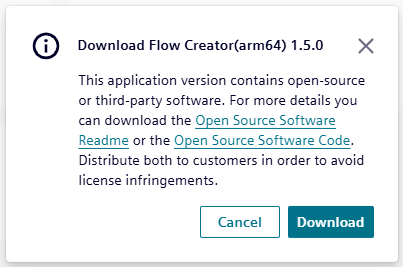
In the dialog, you can also download the following documents:
- Open Source Software (OSS) information
-
Readme documentation
-
Confirm the download to start the process.
Tracking download progress
After the download starts, you can track the progress in the following places:
- Tasks panel: Open the Tasks panel on the right side of the page to see the progress of all active downloads.
- Application cards: The status on the application cards updates automatically.