Setting up a proxy server
With the use of a proxy server, the admin of the IEM (and of Edge Devices) can add, edit and remove proxy rules to redirect specific data traffic. The admin can also disable redirection of specific data traffic through the proxy.
App developers do not need to implement their own proxy settings. The proxy settings described in this procedure apply for all IEM components.
Procedure
-
Click the
Proxytab.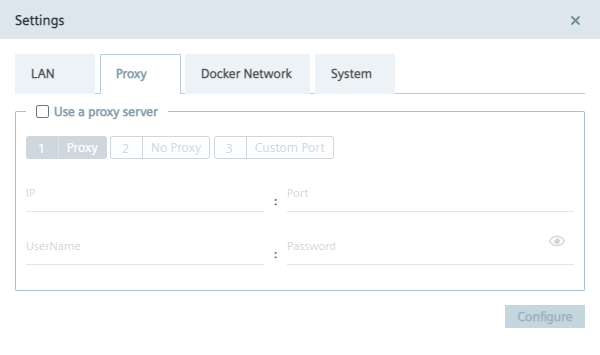
-
To use a proxy server, click the
Use a proxy servercheck box. The input fields for the proxy server settings are enabled. -
Enter the IP address and the corresponding port of the proxy server in the according input fields.
-
If needed, enter username and the corresponding password in the according input fields in case of an additional authentication for the proxy server. When authentication is required, the password must match the following criteria:
- The password must start with an alphabetic character
- The password must not contain complex characters, such as . * `
- The password must not be longer than 21 characters
- The settings apply for HTTP and HTTPS proxy servers.
-
Click
Next. TheNo Proxytab is displayed.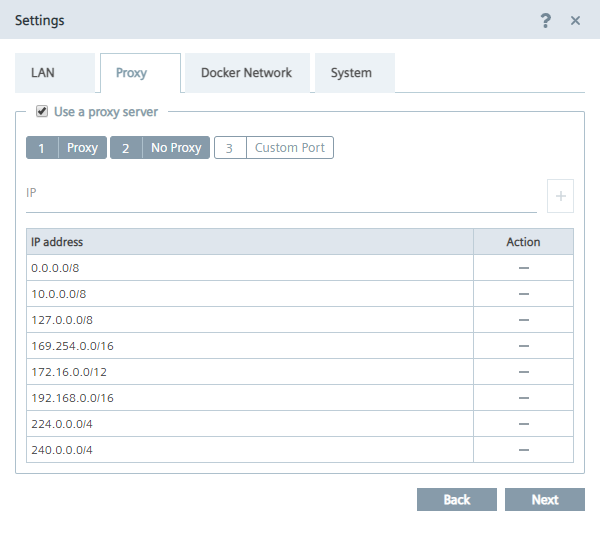 In the
 No Proxytab, add all the IP addresses which shall be accessed directly (without use of proxy). By default, several no proxy addresses are listed which are required by the IEM. -
If you want to add a further IP address which shall be accessed directly, enter the IP address or domain of the no proxy address in the
IPinput field and click the icon.
The address is added to the no proxy list.
icon.
The address is added to the no proxy list. -
Click
Next. TheCustom Porttab is displayed.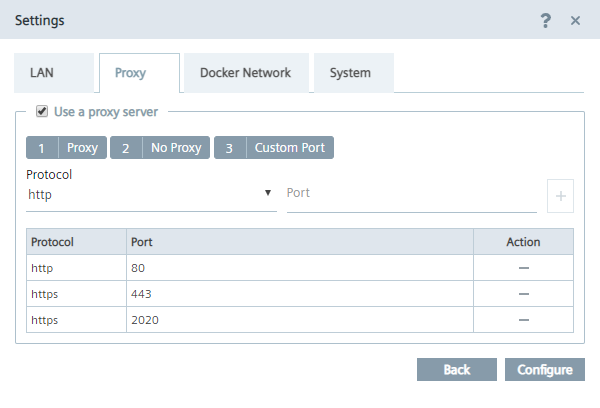 In the
 Custom Porttab, you configure ports for apps which use the configured ports for outgoing communication through the proxy on HTTPS or HTTP protocols. For your apps, use ports between the port range 32768-60999. By default, several ports are listed which are required by the IEM.NOTICE
Default no proxy addresses and ports The default no proxy addresses and ports are essential for running the IEM and cannot be deleted.
-
If you want to add a further port, select the required protocol from the
Protocoldrop-down list and enter the required port. -
To add the port, click the
icon.
The port is added to the port list. -
To add the proxy settings, click
Configure. -
Confirm the proxy settings by clicking
Ok. The proxy settings are saved.NOTICE
Setting up a proxy server after onboarding the Edge Device You can also configure and update the proxy settings after you have onboarded the Edge Device to the IEM. In the Edge Device UI, navigate to the
Settings > Connectivity > Proxy Networksection and set the proxy settings.