Device overview
The device overview page displays all devices of your Industrial Edge Management including the following information:
- Device name
- Architecture
- IP Address
- Status (
Online,OfflineorWaiting for onboarding) - Labels
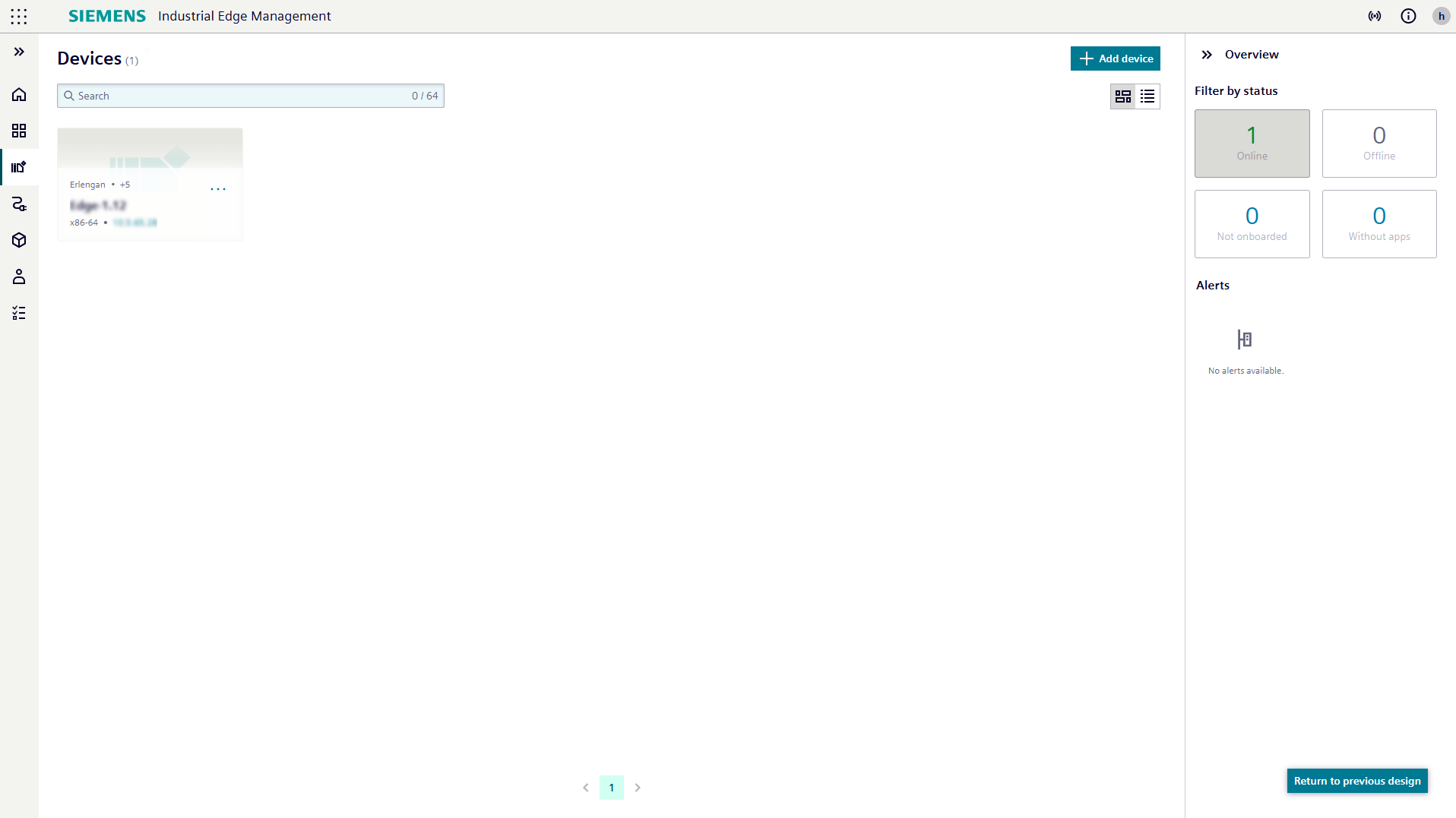
You can onboard a new device clicking on + Add device button.
You can navigate to the respective device details page by clicking on a device card.
Furthermore, for each online device several quick actions are available:
- Manage tags
- Logs
- Backup
- Enable/Disable Identity Federation
To ease your operation, the device overview page offers the following functionality:
- View settings: Switch in between card view and list view
- Filter by status: Online, offline, not onboarded or without apps
- Alerts: Alerts send by the onboarded devices
The device overview page also offers the category search bar, which allows you to filter devices by category, operator and value.
Available Filters for the device overview page include:
- Name: Filter devices by their name.
- i.e.:
Name equals "astana" - Status: Filter devices by their status.
- i.e.:
Status equals "Online" - Architecture: Filter devices by their architecture.
- i.e.:
Architecture equals "ARM" - Labels: Filter devices by their labels.
- i.e.:
Label contains "test"
Category Filter Search Bar (Faceted Search)
The Category Filter Search Bar allows users to perform advanced filtering of a dataset across multiple attributes. It supports multi-attribute searches and the use of logical operators and value-based filtering.
Procedure
- Category selection: When the user clicks on the search bar, a drop-down menu appears listing all the available categories (e.g. Name, Status, Architecture, Label). Users can select a category by typing or clicking..

-
Operator selection: Once a category has been selected, a second dropdown menu appears containing relevant operators, such as:
- Equals
- Does Not Equal
- Contains

-
Criteria selection: Users then select or enter the value(s) for the chosen category and operator. Depending on the field, this can be done via a dropdown menu or free text.

-
Filter chips: Each applied filter is displayed as a chip in the search bar. Clicking on a chip enables users to edit or remove the filter and restart the process from step 1.
Multi-attribute search support
Users can apply filters across multiple categories. These filters are combined using the AND operator.
Example: Name = "astana" AND Status = "Online"

Multi-value filtering for same attribute
Users can specify multiple values for a single category. These are combined using the OR operator.
Example: Architecture = "ARM" OR Architecture = "x86"

Label filter specifics
The Label category supports the following operators:
- Contains
- Equals
- Does Not Equal
NOTICE
The search bar provides auto-suggestions for categories, operators and values as users type.
NOTICE
Although the available categories may differ from page to page, the behavior and logic of the search bar remain consistent throughout the application.