Platform settings
Device backup storage location
The detailed description on how to manage the storage location can be found in Configuration of backup storage.
Device relocation
In this section, devices from an Industrial Edge Management OS (IEM OS) can be imported. This procedure is subject to various prerequisites described in Relocating Edge Devices.
Data collection
Modifying data collection consent
Upon the first login to the Industrial Edge Management, the admin will be presented with a data collection consent prompt. This preference can be modified at any time thereafter.
Follow these steps to view or modify the data collection consent preference:
-
Navigate to
Settingspage: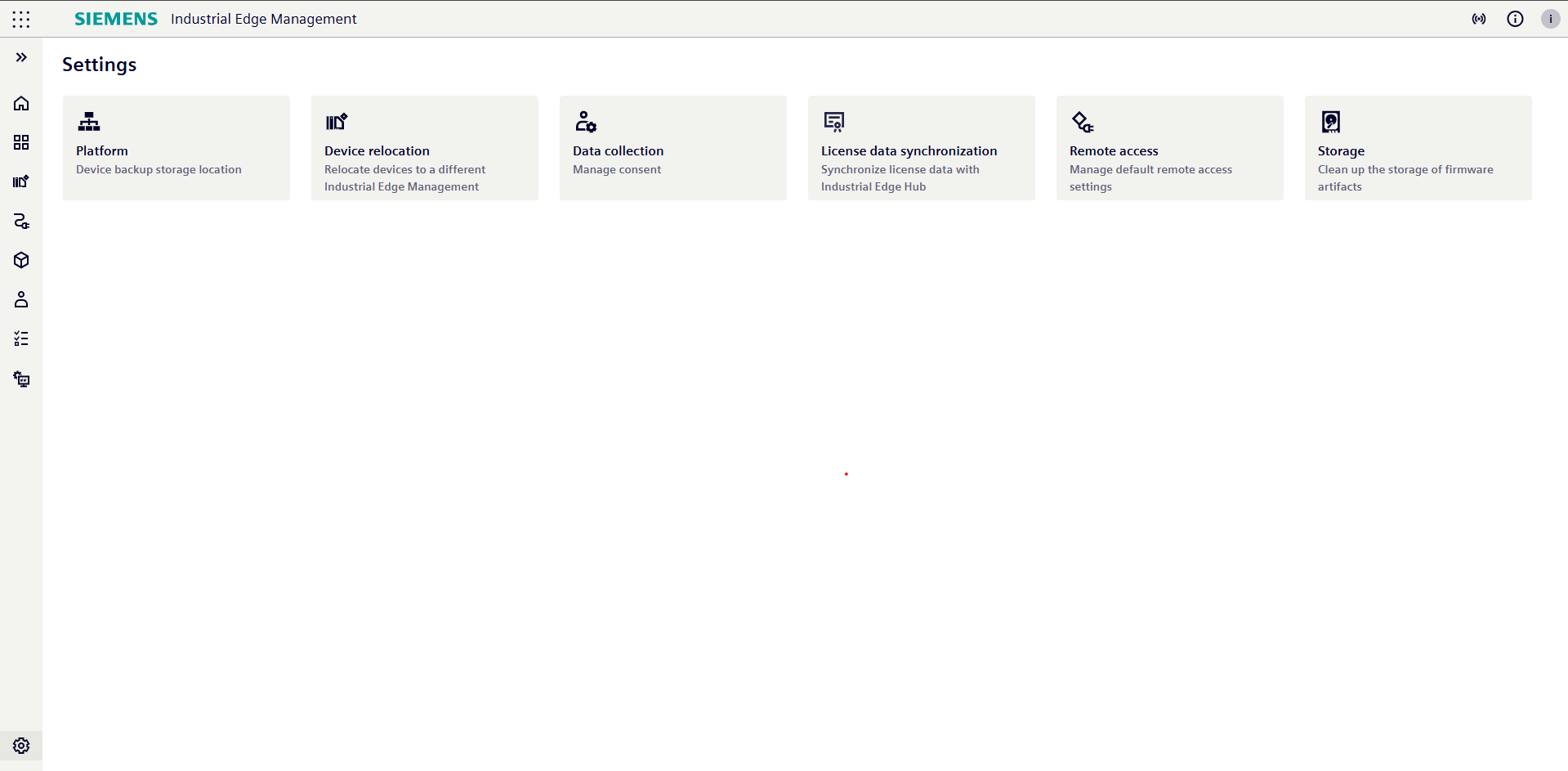
-
Click on
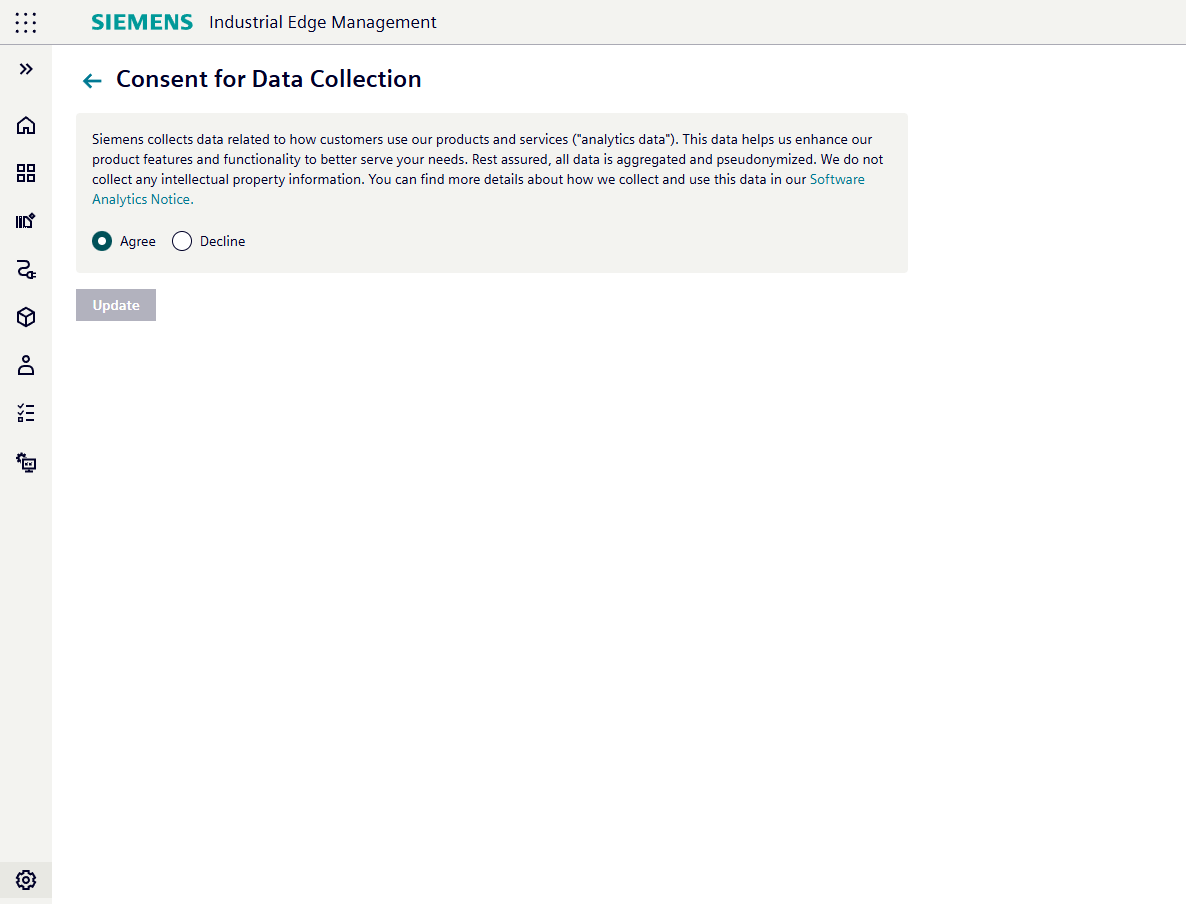
Data collectionto access your consent settings:- To opt in to optional data collection, select the
Agreeradio button and clickUpdate - To opt out of optional data collection, select the
Declineradio button and clickUpdate
- To opt in to optional data collection, select the
Download Industrial Edge Management logs
Should the system appear to be malfunctioning, you can download the compressed IEM logs from link in the top right corner. This will greatly assist Siemens Support with their further troubleshooting efforts.
Remote Access
Expiration Time
This section allows you to configure the default expiration time for device connection sessions. The expiration time setting affects new connections established with remote devices.
Terminate all remote connections
This section displays the current number of active remote device connections and provides the option to terminate all active connections.
Terminating all active connections
-
Navigate to
Settingspage: -
Click on
Remote accessto access the option to terminate all active connections: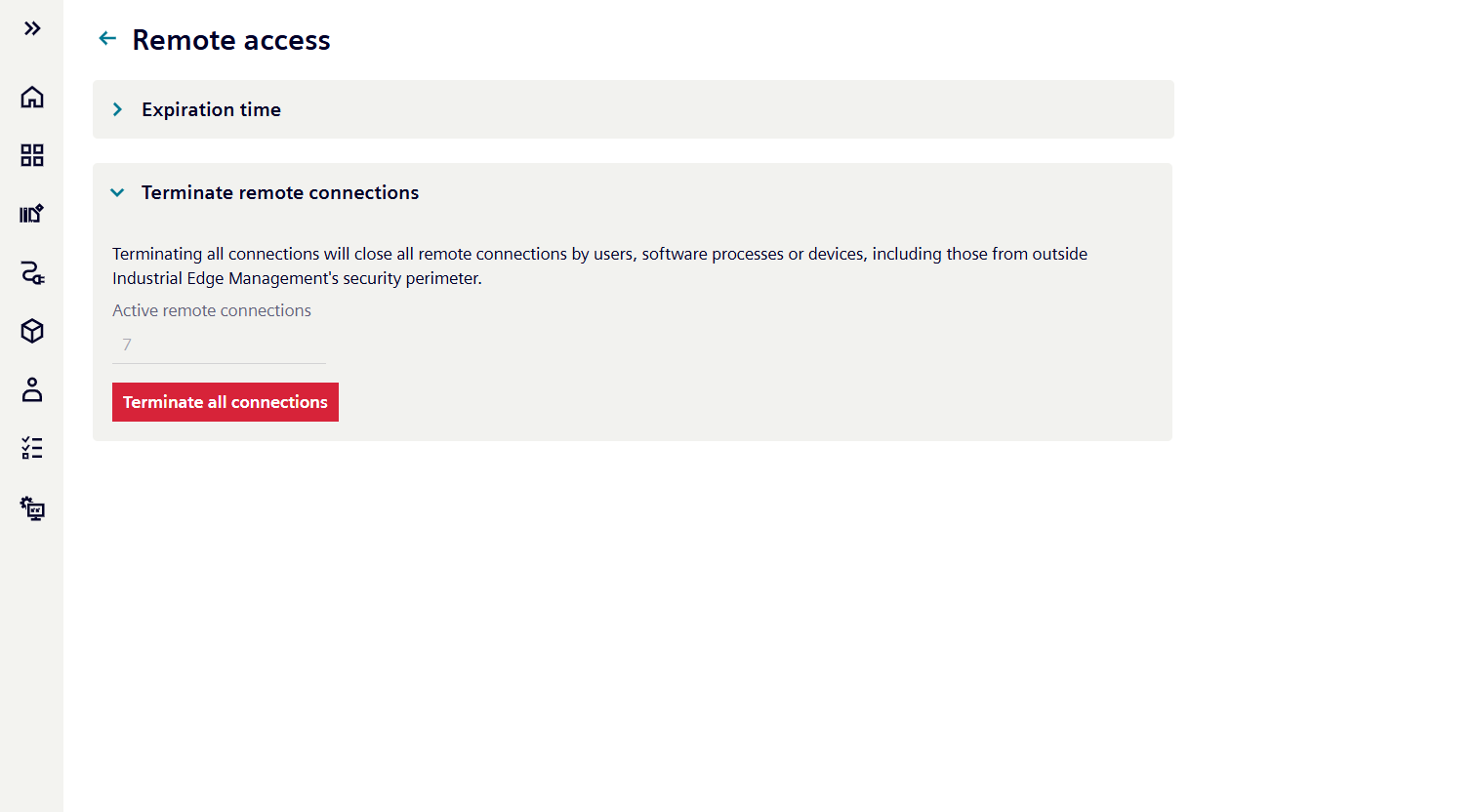
-
Click on
Terminate all connectionsto initiate the termination process for all active remote connections.
Termination Process
The termination process occurs gradually, with connections being closed sequentially.
NOTICE
- The process continues until all connections that were present at the time of initiating the termination have been closed.
- Terminating an active connection with unsaved changes may result in the loss of configuration data.
Storage
The Storage menu provides the capability to manage the storage of firmware artifacts.
Firmware storage management is not available in the IEM Cloud offering, as the firmware image repository is centrally managed within the cloud infrastructure.
Follow these steps to access the storage menu:
-
Navigate to
Settingspage: -
Click on
Storage: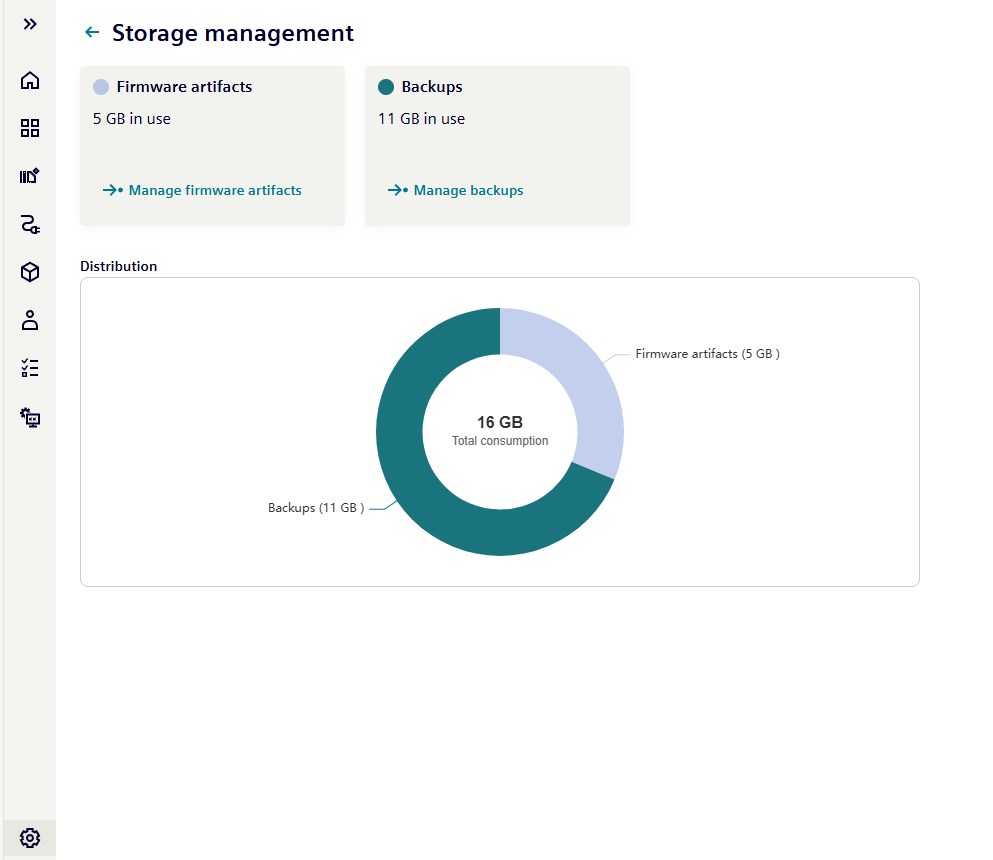
A detailed description for the Storage management can be found in Storage Overview.
Modifying expiration time
Follow these steps to view or modify the Expiration Time preference:
-
Navigate to
Settingspage: -
Click on
Remote accessto access your Expiration Time settings: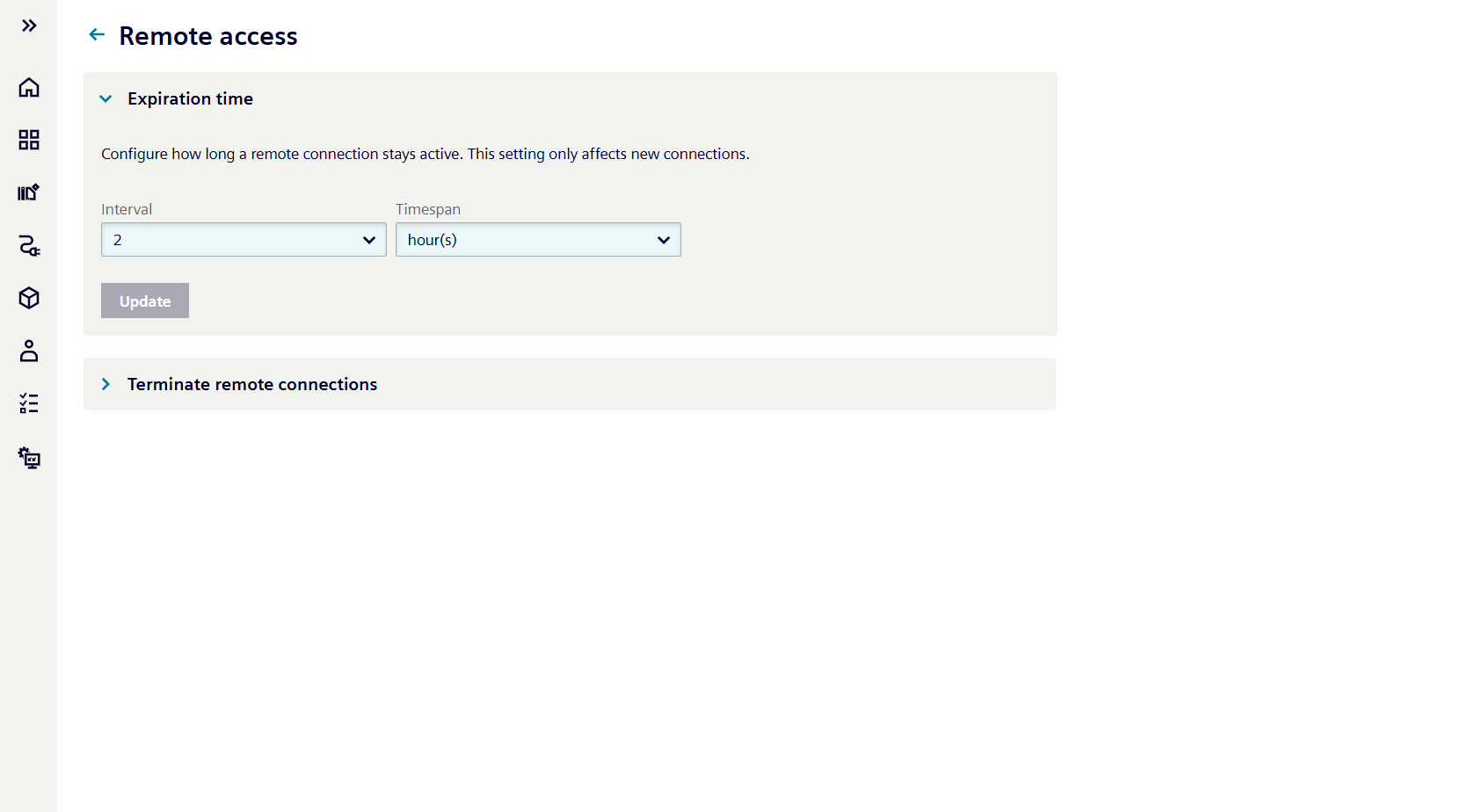
To modify the expiration time:
- Select the desired time unit from the first dropdown menu
- Choose the specific duration from the second dropdown menu
- Click the "Update" button to apply the changes
Available time intervals:
- Hours: 1 to 23
- Days: 1 to 6
- Weeks: 1 to 4
Terminate all remote connections
This section displays the current number of active remote device connections and provides the option to terminate all active connections.
Terminating all active connections
-
Navigate to
Settingspage: -
Click on
Remote accessto access the option to terminate all active connections: -
Click on
Terminate all connectionsto initiate the termination process for all active remote connections.
Termination Process
The termination process occurs gradually, with connections being closed sequentially.
NOTICE
- The process continues until all connections that were present at the time of initiating the termination have been closed.
- Terminating an active connection with unsaved changes may result in the loss of configuration data.
Custom Announcements
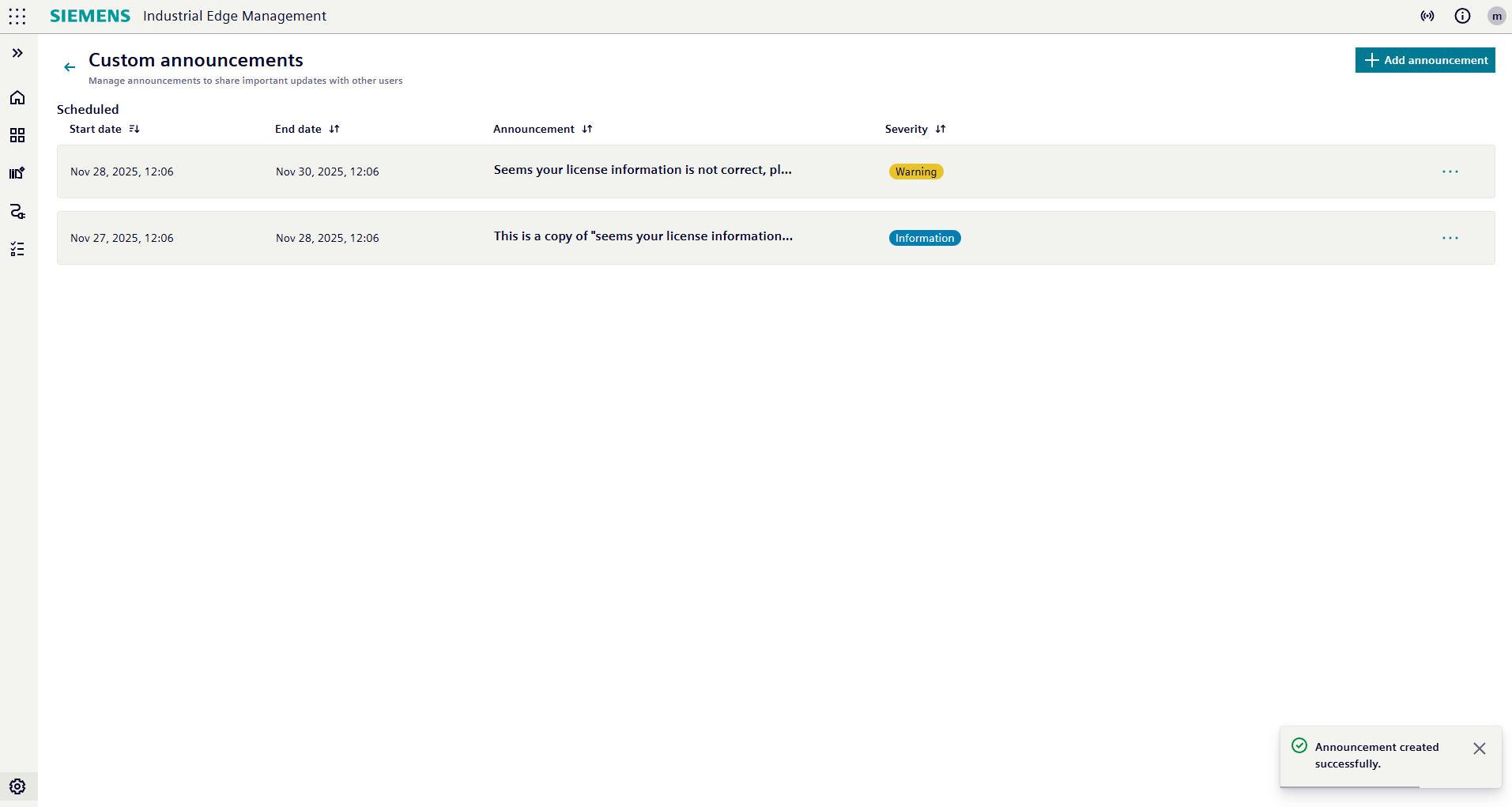
Through the Custom Announcements section, administrators can create and manage custom announcements that will be displayed to users upon login.
Accessing Custom Announcements
-
Navigate to
Settingspage: -
Click on
Custom announcementsto access the list of existing announcements and manage them: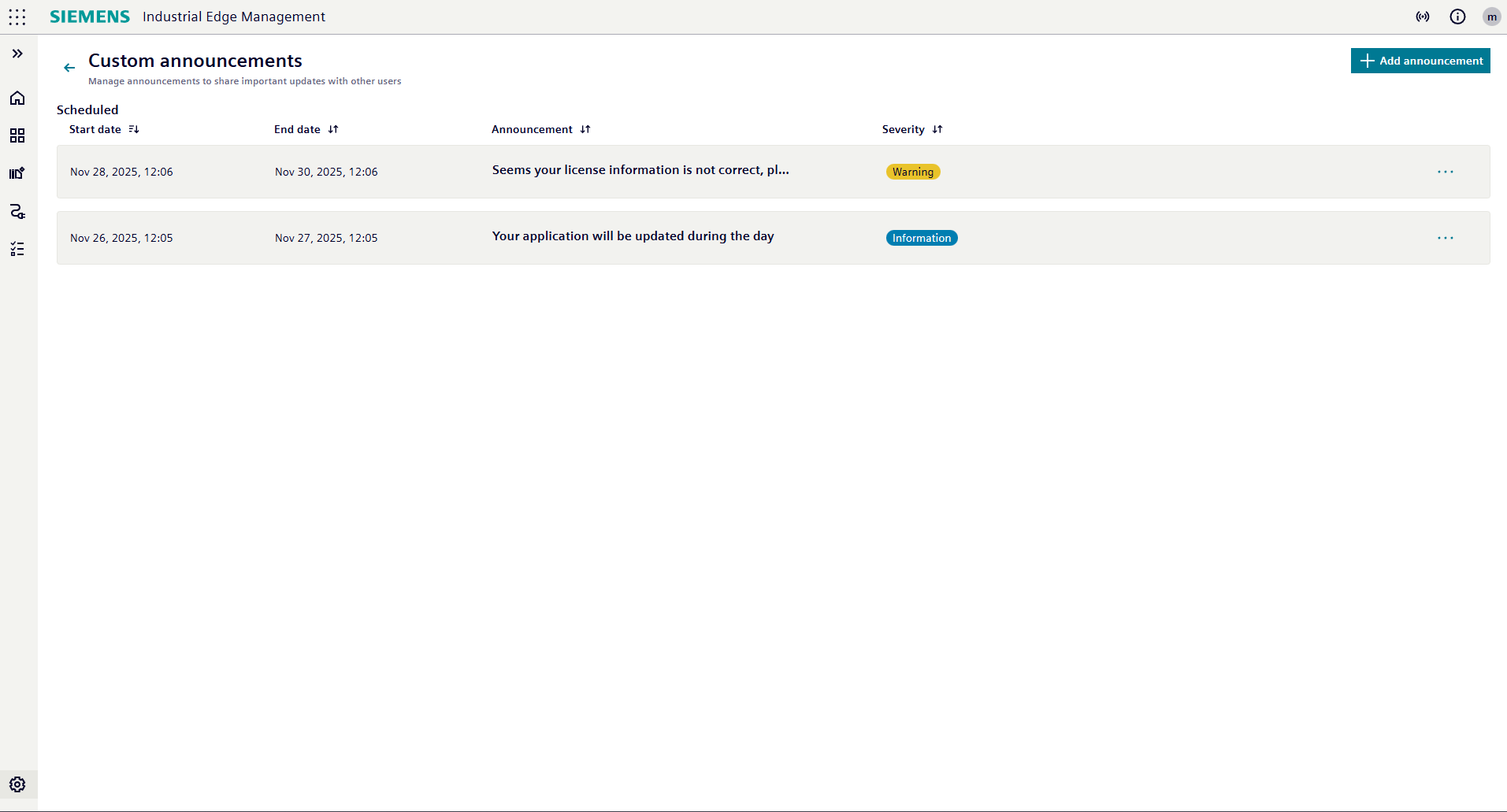
-
Click on
Terminate all connectionsto initiate the termination process for all active remote connections.
Create a Custom Announcement
- Click on
Add announcementto access the form creation page: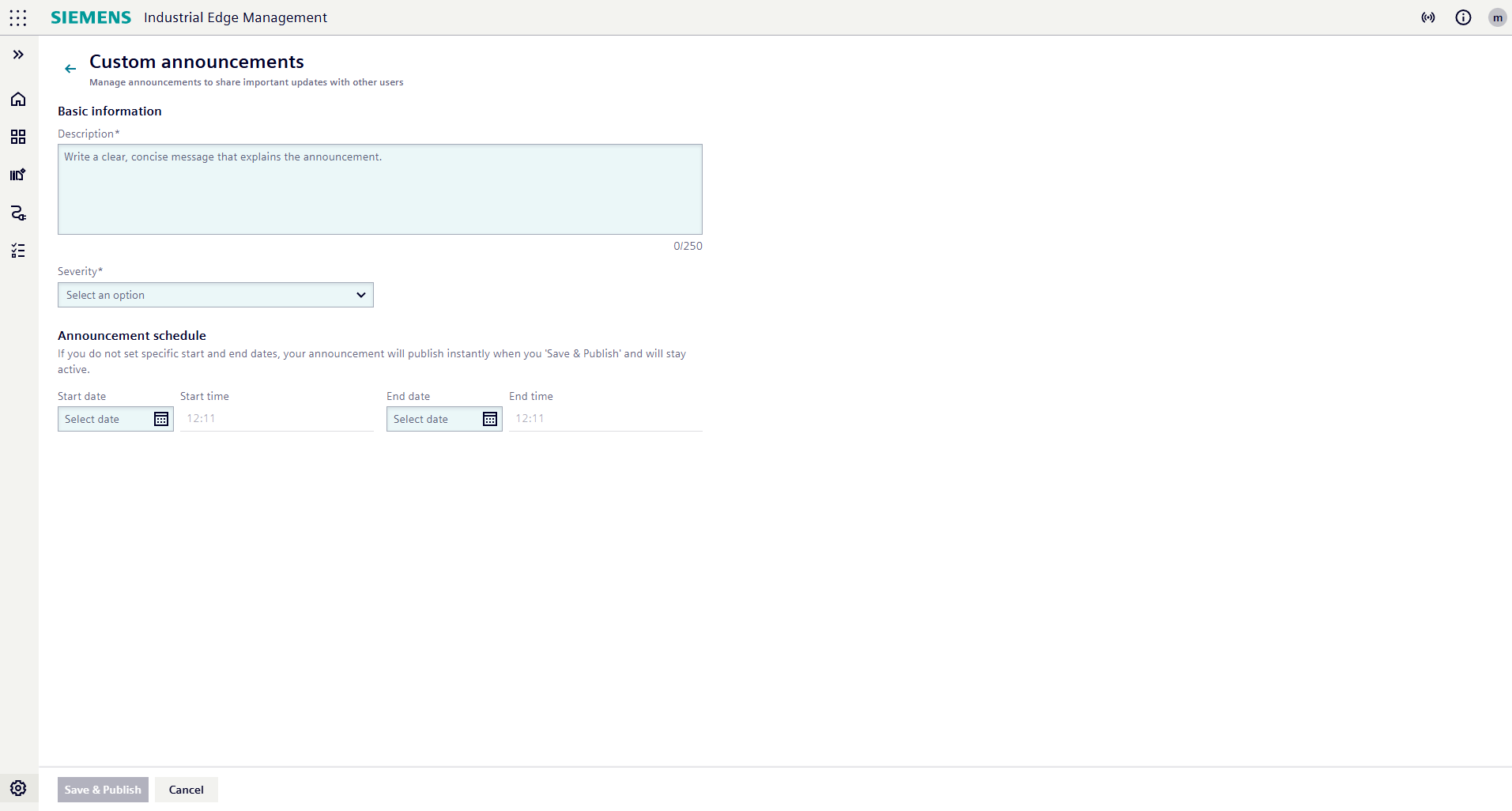
- Fill in the required fields:
- Description: Enter the content of the announcement
- Severity: Select the severity level (Info, Warning, or Critical)
- Announcement Schedule: Define the start and end date/time for the announcement visibility
- Click on
Save & Publishto save the announcement and make it visible to users upon login if the time slot is within current time. - The newly created announcement will now appear in the list of announcements.
- If click on
Cancel, the announcement will not be saved, and you will be redirected back to the list of announcements.
NOTICE
- A limit of 10 active announcements can be created at any given time.
- Onle one announcement can be created within a time slot.
- Announcements with "Info" severity will be displayed with a blue background, "Warning" with yellow, and "Critical" with red.
- All the active announcements will be displayed to users before login in the order of severity (Critical, Warning, Info) and then by start date/time (earliest first).
Edit a Custom Announcement
- In the list of announcements, locate the announcement you wish to edit.
- Click on the announcement to access the edit form page:
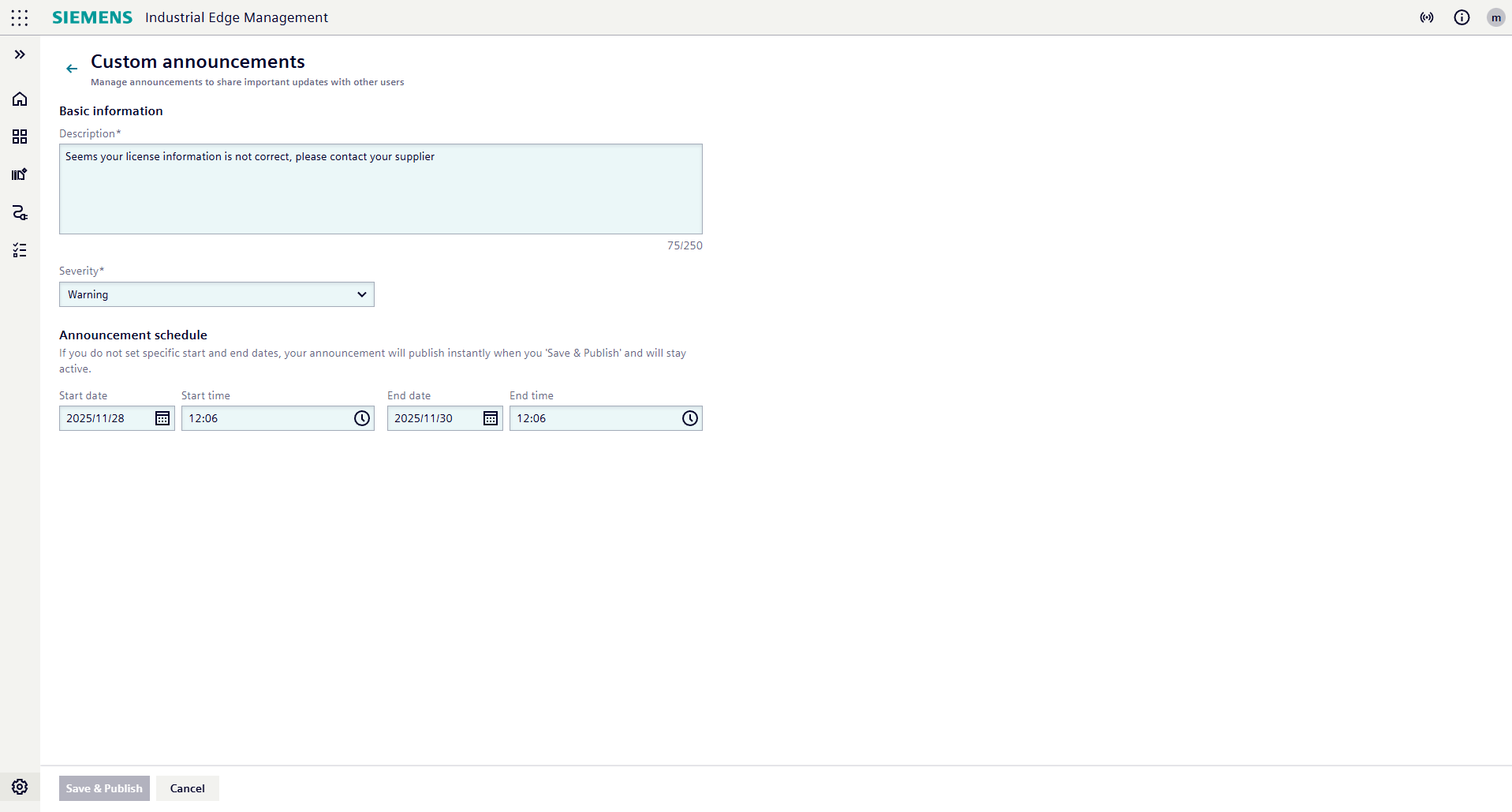
- Modify the desired fields:
- Description: Modify the content of the announcement
- Severity: Select the severity level (Info, Warning, or Critical)
- Announcement Schedule: Change the start and end date/time for the announcement visibility (in this case Start date/time can be leaved as past date/time)
- Click on
Save & Publishto save the announcement and make it visible to users upon login if the time slot is within current time. - The newly modified announcement will now appear in the list of announcements.
- If click on
Cancel, the announcement will not be changed, and you will be redirected back to the list of announcements.
Delete a Custom Announcement
- In the list of announcements, locate the announcement you wish to delete.
- Click on the three dots icon corresponding to the announcement to open the action menu.
- Click on the trash bin icon corresponding to the announcement:
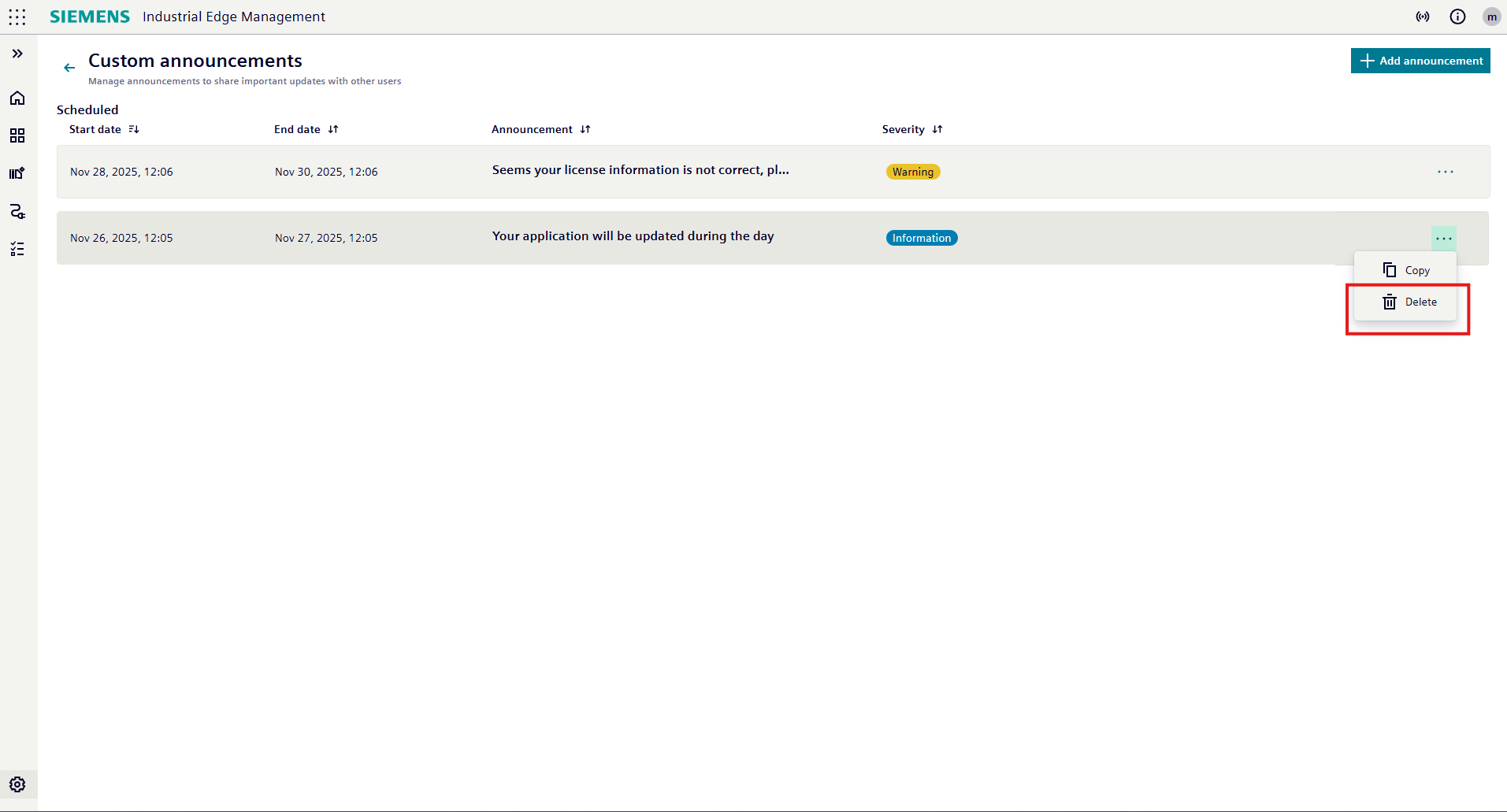
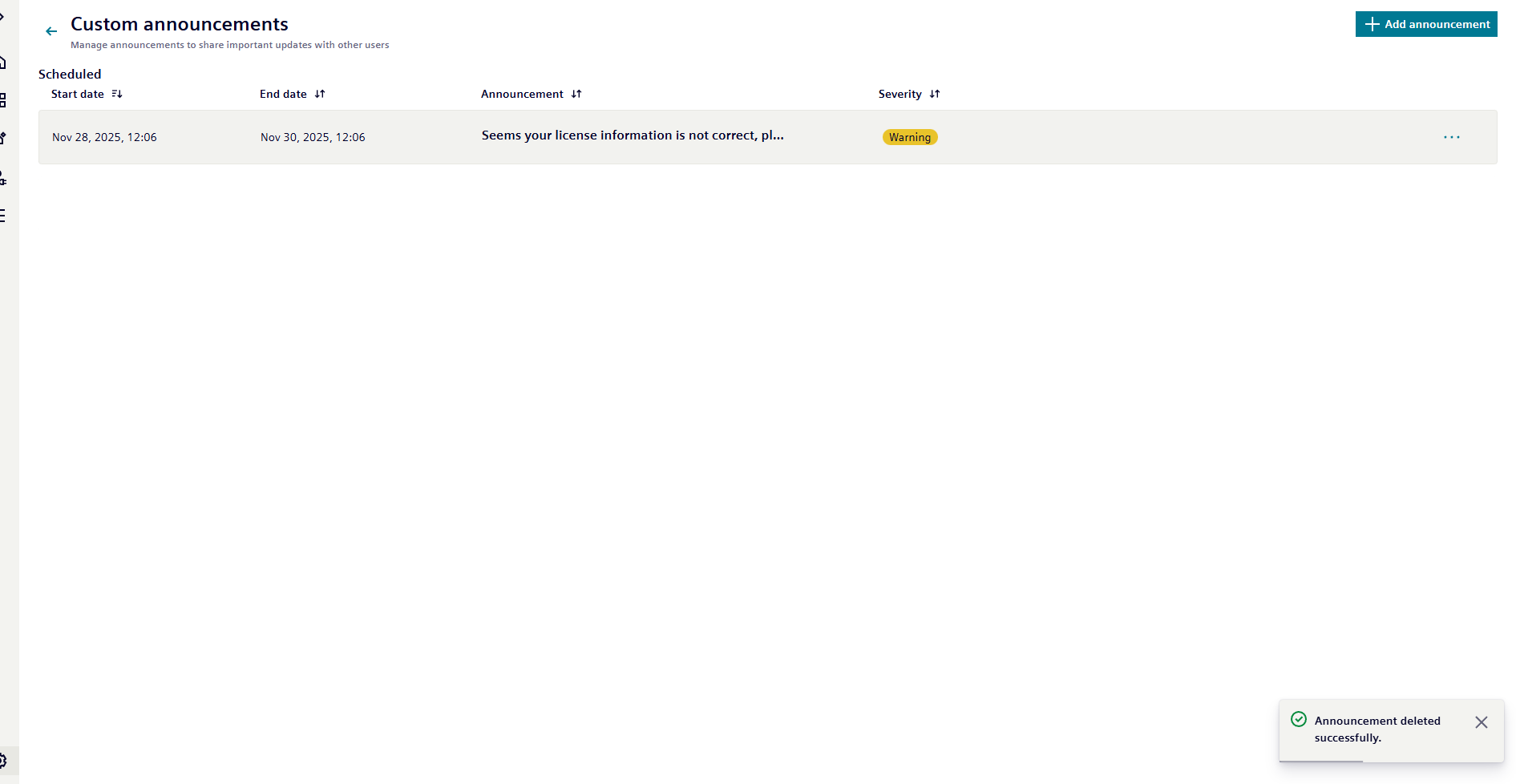
- After clicking the trash bin icon, a notification pop-up will appear at the bottom of the screen indicating that the announcement has been deleted successfully.
Copy an existing Custom Announcement
- In the list of announcements, locate the announcement you wish to copy.
- Click on the three dots icon corresponding to the announcement to open the action menu.
- Click on the copy icon corresponding to the announcement:
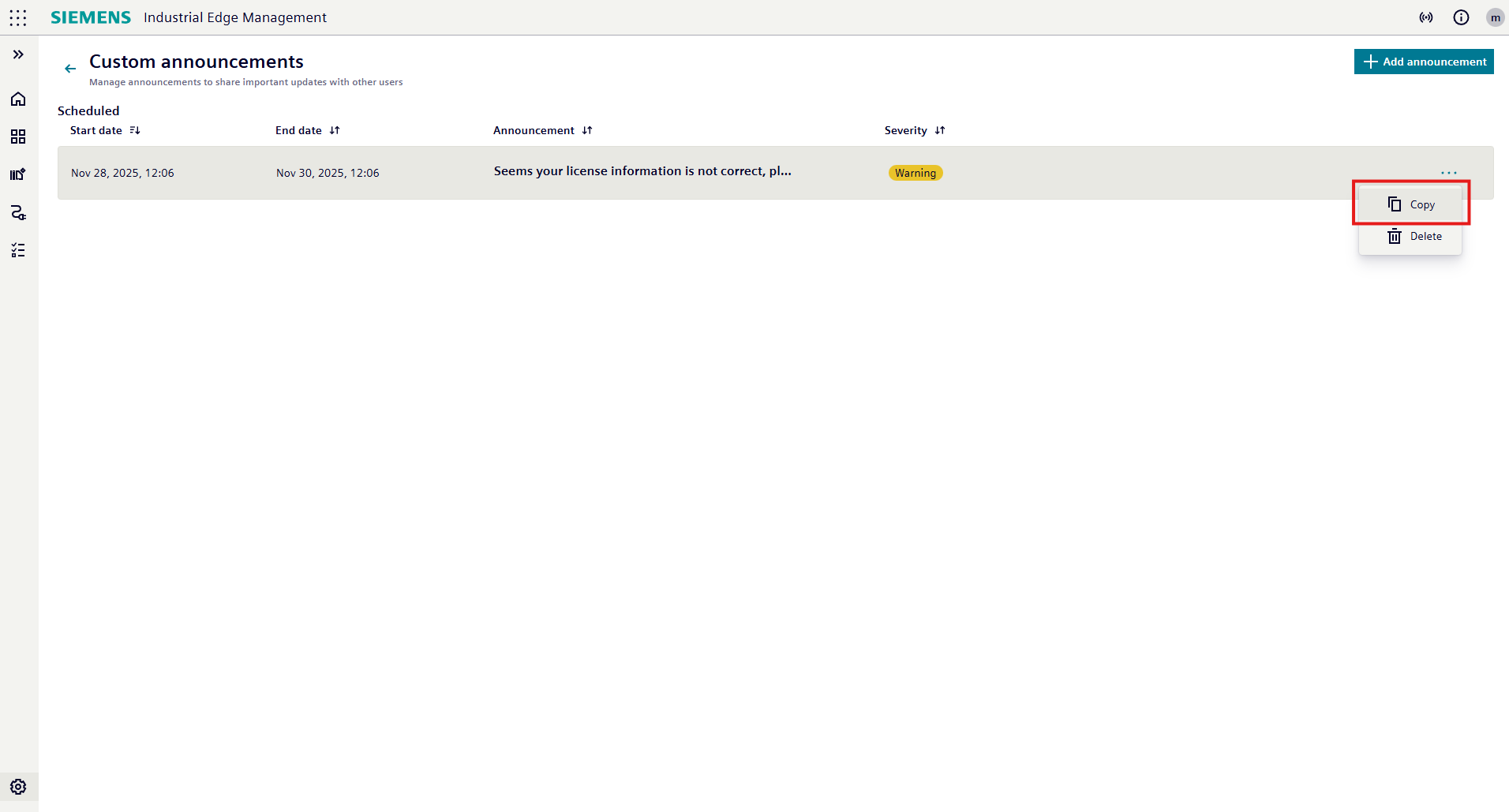
- After clicking the copy icon, you will be redirected to the announcement creation form with all fields pre-filled with the data from the copied announcement.
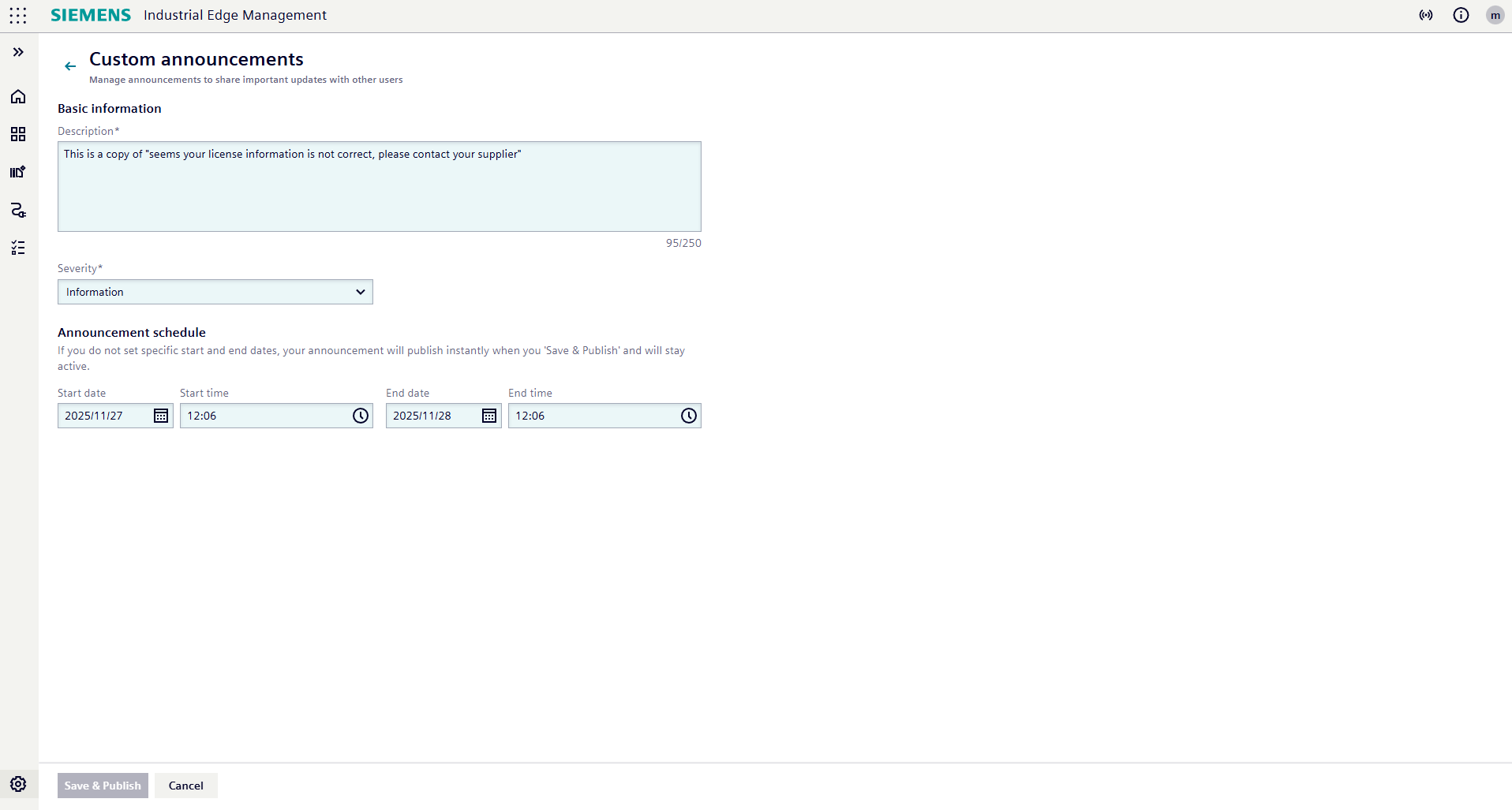
- Modify any desired fields:
- Description: Modify the content of the announcement
- Severity: Select the severity level (Info, Warning, or Critical)
- Announcement Schedule: Define the start and end date/time for the announcement visibility
- Click on
Save & Publishto save the new announcement and make it visible to users upon login if the time slot is within current time. - The newly created announcement will now appear in the list of announcements.
- If click on
Cancel, the announcement will not be saved, and you will be redirected back to the list of announcements.