Network Time Protocol (NTP) Settings
Overview
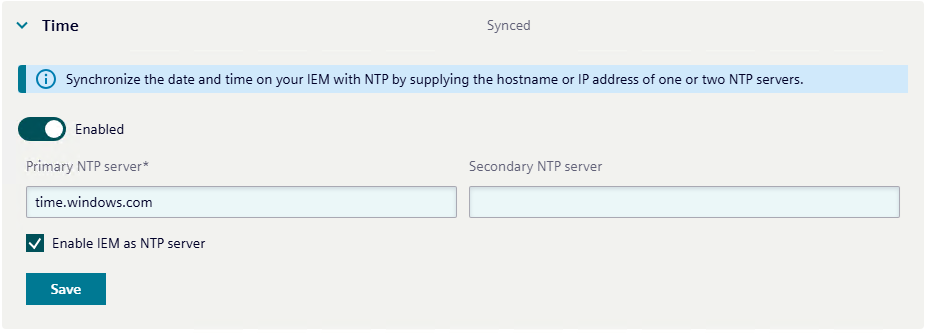
On the Service and Maintenance UI page under Time, Network Time Protocol (NTP) settings can be configured for the IEM Virtual VM. Proper time synchronization is critical for IEHub connectivity, cluster health, log accuracy, and security. This page is used to set NTP servers and control whether IEM Virtual provides time services to other devices in the environment.
Time sync status
The Time panel shows the current synchronization status:
- Synced - The system clock is synchronized with the configured NTP server(s).
- Not synced - The system clock is not synchronized with the configured NTP server(s).
- Syncing - The system clock is in the process of synchronizing with the configured NTP server(s).
- Not Configured - No NTP servers are configured.
Configure NTP servers
- It is recommended to configure at least one NTP server.
Prerequisites
To configure NTP, host time sync must be disabled in the hypervisor. This is required to avoid time conflicts between the hypervisor and IEM Virtual when synchronizing with NTP servers. If host time sync is enabled, the following restrictions apply:
- Until host time sync is disabled, the Enable NTP UI is grayed out.
- In case of the updated system, if NTP servers are already configured, the values are not changeable (can only be disabled) until host time sync is disabled in the hypervisor.
Follow the steps for the relevant hypervisor: VMware or Hyper-V.
Unreachable servers
- If Primary NTP server is not reachable, the system automatically attempts to connect to Secondary NTP server.
- If both servers are unreachable, a warning is shown. The provided NTP servers are still saved and can be used once the servers become reachable.
- If the NTP servers become unreachable after being saved, the system continues to use the last known good time source until the servers become reachable again or new servers are configured. Also the status changes to Not synced after a certain timeout.
Enable IEM as NTP server
- Select Enable IEM as NTP server to make the IEM Virtual VM act as an NTP server for other devices.
- IEM as NTP server requires a reachable upstream NTP server.
- If IEM as NTP server was already enabled and the upstream server is switched to an unreachable one, the setting remains enabled, and a warning is shown.
- If IEM as NTP server is newly enabled with an unreachable upstream server, IEM Virtual rejects the request and shows a warning to retry with a reachable server.
Remove NTP servers
When the NTP servers are removed, the system clock will no longer synchronize with any NTP server. The status changes to Not configured. In order to keep the time it is advised to enable host time sync in the hypervisor when NTP servers are removed.
- VMware: Disabling NTP in IEM Virtual automatically enables host time sync in VMware. Host time sync must be disabled again before NTP is reconfigured. See VMware.
- Hyper-V: IEM Virtual cannot control Hyper-V host time sync. When NTP is disabled, Hyper-V host time sync settings must be reviewed to avoid time conflicts. See Hyper-V.
- Unsupported hypervisors: No host time sync restrictions are enforced. Time sync conflicts may still occur until official support is available.
Important Notes
- Removing NTP servers does not automatically enable host time sync in Hyper-V or unsupported hypervisors. Manual enabling is required to maintain accurate time.
- If host time sync is not enabled after removing NTP servers, the system clock may drift over time, leading to potential issues with IEHub connectivity, cluster health, log accuracy, and security.
- When the NTP servers are unreachable/removed and host time sync is also disabled, the system clock will continue to run based on its internal hardware clock. If the system shuts down or restarts, the clock may reset to an incorrect time(last known time) until it can synchronize with an NTP server or host time sync is enabled.
- Automatic logout may occur if the time changes significantly due to NTP server changes or host time sync settings.
How to enable/disable Host Time Synchronization
VMware
The exact labels can vary by vSphere version. VM configuration permissions are required.
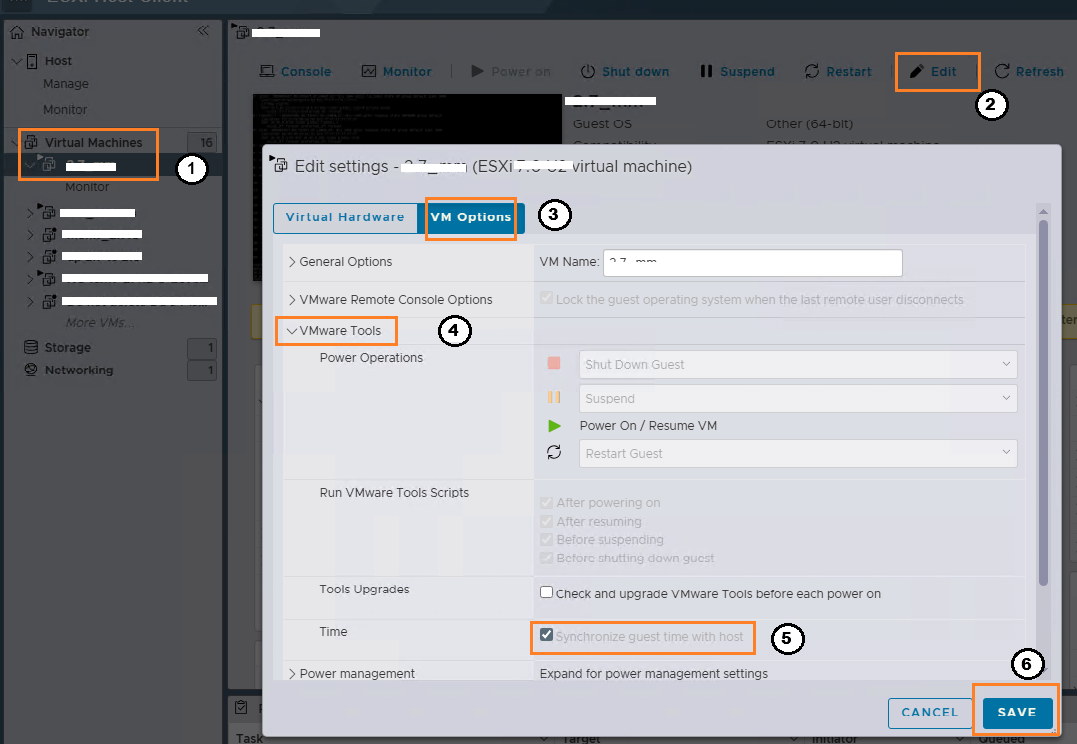
- Open vSphere Client/ESXi Host Client and select the IEM Virtual VM.
- Go to Edit Settings.
- Open VM Options
- Expand VMware Tools > Time.
- Toggle Synchronize guest time with host:
- Checked to turn host time sync on.
- Unchecked to turn host time sync off.
- Click Save to apply the changes.
Hyper-V
IEM Virtual cannot control this setting; changes must be made in Hyper-V Manager.
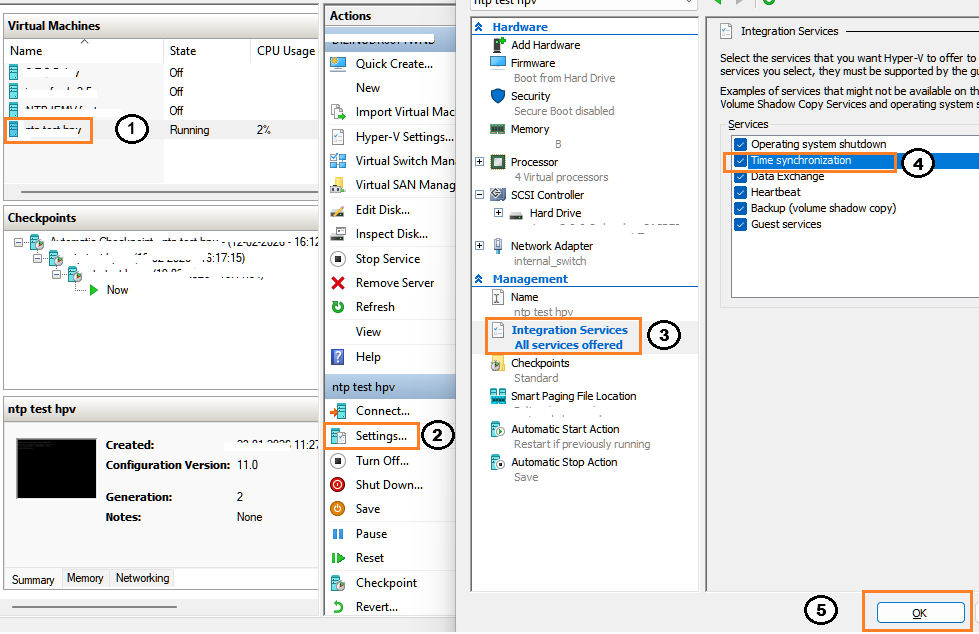
- Open Hyper-V Manager and select the IEM Virtual VM.
- Go to Settings.
- Select Integration Services.
- Toggle Time synchronization:
- Checked to enable host time sync.
- Unchecked to disable host time sync.
- Click OK to apply the changes.