Application installation journey
Introduction
This topic explains how Installation Guidance affects application installation in IEM. It describes the installation workflow, how IEM evaluates the rules in the background, and the possible results shown to the user. This is applicable for IEM Pro V2 only.
This topic is relevant only if the selected application version has an Installation Guidance bundle uploaded in IE Hub. In that case, IEM evaluates the bundle when the user starts the regular installation flow from the IEM UI.
If no Installation Guidance bundle is available for the selected version, use the regular installation flow only. For the standard installation steps in IEM, see Install Device Applications.
Prerequisites
Before the installation starts, the target application version must have an Installation Guidance bundle uploaded in IE Hub. The bundle contains the rules that IEM evaluates during installation.
To prepare the bundle, see How to create a Rego bundle and How to get the application ID.
NOTICE
Installation Guidance rules are defined by the application developer and uploaded in IE Hub. The user encounters these rules only when starting an installation from the IEM UI for an application version that contains such a bundle.
Application installation workflow
When a user starts the installation in IEM, the system evaluates the Installation Guidance rules for the selected application version. IEM checks whether the defined conditions are met in the current environment.
The installation workflow consists of the following steps:
- Open IEM Pro V2.
- Select the application to install and select the device.
- Start the installation.
- IEM evaluates the Installation Guidance rules in the background.
- Review the result shown by IEM.
- Continue the installation or resolve the reported issue.
How IEM evaluates the rules
During installation, IEM performs the following checks:
- It reads the Installation Guidance bundle linked to the selected application version.
- It evaluates the defined rules in the backend.
- It checks the current environment against the required conditions.
The rules can check, for example:
- Application dependencies
- Version requirements
- Warning conditions
- Blocking conditions
Possible outcomes
After the evaluation, IEM shows one of the following results:
Installation continues
If all required conditions are met, the installation continues.
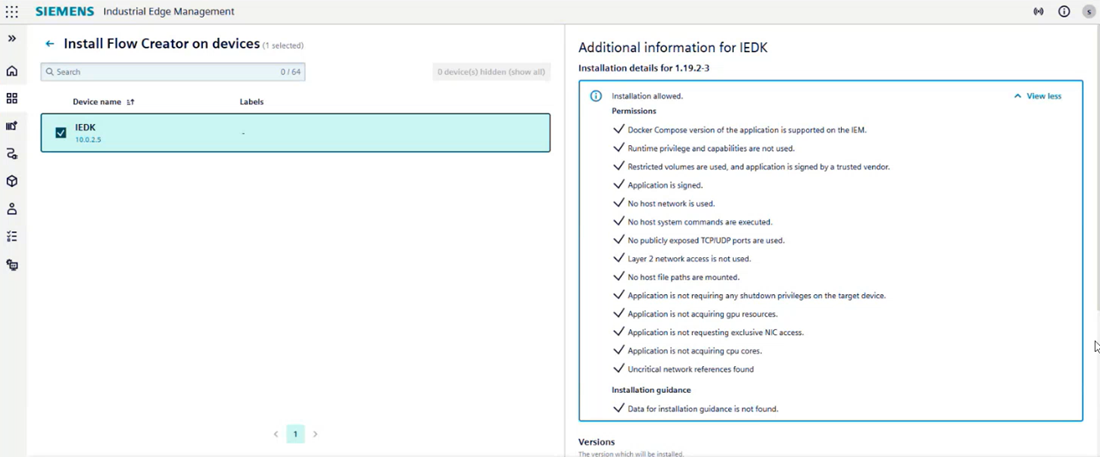
Installation continues with a warning
If a warning condition is met, IEM shows a warning message before the user continues.
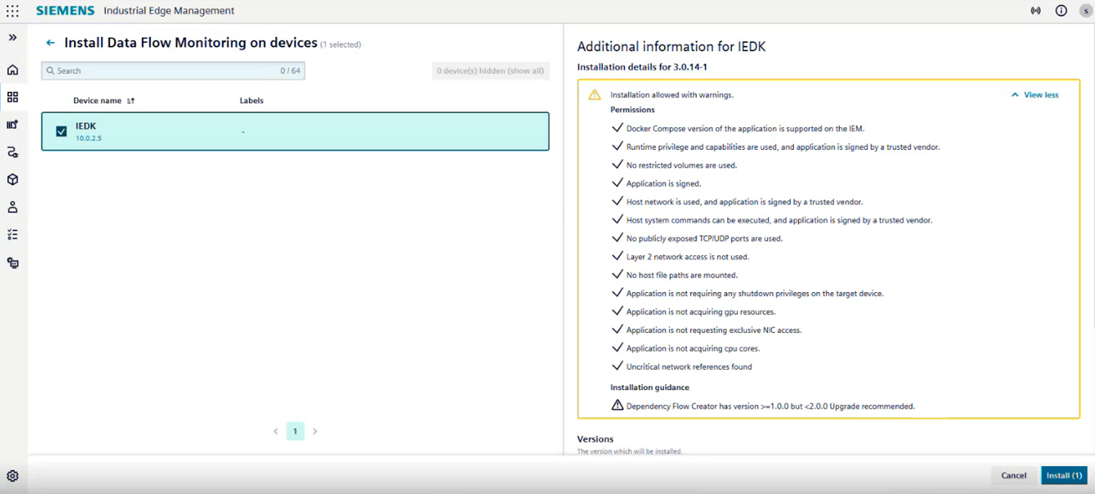
The user can review the warning and decide whether to continue.
NOTICE
A warning informs the user about a condition but does not block the installation.
Installation is blocked
If a required condition is not met, IEM blocks the installation until the issue is resolved.
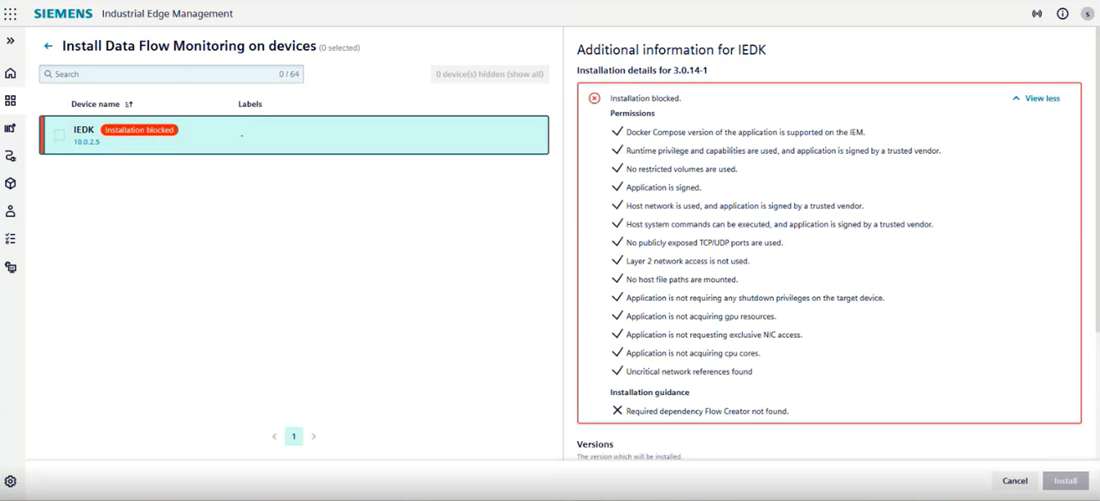
The user must review the message and take the required action. Typical actions include installing a required dependency, updating a dependency to the correct version, or resolving configuration issues before retrying the installation.
Message handling
The messages shown in IEM are defined in the Installation Guidance bundle. These messages must be clear and actionable so that users understand what to do next. For message-writing guidance, see UI messaging guidelines.
Conclusion
Installation Guidance helps make the application installation process more predictable by checking defined conditions before deployment.