How to Upload an Installation Guidance Bundle to IE Hub
Introduction
After you create an Installation Guidance bundle, upload it through IE Hub for the required application version. This topic explains where to upload the bundle, what status messages can appear, and what actions are available after upload.
This upload is a preparation step for a specific application version.
Prerequisites
Before you upload the bundle, make sure that the following prerequisites are met:
- You created the Installation Guidance bundle in
.tar.gzformat. For more information, see How to create a Rego bundle. - You have the application ID required for the bundle configuration. For more information, see How to get the application ID.
- You have permission to update the application version.
NOTICE
The bundle size should not exceed 2 MB.
Upload Location
Upload the bundle through IE Hub at version level:
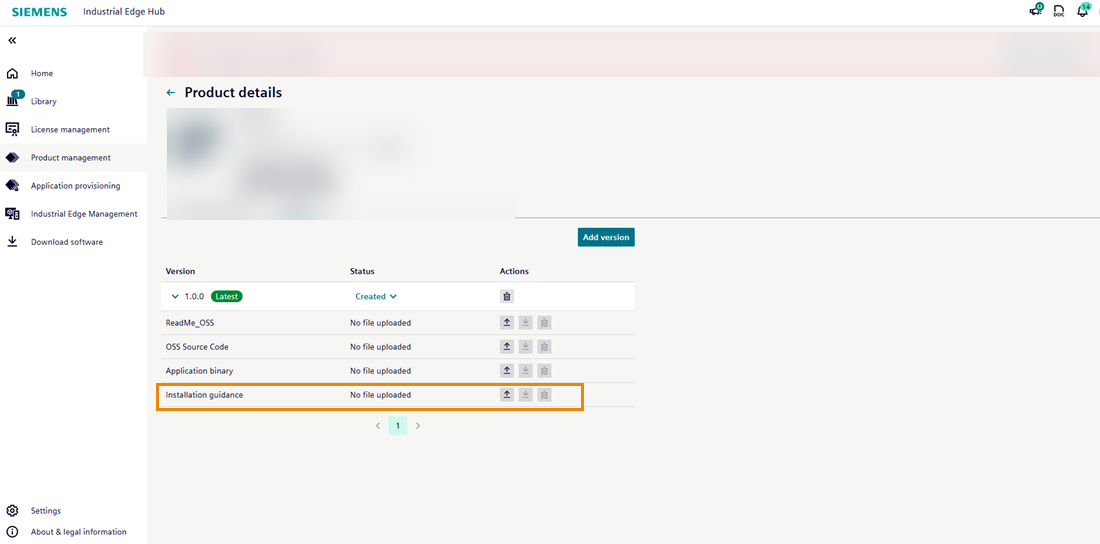
Product Management > Product > Versions > Version details > Installation Guidance
NOTICE
If no bundle has been uploaded yet, the Installation Guidance section shows that no file is available.
Upload the Bundle
-
Log in to Industrial Edge Hub.
-
Open Product Management.
-
Select the required product.
-
Open the Versions tab.
-
Select the required version.
-
In the Installation Guidance section, upload the
.tar.gzbundle.
Upload Status
During upload, the system can show the following statuses:
- In progress
- Virus scan in queue
- Virus scan in progress
- Validation in progress
- Virus scan and validation passed
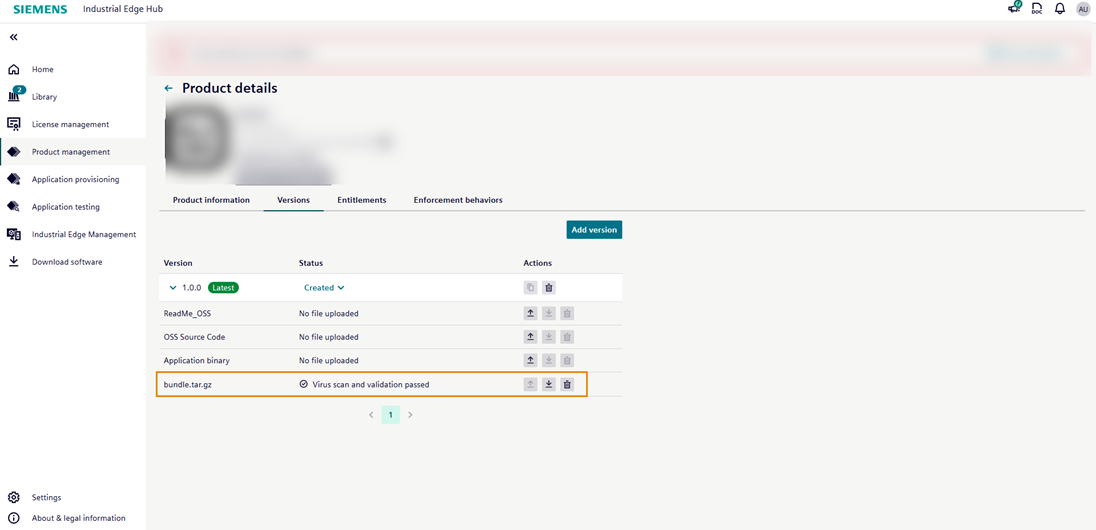
When the upload and validation are successful, the bundle .tar.gz file name appears in the Installation Guidance section.
If the upload fails, click the error icon to view the detailed error message and take corrective actions.
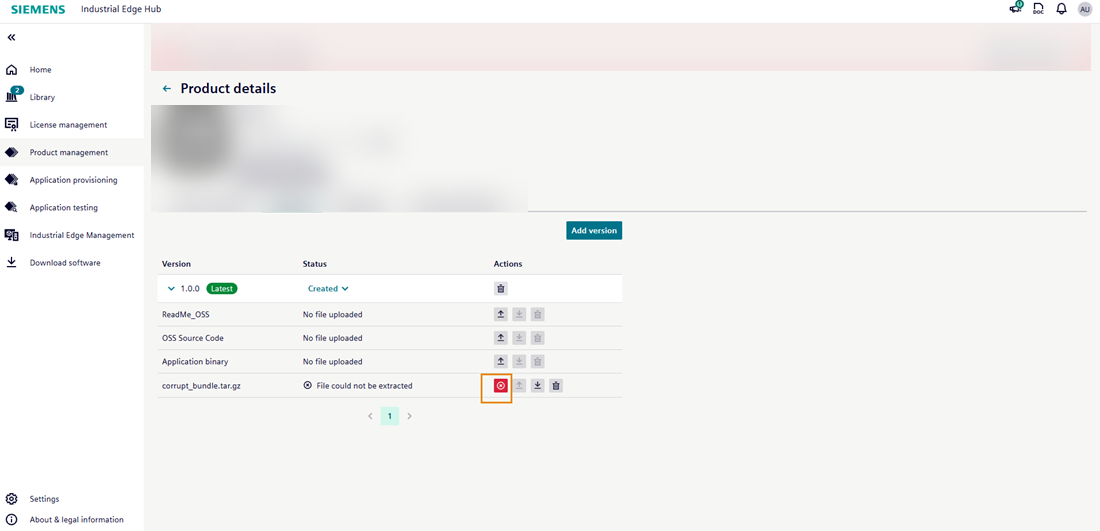
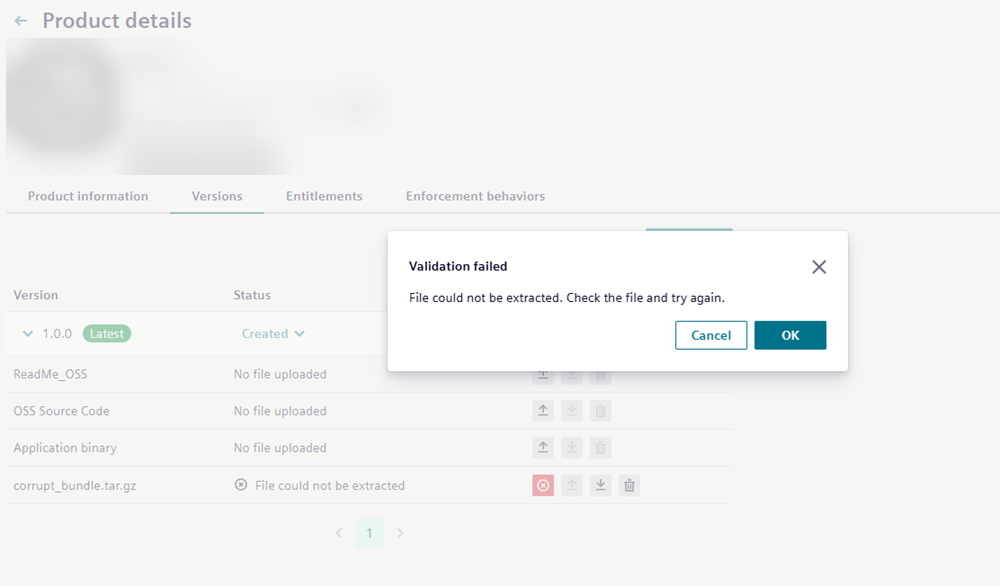
For validation details, see What errors can occur.
Manage the Uploaded Bundle
After upload, you can:
- Download the uploaded bundle
- Delete the uploaded bundle
NOTICE
The uploaded bundle is linked to the selected application version.
Result
The Installation Guidance bundle is now available for the selected application version. The Installation Guidance rules become active only after the application version is released and can then be evaluated when a user starts an installation or update in the IEM UI for that version.
Next Steps
Verify the installation behavior in IEM to ensure the Installation Guidance rules work as expected.