Connecting a PLC using S7 Connector
In this tutorial, use S7 Connector to connect a PLC to your Industrial Edge environment.
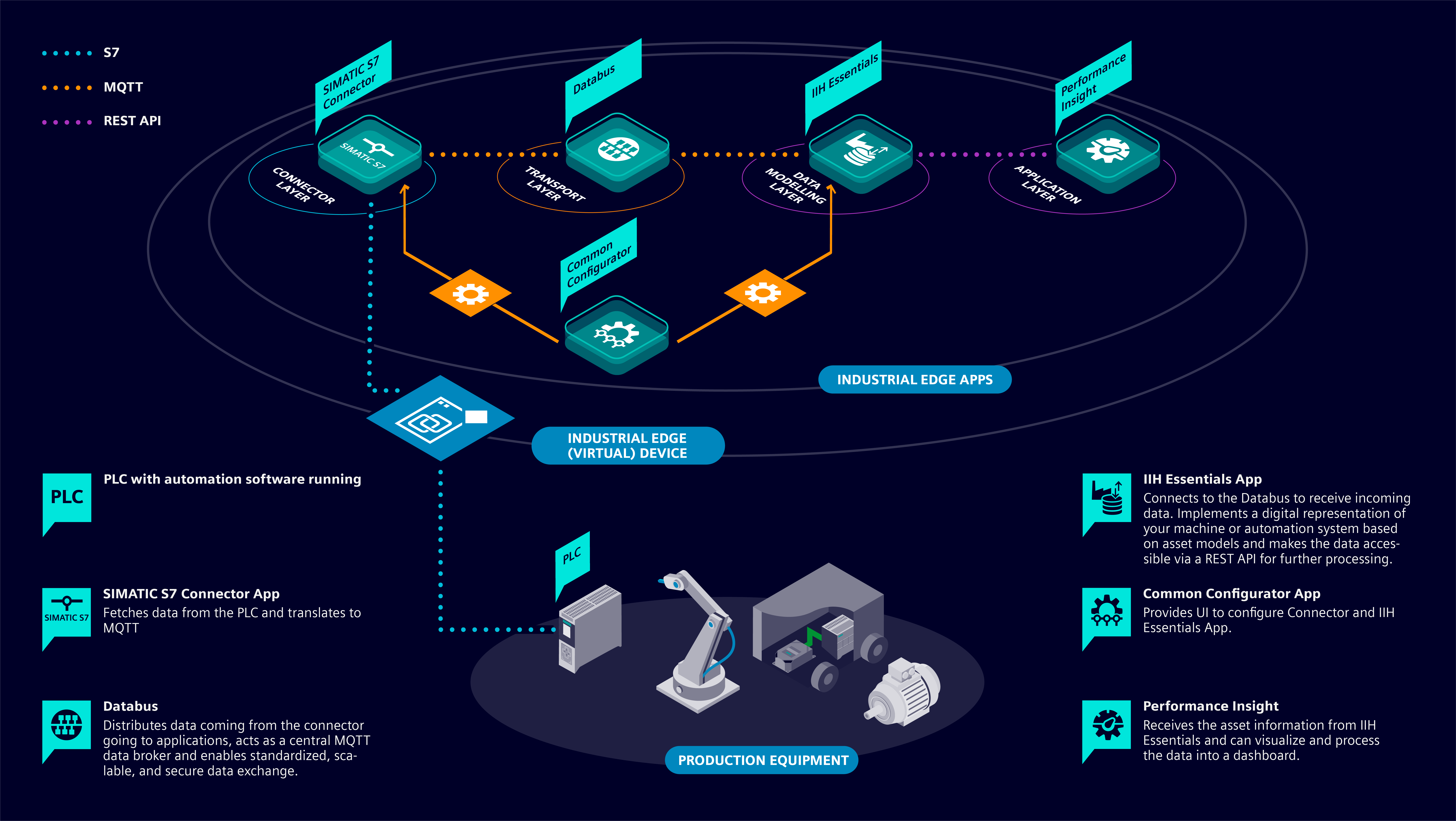
To connect Industrial Edge to your environment, you need three main components:
- The SIMATIC S7 Connector to read data from your PLC and translate it to MQTT.
- The Databus App to run on your IE Device and act as a central data broker and stores data configurations for your individual applications.
- The IIH Essentials App to implement a digital representation of your machine and make the data accessible via a REST-API for further processing.
Two additional apps are used during the process for your convenience:
- The Databus Configurator App in the IEM instance.
- The Common Configurator App which provides a UI for IIH Essentials and to add data sources to S7 Connector.
The figure below highlights the roles of the different applications and components.
Prerequisites for connecting a PLC using S7 Connector
Software requirements
- You have completely set up your Industrial Edge environment.
- Industrial Edge Hub
- Industrial Edge Management Cloud, Industrial Edge Management Virtual, or Industrial Edge Management Pro
- Onboarded your physical Industrial Edge Device or Industrial Edge Virtual Device
- You have installed the required IE apps on your IE Device, including the Ethernet IP Connector app.
- You have set up the Databus Configurator app in your IEM.
- You know the communication path of your PLC.
Hardware requirements
- A device which supports data transfer via the S7 protocol, such as:
- SIMATIC S7-300
- SIMATIC S7-400
- SIMATIC S7-1200
- SIMATIC S7-1500
Here we are showcasing the S7 Optimized protocol, which only is supported by S7-1200 and S7-1500.
Configuring the network interfaces for IE Devices to connect to S7 Connector
The network interfaces for physical IE Devices were configured as part of the onboarding process. Additional steps are required to allow connections between the PLC and a virtual IE Device.
If you are using a physical IE Device, proceed to Adding your PLC as an S7 data source.
To configure a virtual IE Device, follow the conditional steps based on the hypervisor.
Conditional steps
Create a virtual adapter in Hyper-V. Bridge the virtual adapter to the physical adapter on your machine to establish communication between the PLC and the virtual IE Device.
Next, apply the virtual adapter to your virtual IE Device.
Creating and mapping a virtual network adapter
-
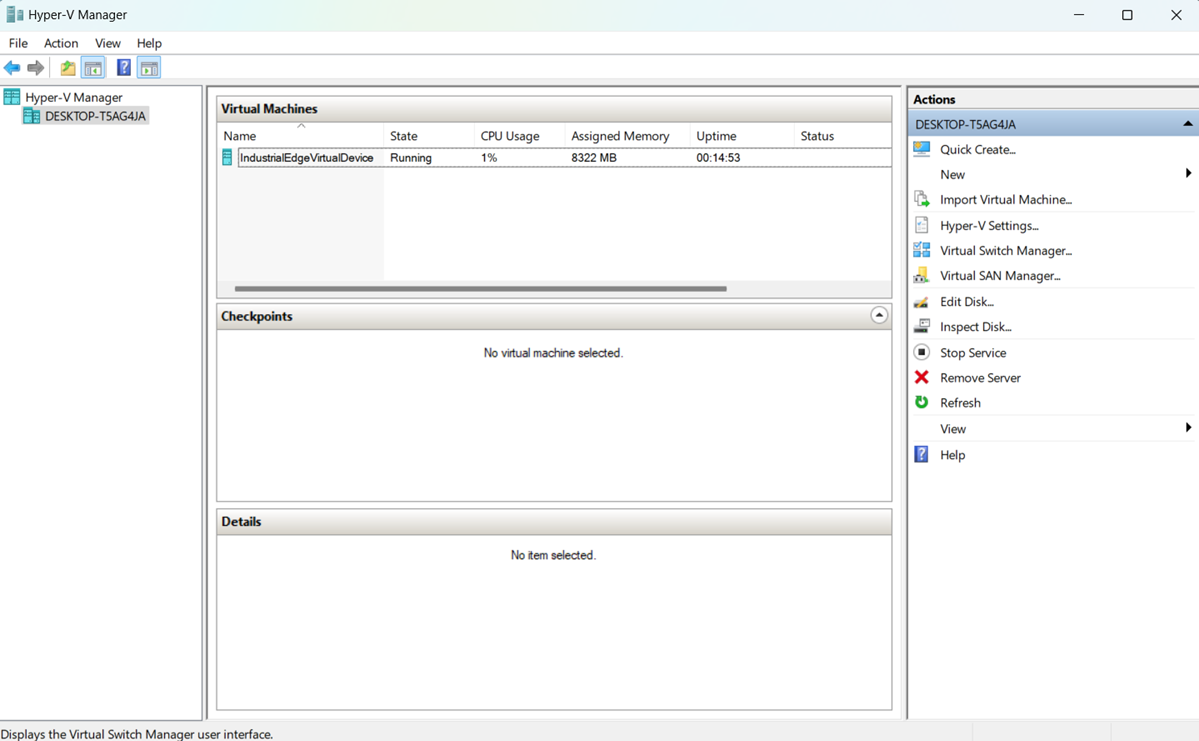
Open Hyper-V. The library contains a virtual machine for your IEvD.
-
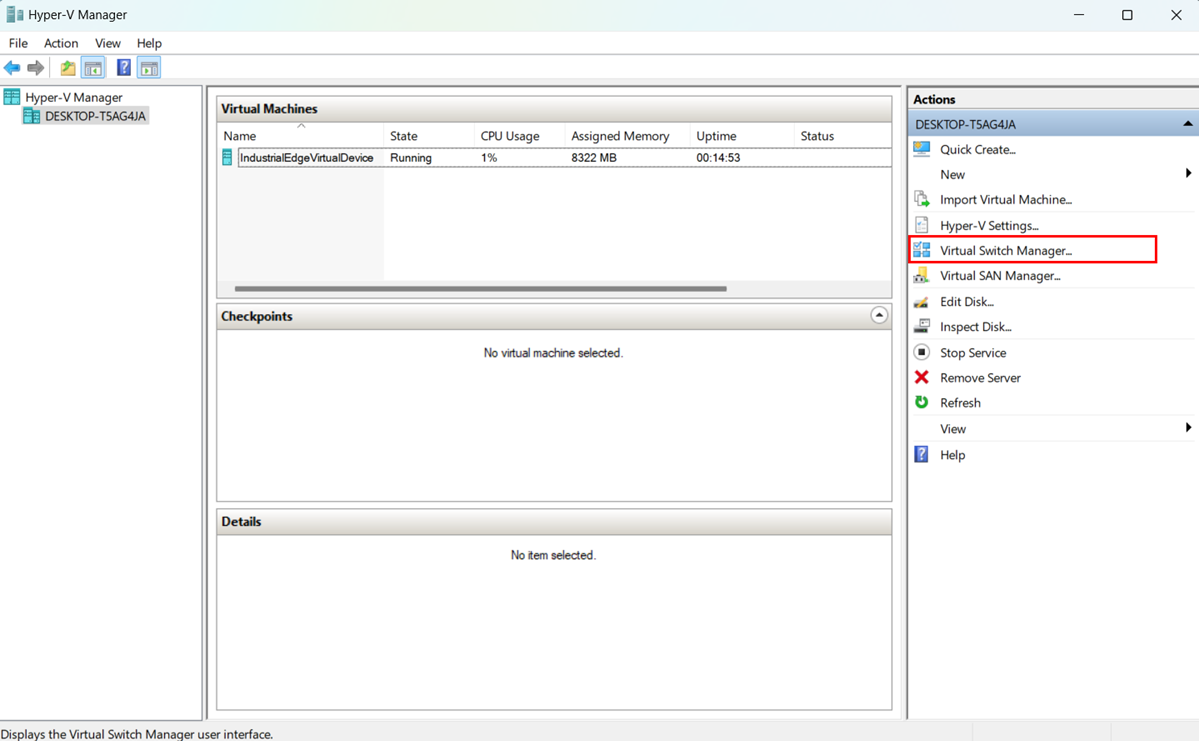
In the right sidebar, click "Virtual Switch Manager”. The Virtual Switch Manager window opens.
-
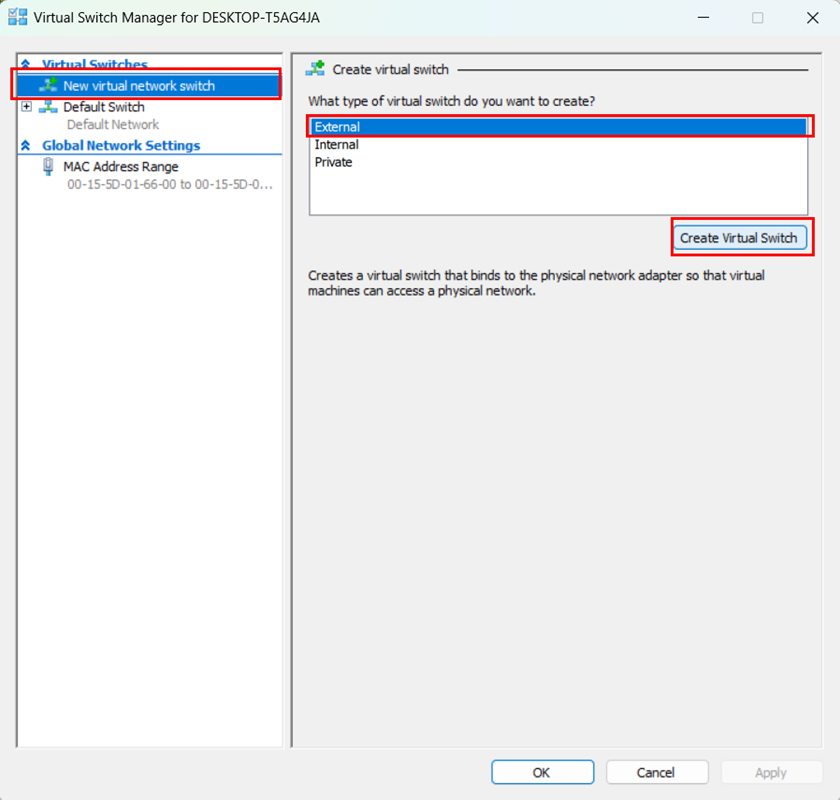
In the left sidebar, select "New Virtual Network Switch”.
- Choose Type: "External".
- Click "Create Virtual Switch".
-
Click "OK".
-
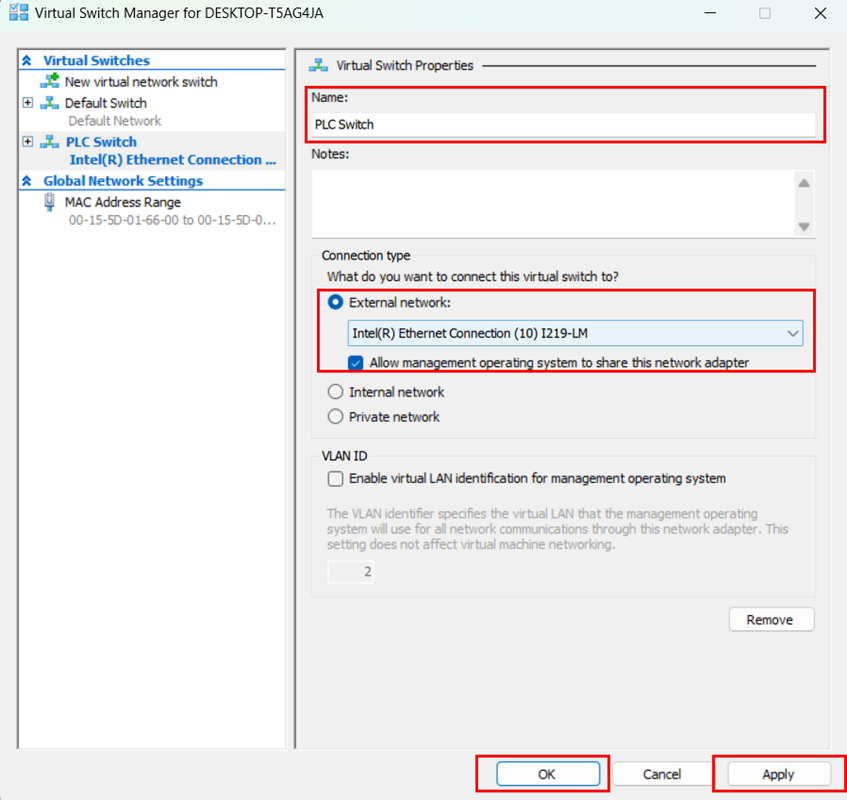
Choose a name for your virtual switch.
- Select "External network". A dropdown menu appears.
- Select the network adapter you want to use.
- Check the box for "Allow management operating system to share this network adapter".
- Click "Apply".
-
Click "OK".
-
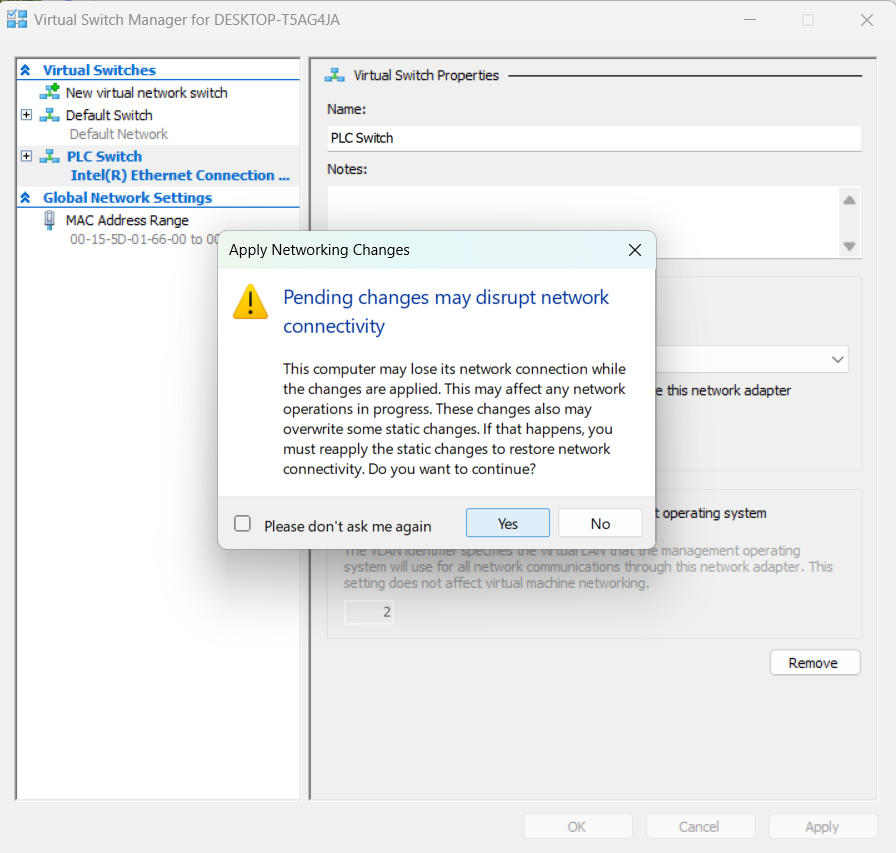
Read the warning message as shown in the figure below. Click "Yes".
Applying the virtual network adapter to the virtual machine
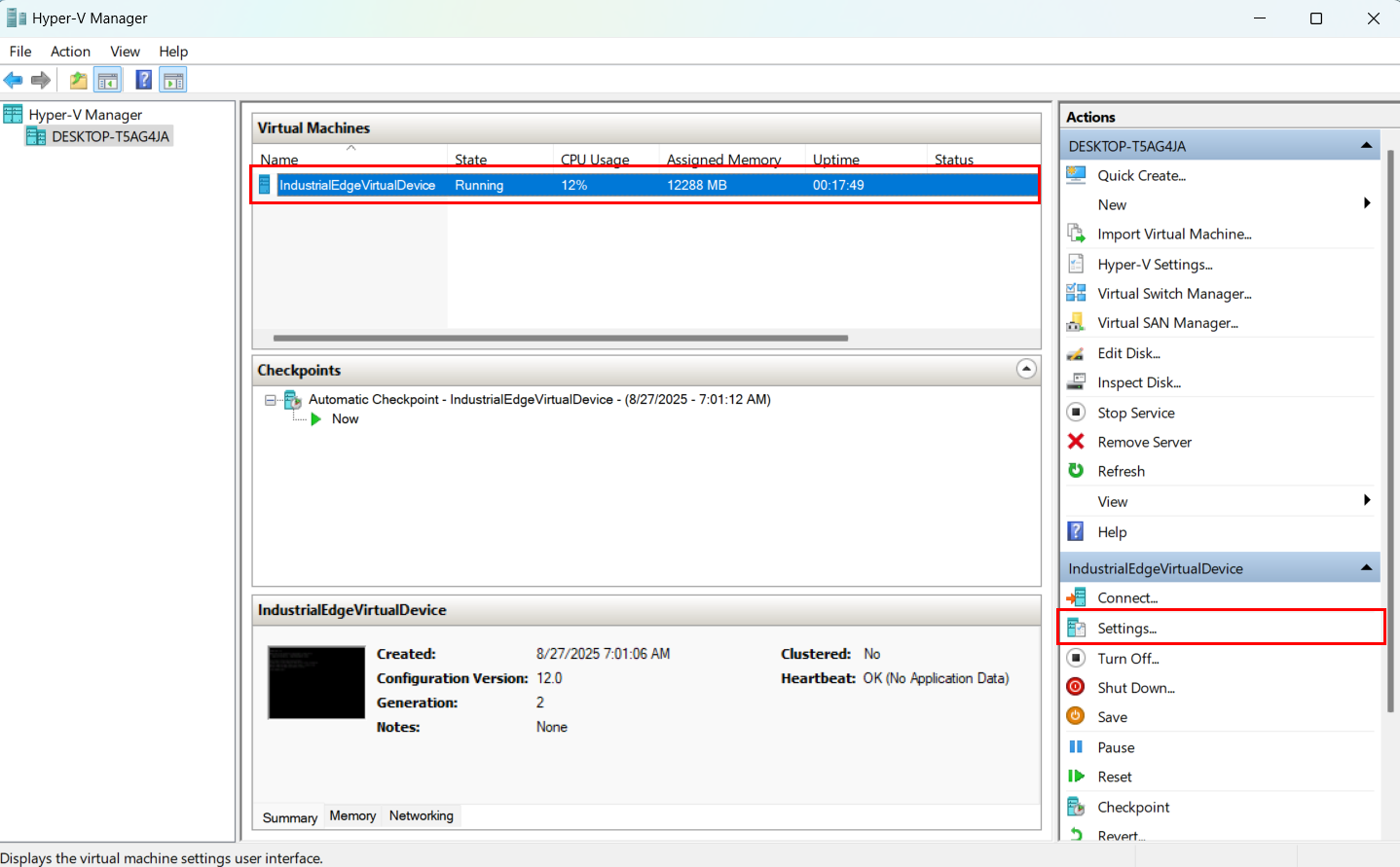
- Select the VM named "IndustrialEdgeVirtualDevice".
-
In the right sidebar, click "Settings". A dropdown menu appears.
-
Select the newly created switch.
- Click "Apply."
-
Click "OK".
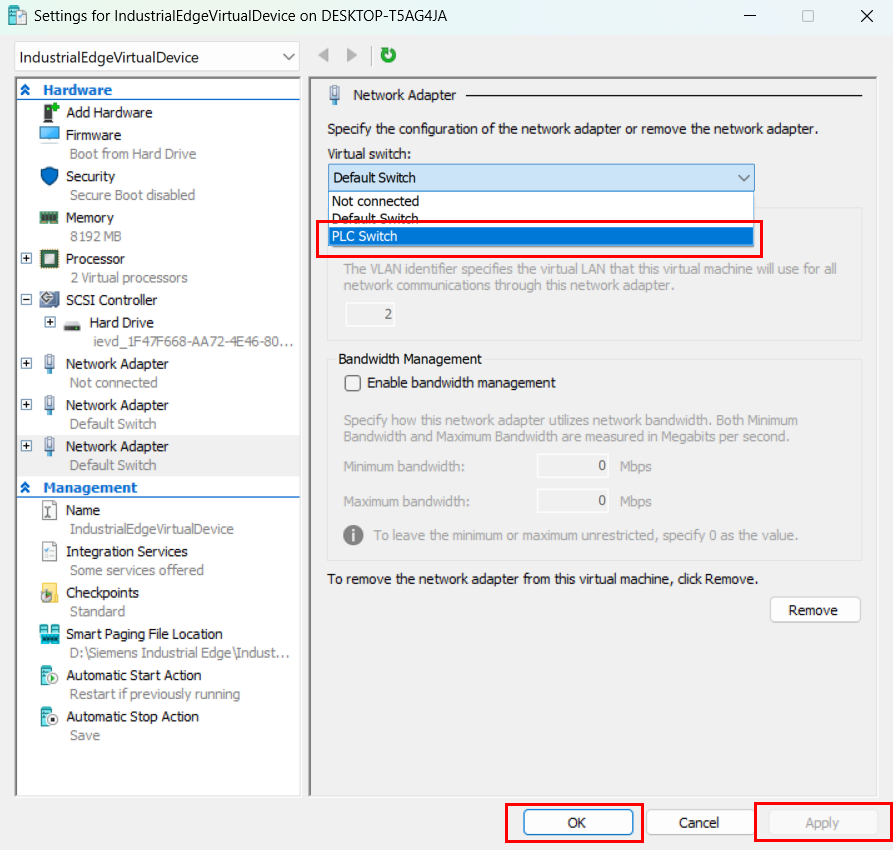
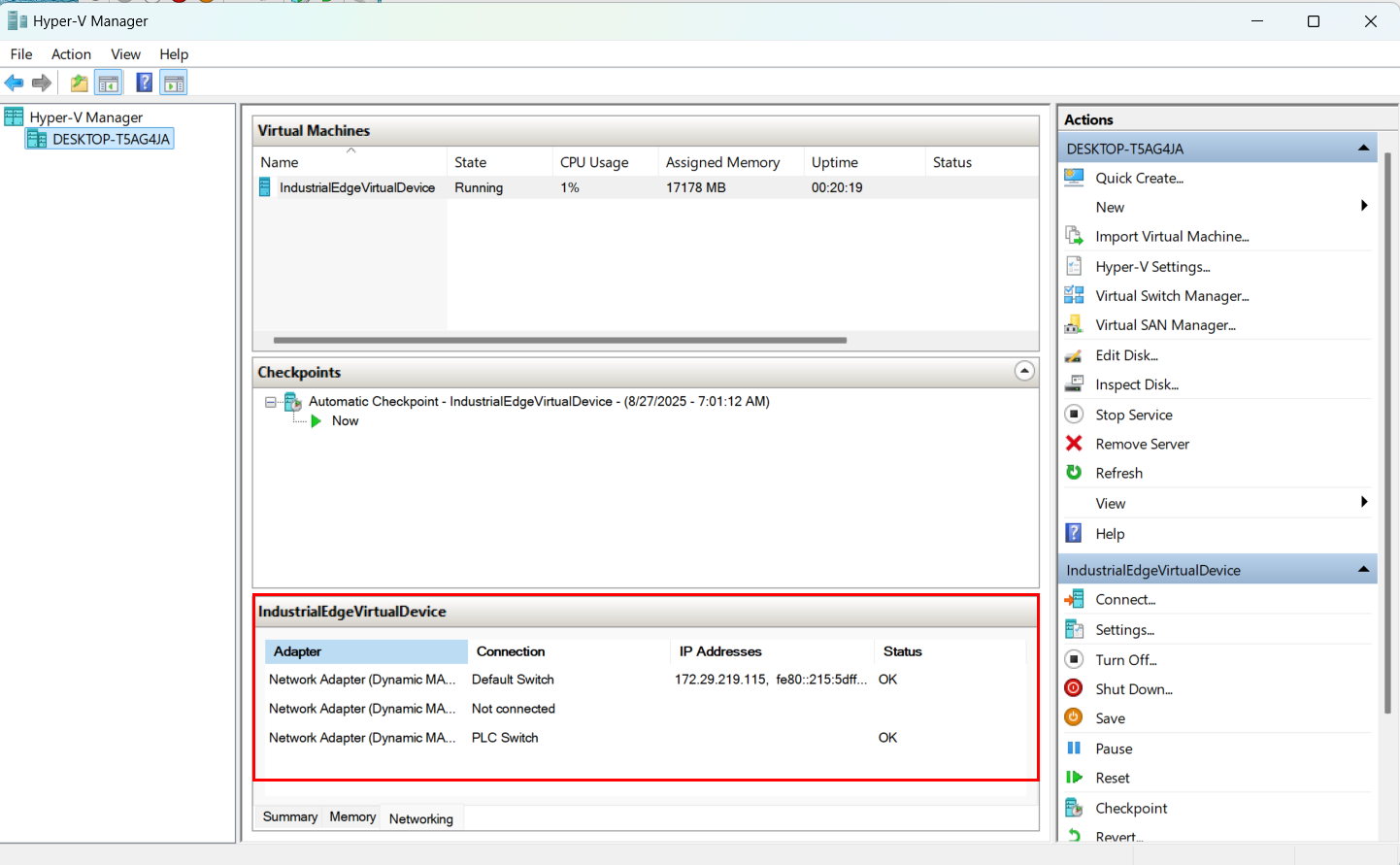
Hyper-V displays the virtual network adapters when successfully connected.
What's next?
Proceed to Setting up the network connection for the virtual IE Device and S7 Connector.
Using an Ethernet cable, bridge the physical network adaptor directly to the virtual machine with VMware.
- Connect the PLC to your laptop using an RJ45 Ethernet cable.
- Open VMware Workstation.
- In the Virtual Machine window, click the Player button in the top left corner.
-
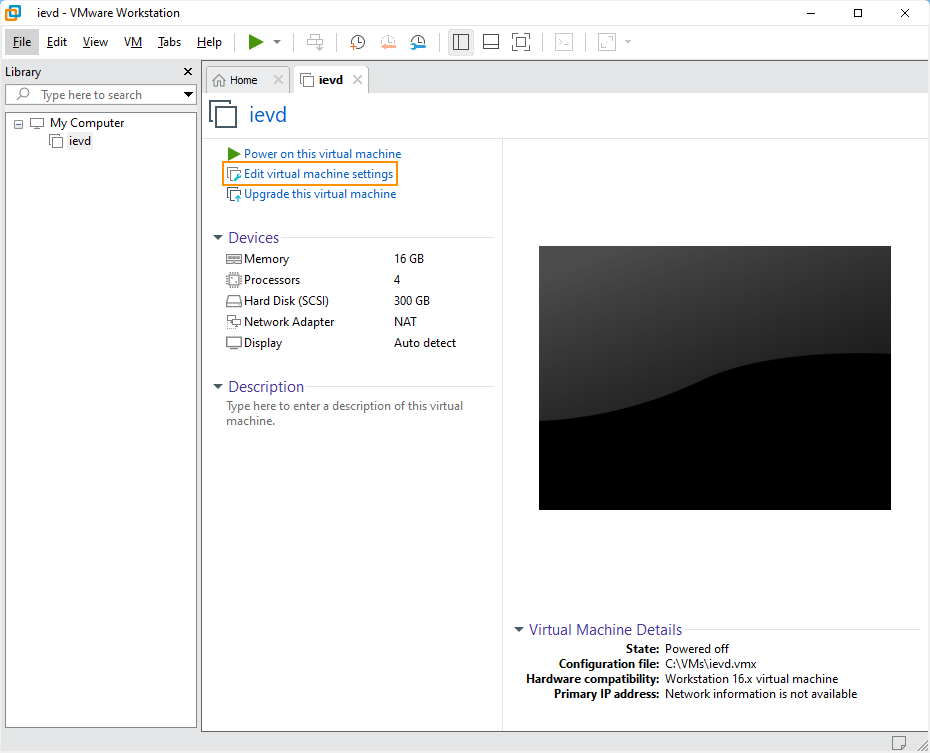
Navigate to "Manage > Virtual Machine Settings". The Virtual Machine Settings menu opens.
-
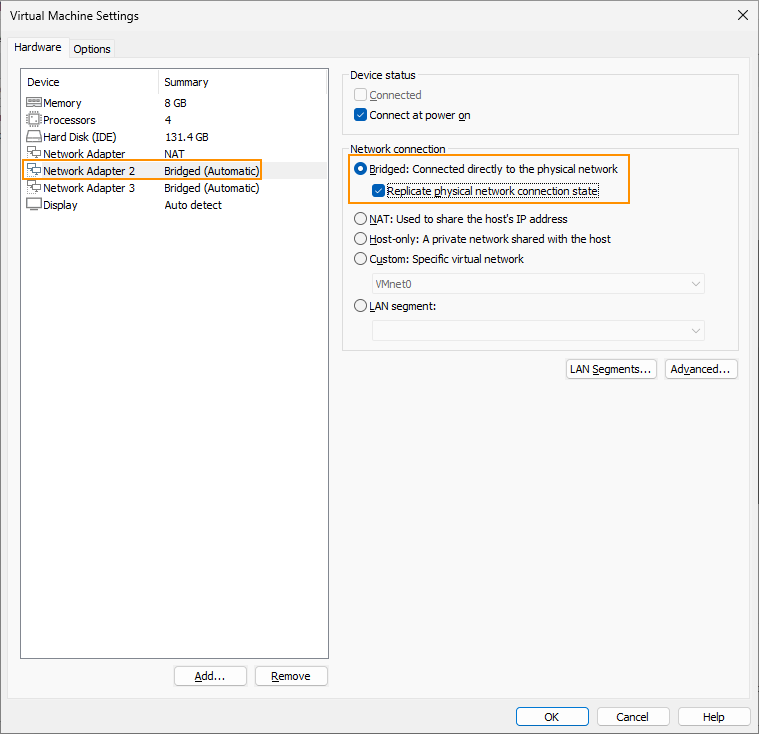
Select "Network Adapter 2".
- Change the network connection setting from "NAT" to "Bridged".
-
Check the box for "Replicate physical network connection state".
-
Click "Configure Adapters". A popup for "Automatic Bridging Settings" appears.
- Check the box for "Intel® Ethernet Connection (10) 12L9-LM". Uncheck all other options.
-
Click "OK" to confirm changes.
NOTICE
The virtual machine's default network adapter is Network Address Translation (NAT), which does not allow external devices to communicate with Industrial Edge Management. Change the adapter type to "Bridged" to allow external devices to communicate with Industrial Edge Management.
What's next?
Proceed to Setting up the network connection for the virtual IE Device and S7 Connector.
Create and configure the virtual network adapter based on your specific infrastructure and communication requirements with ESXi.
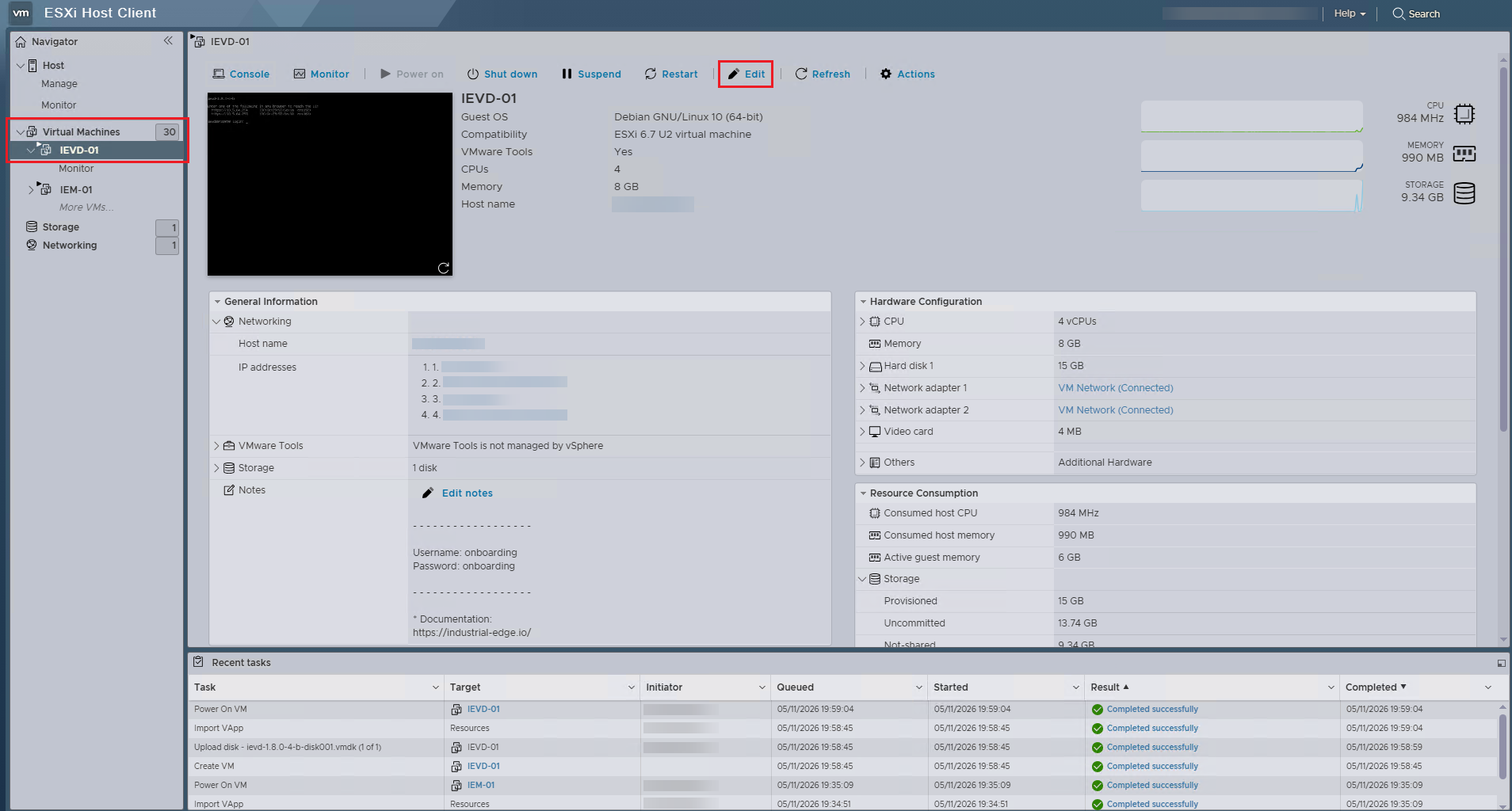
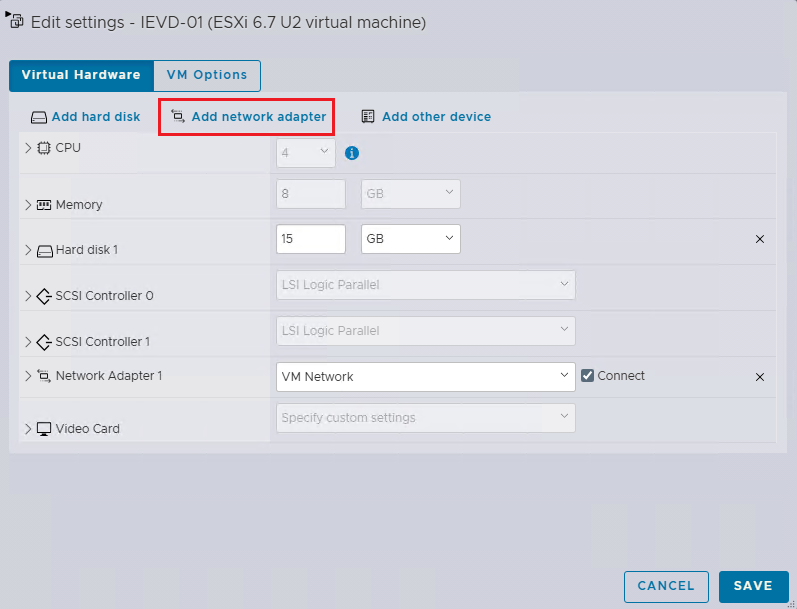
- In the left navigation pane, select the newly created IEVD VM, and then click "Edit". The "Edit Settings" popup appears.
-
Click "Add network adapter".
-
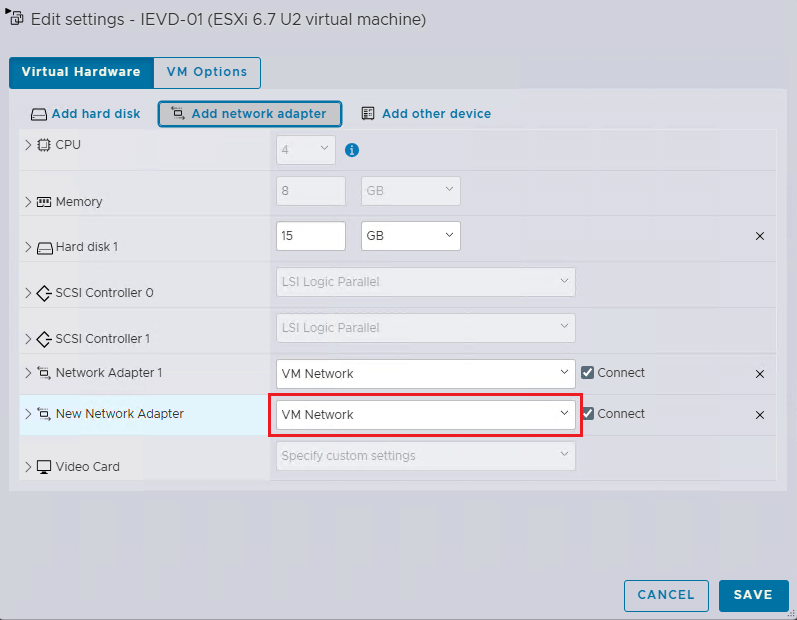
For the "New Network Adaptor" field, select the adapter to the network that contains the PLC you want to connect to the IEVD.
-
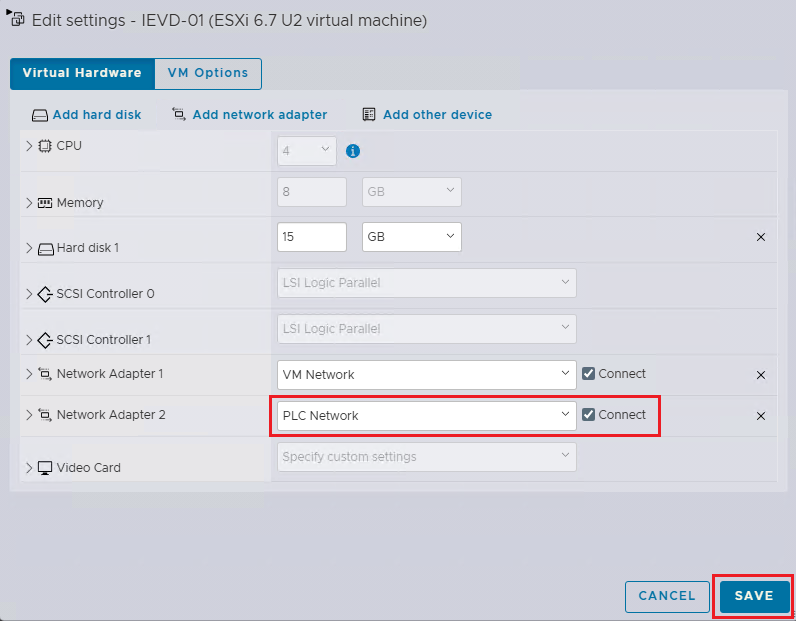
Check the "Connect" checkbox so the adapter is ready after VM startup.
-
Review the adapter settings, then click "SAVE". ESXi saves the configuration.
Setting up the network connection for the virtual IE Device and S7 Connector
- Open the web browser on your local computer.
- Enter the IP address of the IE Device with the HTTPS protocol, i.e.
https://<ip address>. The screen displays the IE Device UI login screen. - Log in to the Device UI.
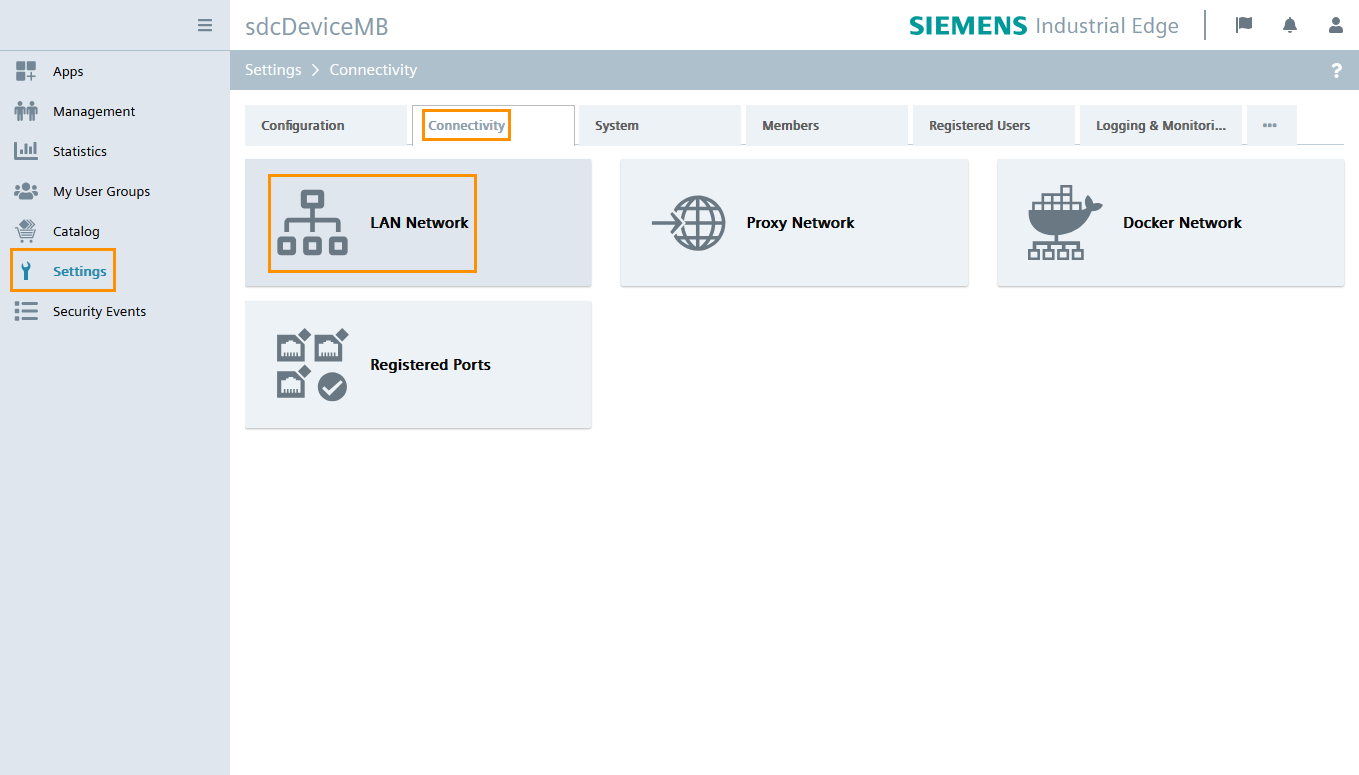
- Click "Settings" from the left navigation pane. The "Settings" page opens.
- Click "Connectivity".
-
Click "LAN Network".
-
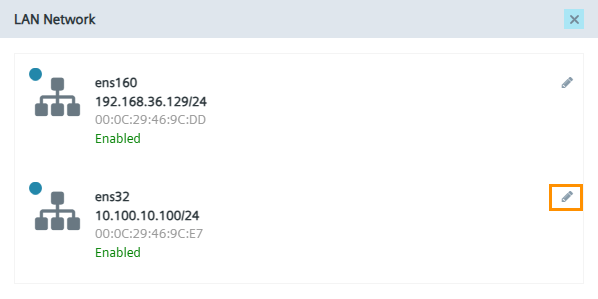
Click on the pencil icon next to the network adapter "ens32" to modify its network settings.
-
Uncheck the "DHCP" checkbox.
-
Enter a static IP address and netmask for the interface. The static IP address should be in the same subnet as the PLC.
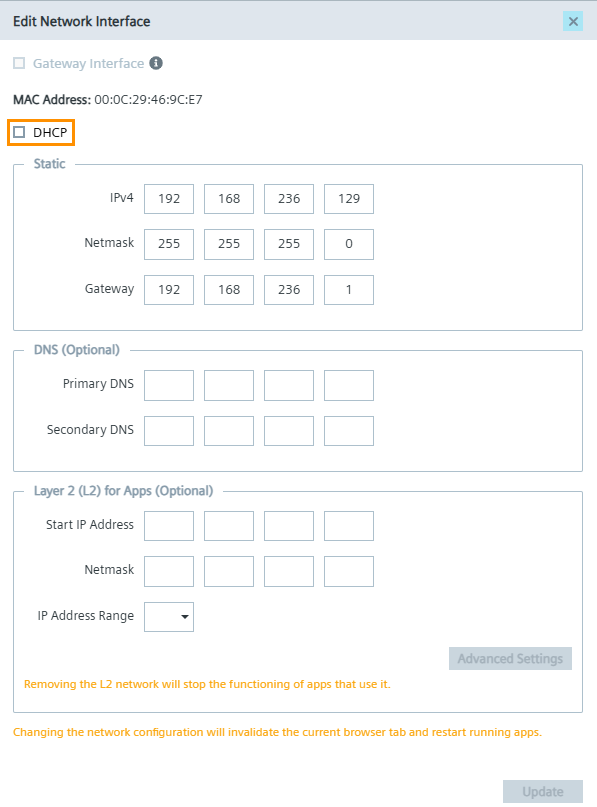
For a PLC with the IP address
192.168.236.127, enter the following values to ensure connectivity between the virtual IE Device and the PLC:- IPv4 (Static IP for the virtual IE Device):
192.168.236.129 - Netmask:
255.255.255.0 - Gateway:
192.168.236.1(if applicable)
- IPv4 (Static IP for the virtual IE Device):
-
Click "Update" to save changes.
Adding your PLC as an S7 data source
Use the Common Configurator App to configure an Ethernet IP Connector data source and set up the Ethernet IP communication channel to the PLCs for data acquisition.
To add a data source to the Ethernet IP Connector:
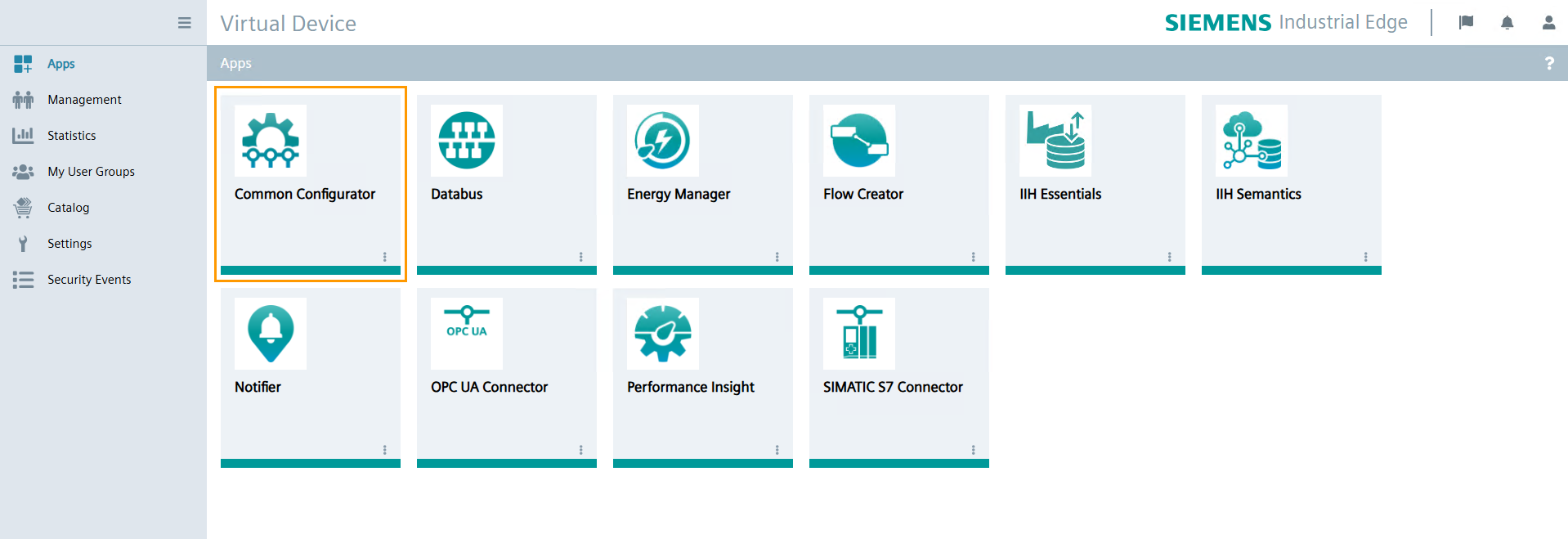
- In the device UI, click "Apps" from the left navigation pane. The "Apps" page opens.
-
Click the "Common Configurator" tile. The "Common Configurator" UI opens.
-
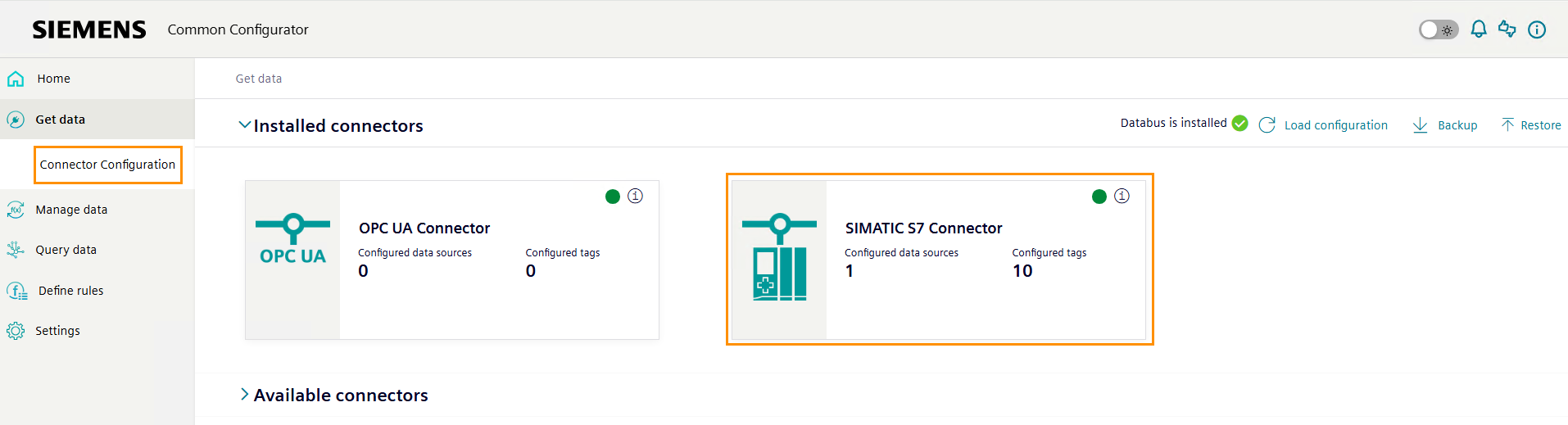
Click "Get Data" from the left navigation pane. A list of configuration apps appears.
- Click "Connector Configuration". The "Get Data" page opens.
-
Under "Installed Connectors", select "S7 Connector".
-
Click "Add". The "Add Data Source" page opens.
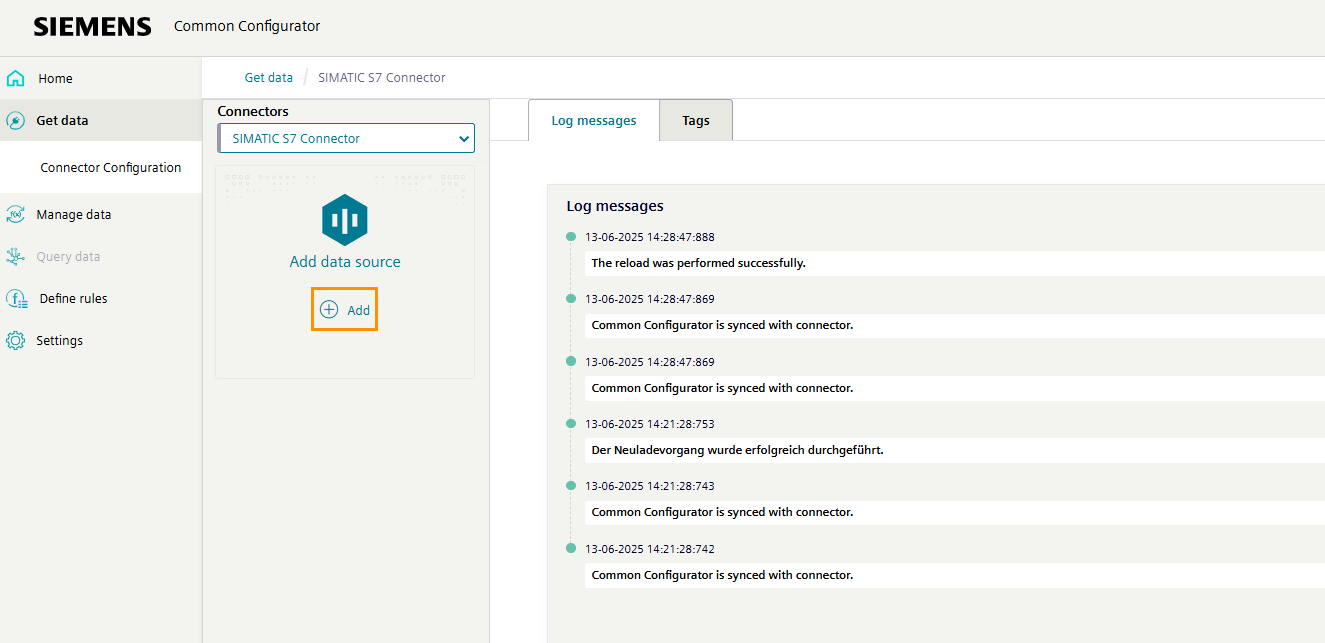
NOTICE
The S7 connector is the interface between the PLC and the IE Device. It must be configured with information about the IP address and other data of your PLC. Once configured, the S7 connector is able to browse the data points of the PLC.
-
Select the protocol "Optimized S7-Protocol".
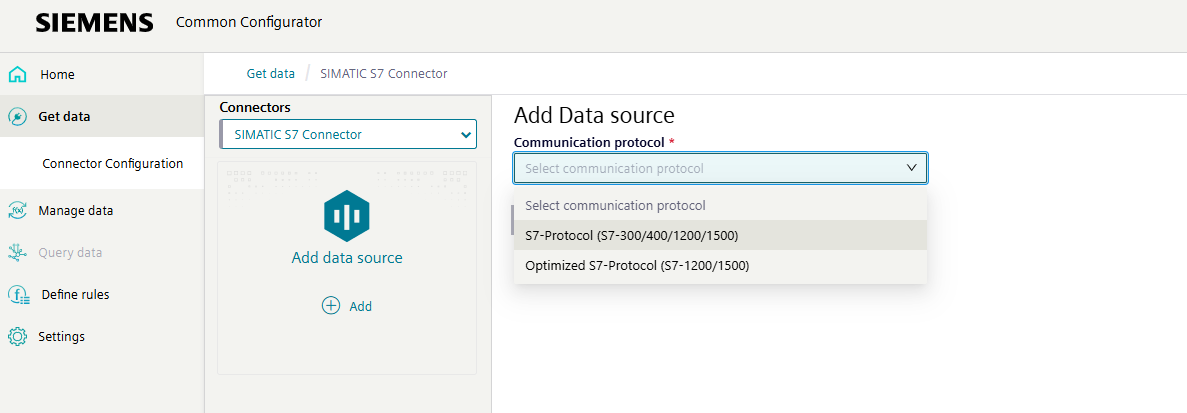
-
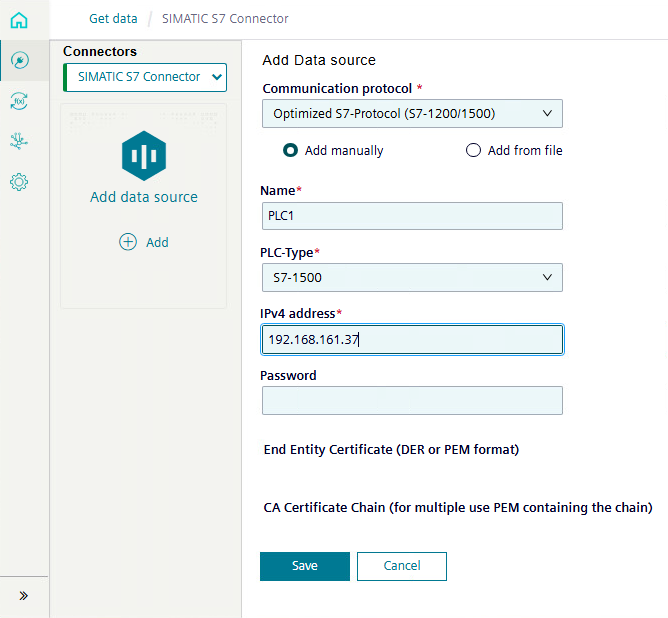
Define the following information:
- Communication Protocol: Optimized S7-Protocol
- Communication Protocol: Select "Add manually"
- Name: Can be freely chosen
- PLC-Type: Choose the hardware you are using
- IPv4 address: Enter the IP address of the PLC
- Password: If required, enter the corresponding password for connecting to the PLC.
- Certificate files: If required, add the corresponding certificate files.
NOTICE
More information about the settings is available in the S7 Connector documentation.
-
Click "Save" to activate the configuration.
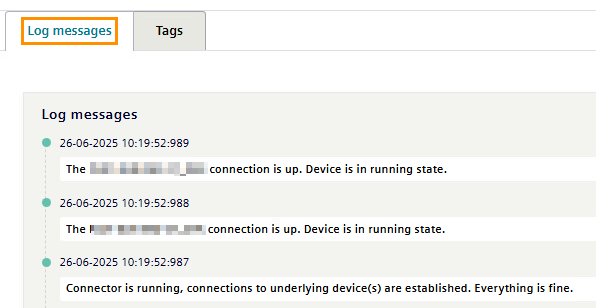
- Click the "Log Messages" tab. The S7 Connector logs open.
-
Check the logs for the following messages to ensure the connection is properly established:
- The [Name of Configuration] connection is up. Device is in running state.
- Connector is running, connections to underlying device(s) are established. Everything is fine.
Configuring the S7 Connector data source tags
Tags are data points that you wish to fetch from the IE Device. Once the S7 Connector data source is created, add and configure the IE Device tags to complete the S7 Connector configuration process.
Adding a tag to S7 Connector
- In the Ethernet IP Connector page of the Device UI, click the "Tags" tab. The "Tags" page opens.
-
Click "Browse tags".
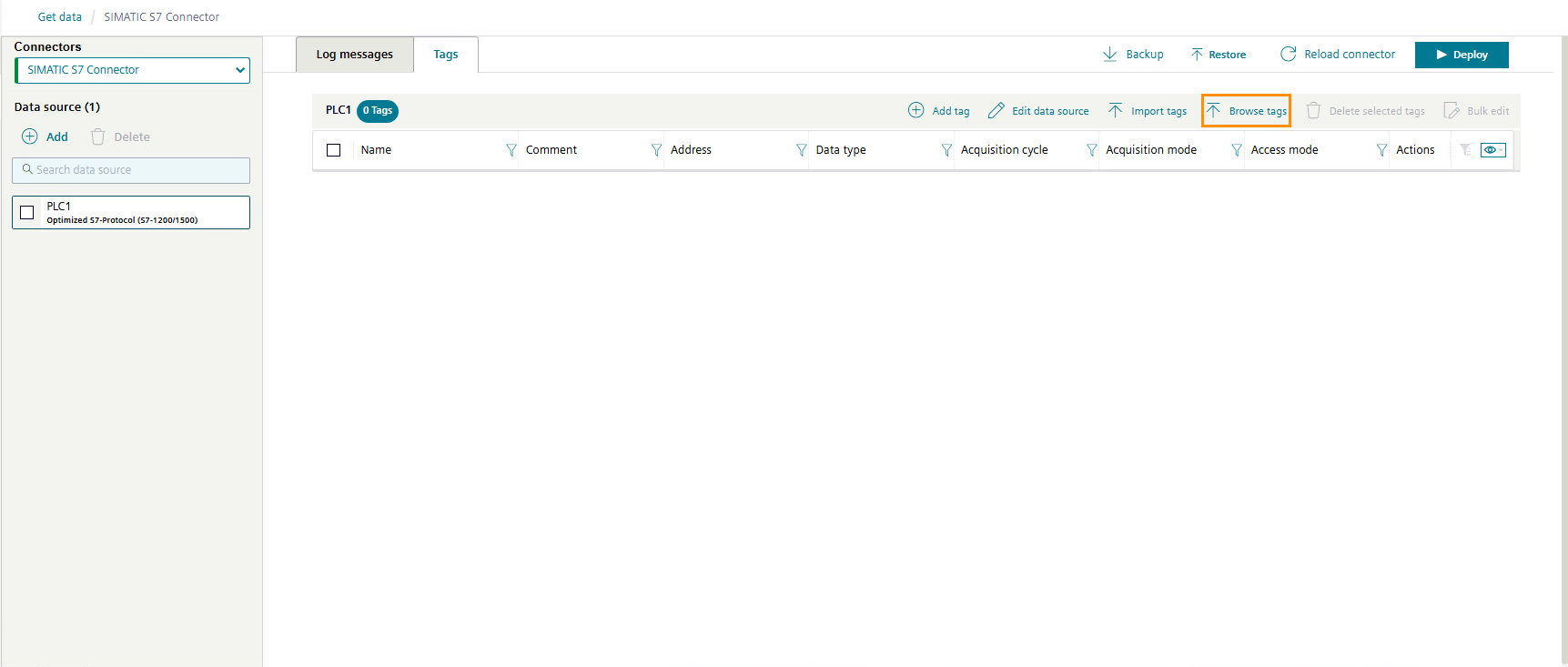
-
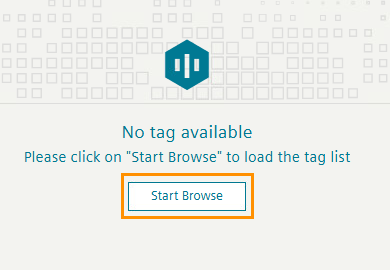
Click "Start browse". The S7 Connector lists all available tags.
-
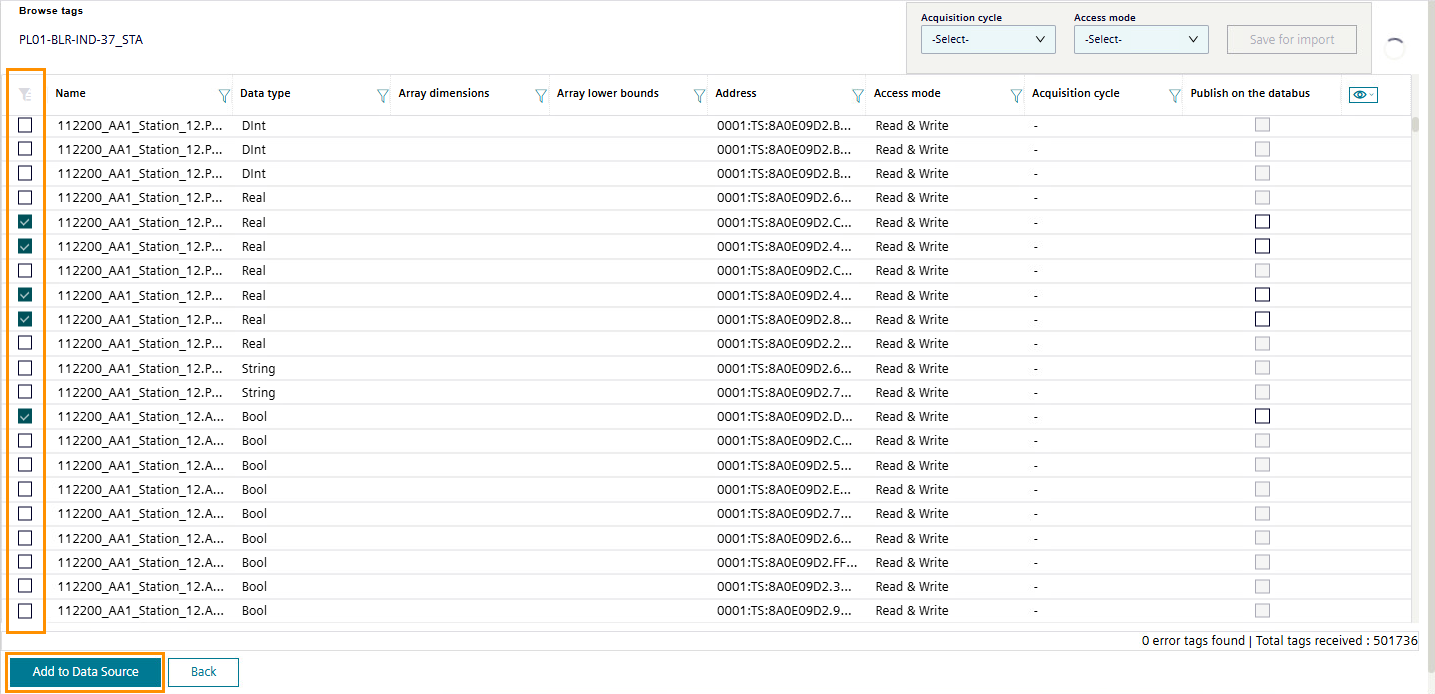
Click the checkboxes for the tags you wish to import from the IE Device via the S7 Connector.
-
Click "Add to Data Source".
-
To return to the "Tags" tab, click "Back".
Configuring a tag for S7 Connector
- In the S7 Connector page of the Device UI, click the "Tags" tab. The "Tags" page opens.
-
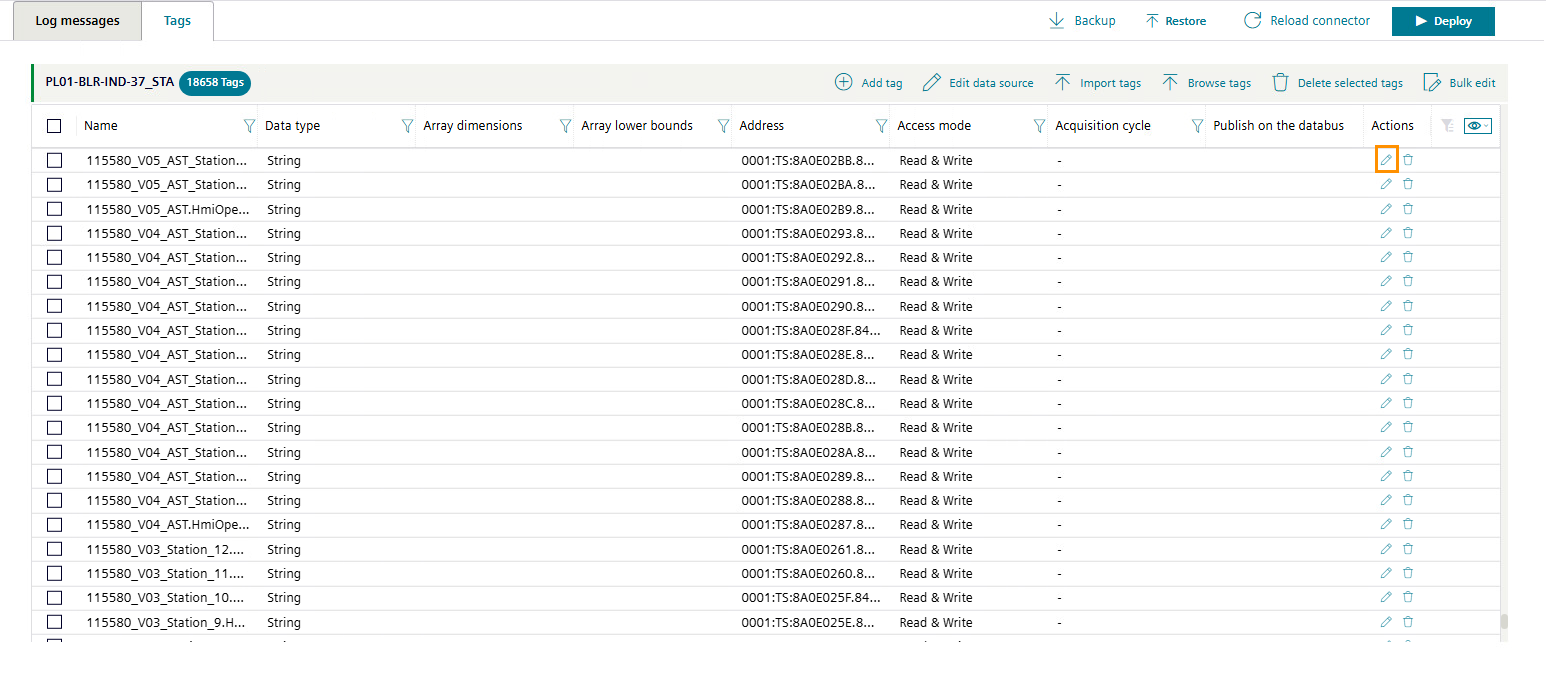
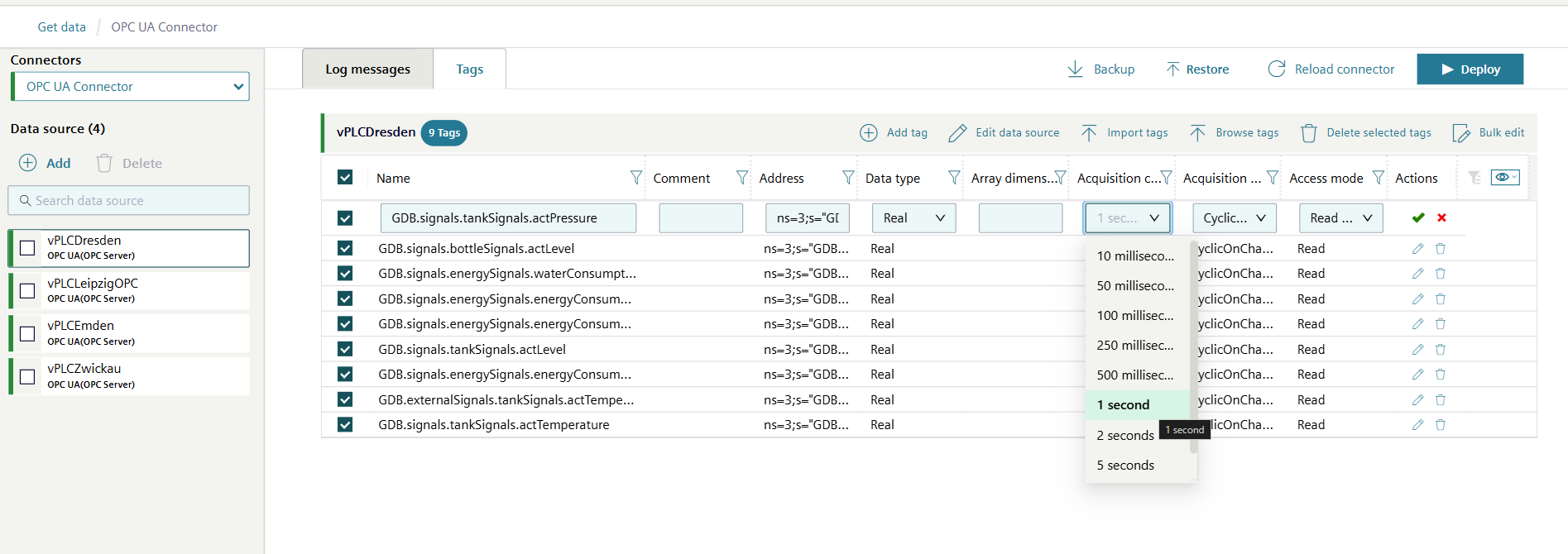
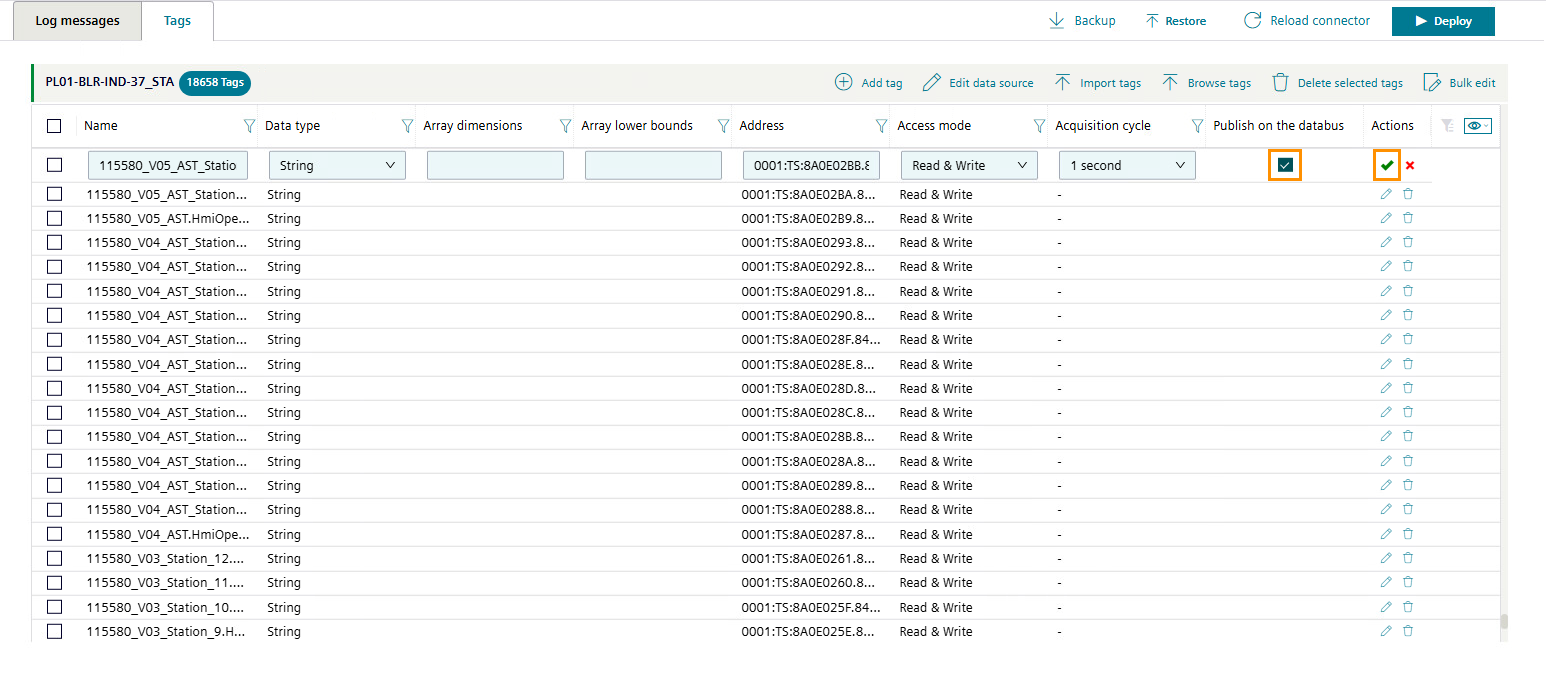
Click on the pencil icon in the column "Actions" of a tag. The tag becomes editable.
-
Under "Acquisition cycle", select your preferred acquisition cycle. Siemens recommends using an acquisition cycle of 1 second.
-
Check the "Publish on the Databus" checkbox.
-
Click the green tick icon to confirm.
-
Repeat steps 2–5 to configure more tags.
Bulk edit
Use the "Bulk edit" button to apply the same settings to multiple tags at once.

-
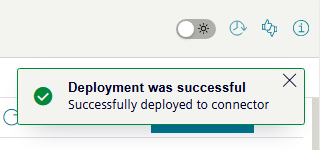
Click "Deploy". S7 Connector activates the configuration with the selected tags.

S7 displays the pop-up box "Deployment was successful" to indicate the tags were successfully configured.
Validating the outcome of connecting a PLC using S7 Connector
Review the log messages for any errors.
You have now connected Industrial Edge to your environment.
What's next?
Proceed to Creating an asset model.