Installing management IE Apps
Some IE Apps cannot be configured on an IE Device and must be configured directly in the IEM instance. Install management apps on IEM to configure these IE Apps. Management apps such as Databus Configurator allow IEM to communicate with the IE App on the IE Device and transfer configurations to different apps.
Installing Databus Configurator
Databus Configurator runs in IEM. It provides a user interface that gives you an overview of the Databus-specific details of the corresponding IE Device. Refer to the Databus documentation for more information.
- Log in to IEM.
-
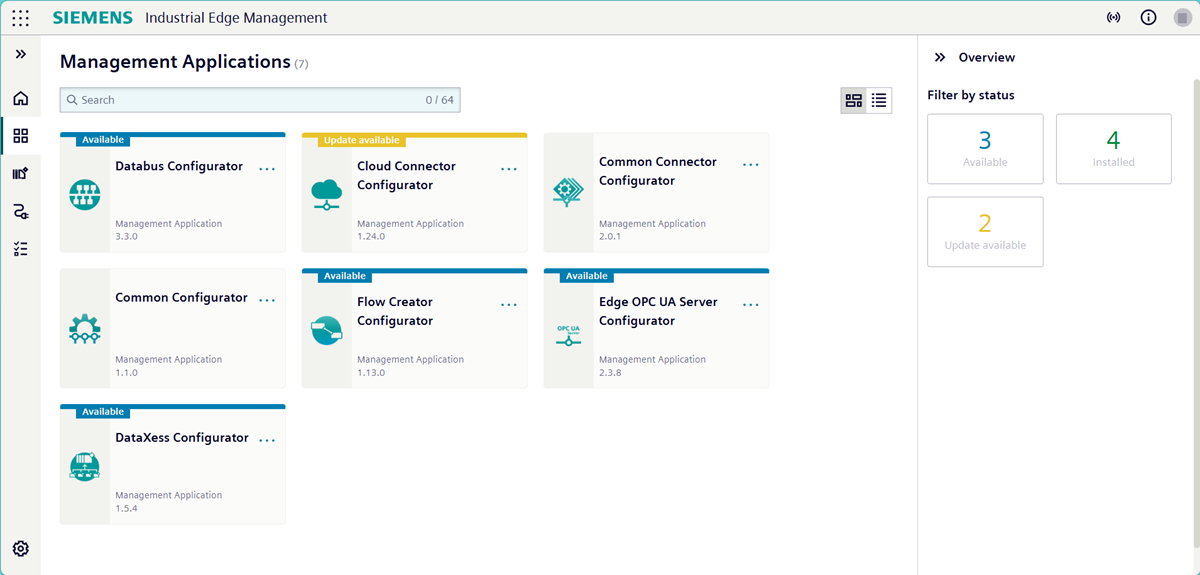
In the left navigation pane, click "Applications" > "Management". The "Management Applications" page opens, displaying tiles of available management IE Apps.
-
Click the "..." button in the "Databus Configurator" tile. A list appears.
-
Click "Install". A popup in the bottom right appears confirming that IEM is installing Databus Configurator.
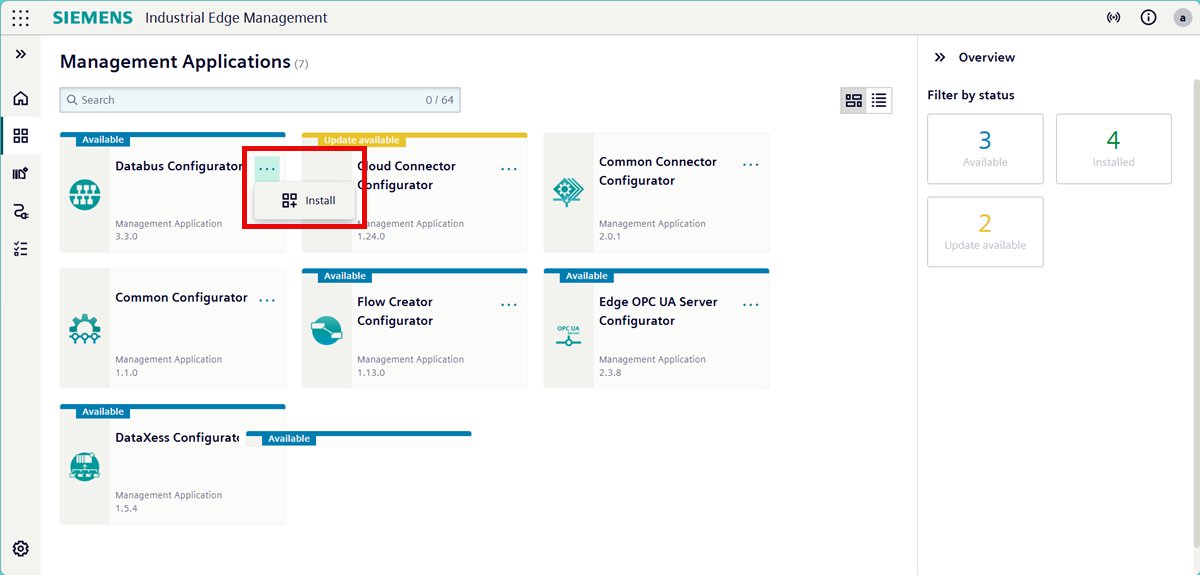
The Databus Configurator does not have an extra user interface. To check if installation was successful, proceed with Launching Databus Configurator on IEM.
Launching Databus Configurator on IEM
Databus is an MQTT broker that distributes information from connectors between IE Apps on an IE Device. Install Databus Configurator on IEM before configuring Databus on the IE Device. Certain requirements for security and access rights in communication must be met.
- Log in to IEM.
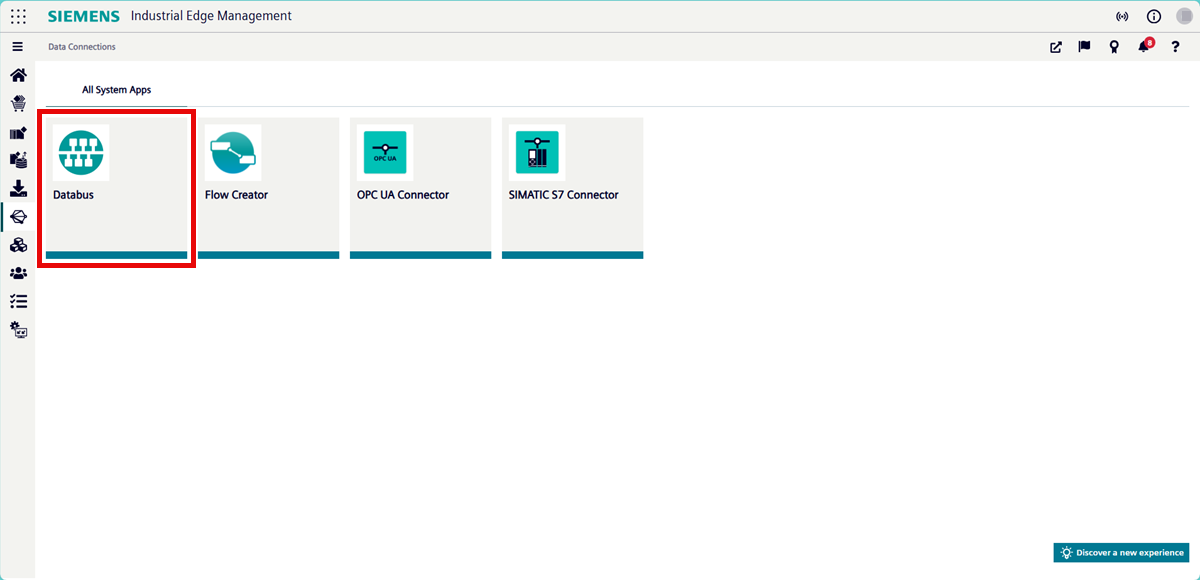
- In the left navigation pane, click "Data Connections". The "Data Connections" page opens.
-
Click the "Databus" tile. The "Launch App" pop-up appears.
-
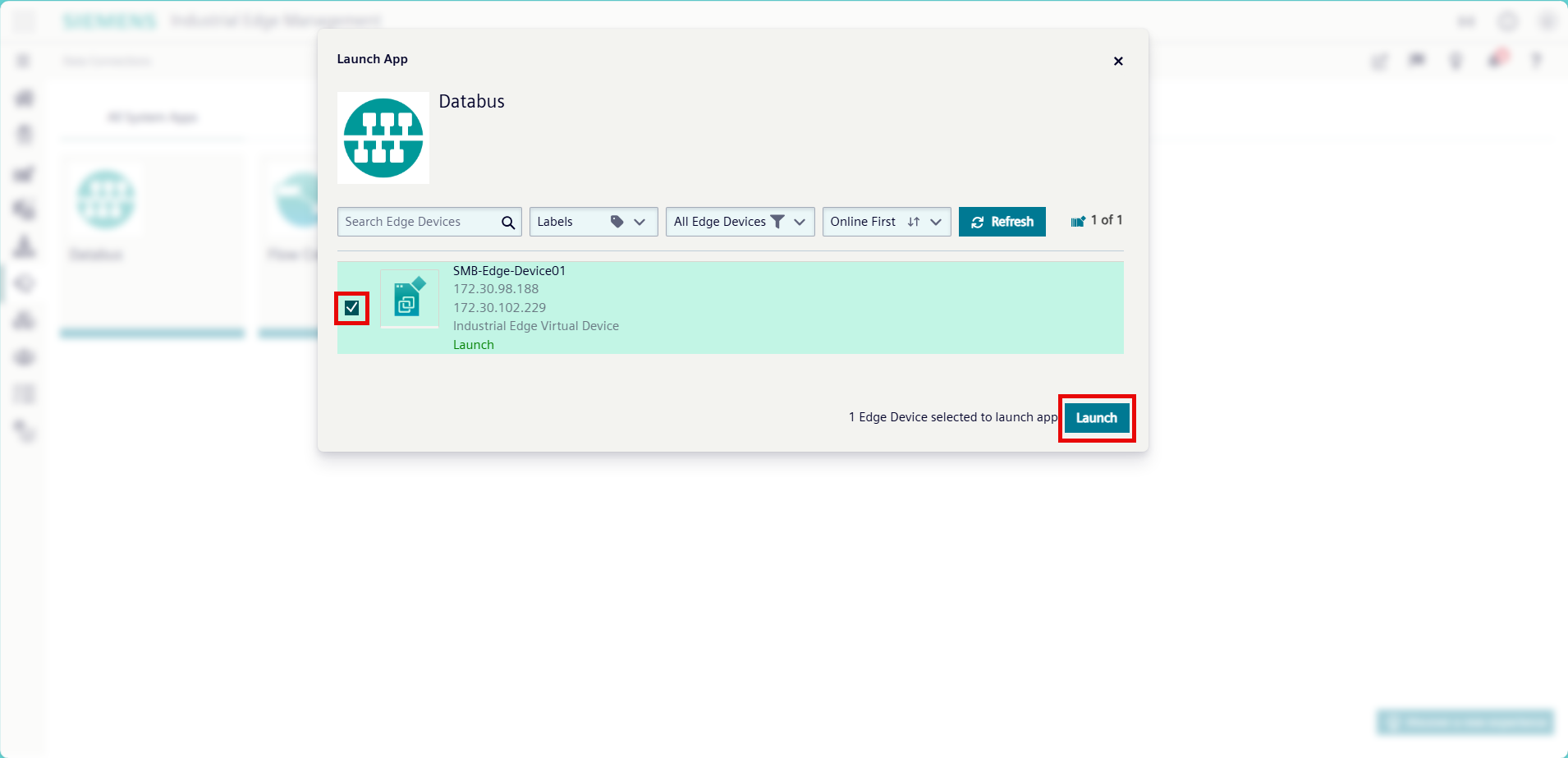
Select the IE Device you wish to launch Databus on.
-
Click "Launch". The Databus Configurator UI opens in a new tab.
Adding users and topics to the Databus to manage access rights
After launching Databus in IEM, add users in the Databus Configurator and provide the necessary access rights to a Databus topic for the corresponding IE Device. If you want to grant access to the Databus data to an IE App, add the IE App user to the Databus user list along with the corresponding topics and access permissions.
To add a new user:
- Launch Databus on IEM.
-
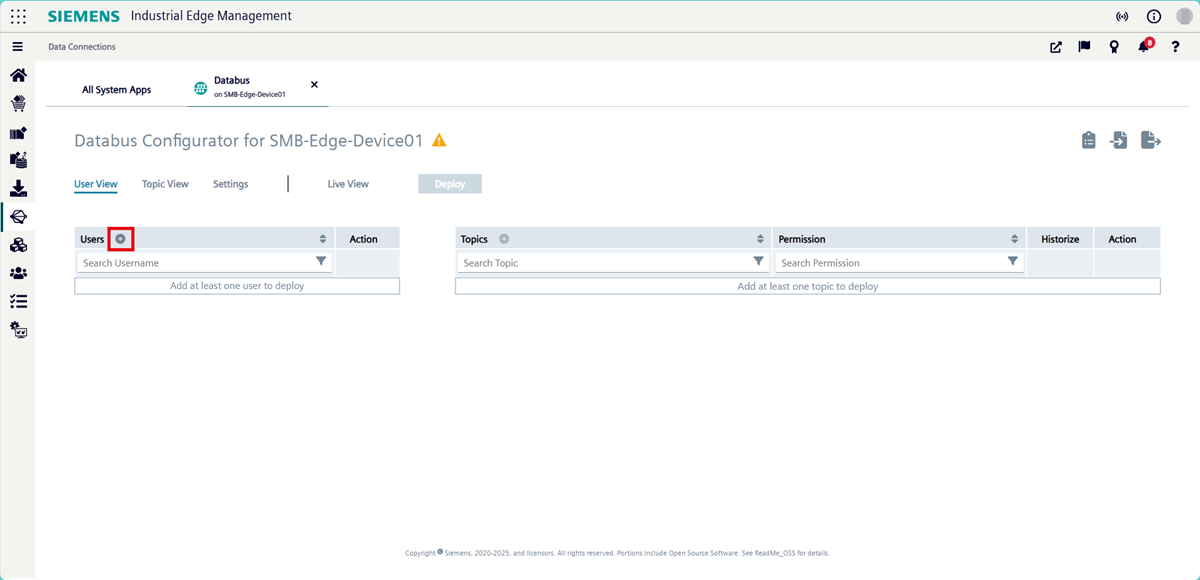
Click the "+" icon next to "Users". The "Add User" pop-up appears.
-
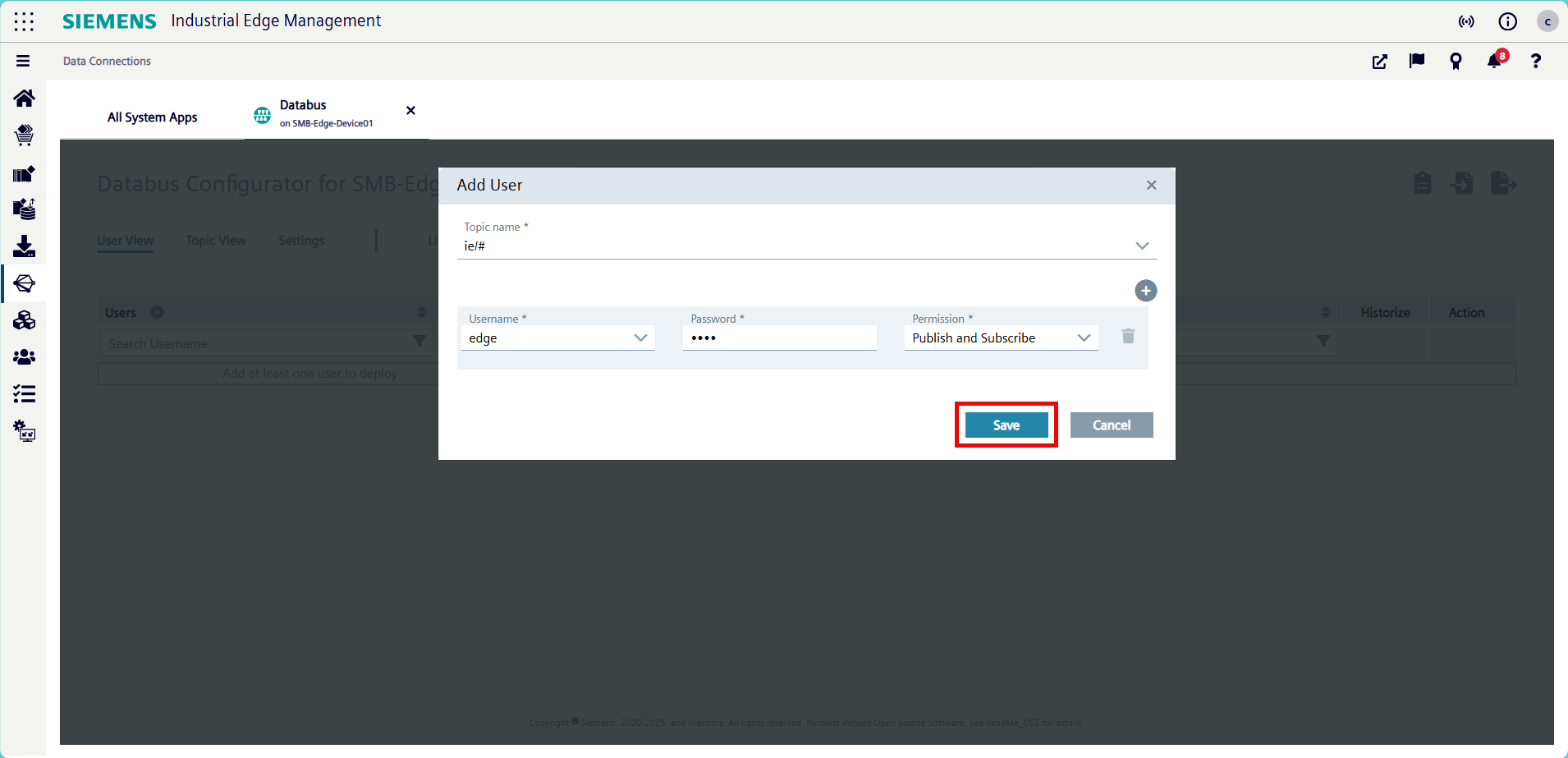
Create a user with the following case-sensitive credentials:
- Topic Name:
ie/# - Username:
edge - Password:
edge - Permission: Publish and Subscribe
- Topic Name:
-
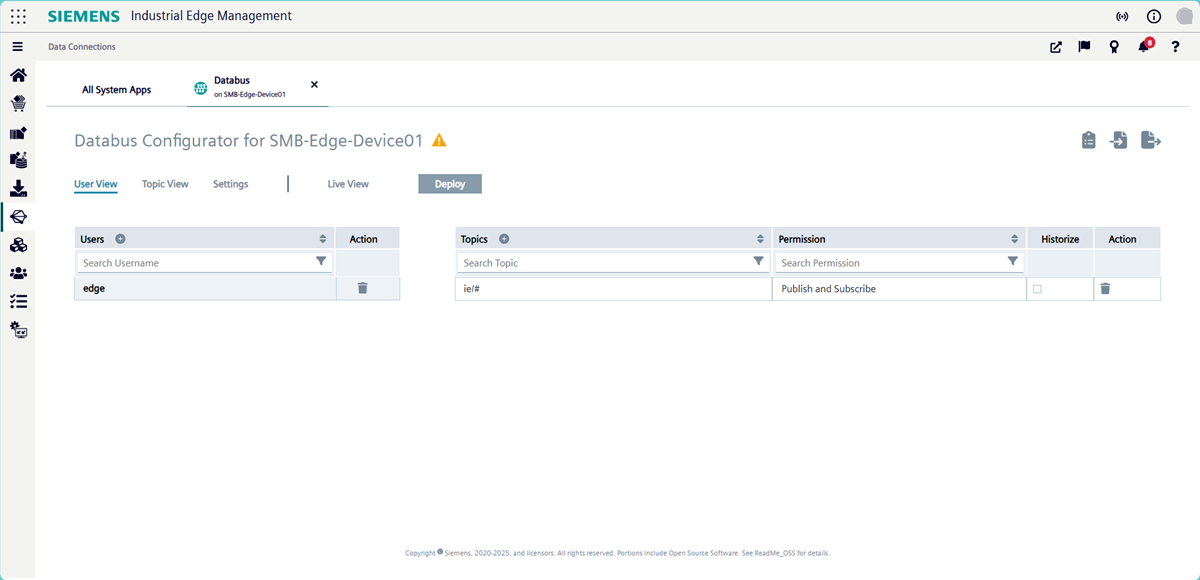
Click "Save". Databus Configurator saves the user.
-
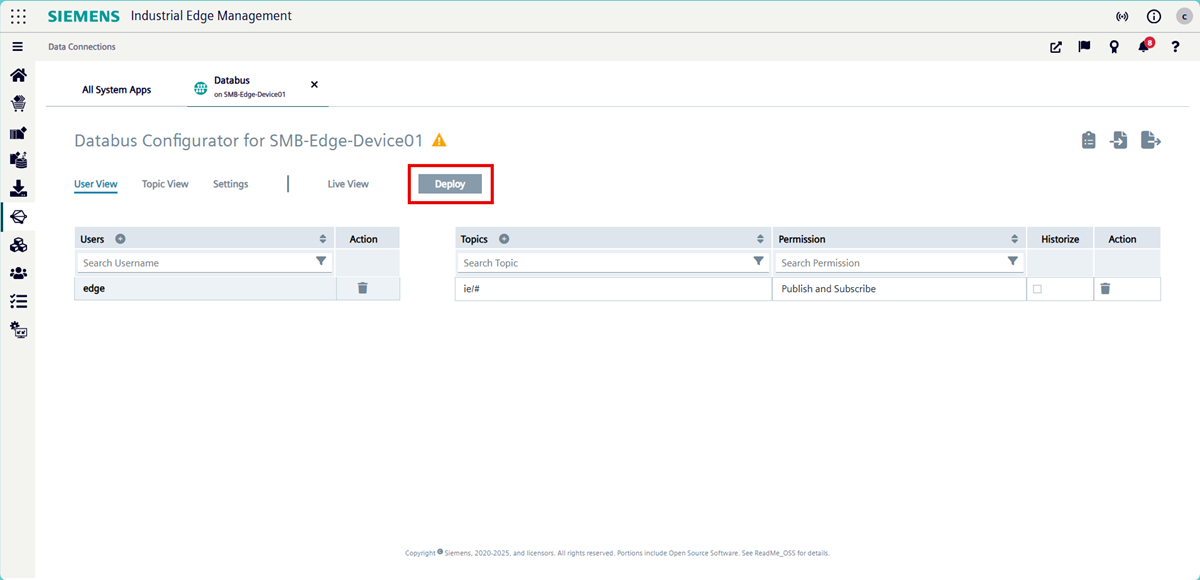
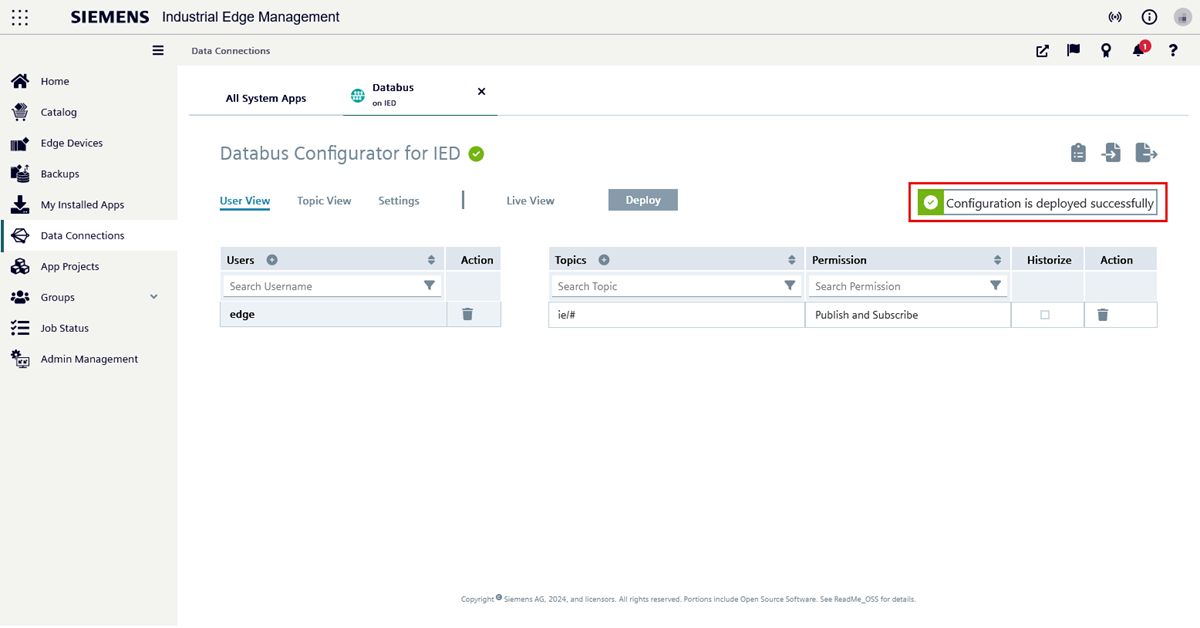
To load these configurations onto your IE Device, click "Deploy". The "Deploy" pop up appears.
-
Select the IE Device you wish to deploy the user configuration to. Click "Deploy".
It takes about a minute for the deployment process to fully complete. Once the deployment is complete, you will see a notification confirming the successful deployment.
What's next?
Proceed to Setting up IE Connectors.