Installing IE Apps on an IE Device
Customers can develop and deploy their own apps, or buy ready-made apps and existing connectivity from the catalogue on the Marketplace. These apps from Siemens and ecosystem partners work for a wide range of automation systems. IE Apps integrate object-oriented programming, databases, data layers, and artificial intelligence at the control level.
- Connectivity
- Data Management
- Analytics
- Security
- many more
   graph
    A[Buy IE App licenses on Industrial Edge Marketplace] --> B[Industrial Edge Hub lists purchased IE Apps]
    B --> C[Copy IE Apps from IE Hub to Industrial Edge Management]
    C --> D[Industrial Edge Management displays available IE Apps in the Catalog]
    D --> E[Use Industrial Edge Management to install IE Apps on the IE Device]
    style E color:#fffFF,stroke-dasharray: 5 5
Prerequisites for installing IE Apps
- You have ordered IE Hub access and signed in to IE Hub.
- You have configured your IEM.
- You have onboarded your IE Device.
- You have switched on your IE Device.
- You have purchased the required IE App licenses. If not, complete Purchasing IE App licenses on the Marketplace.
Required IE Apps
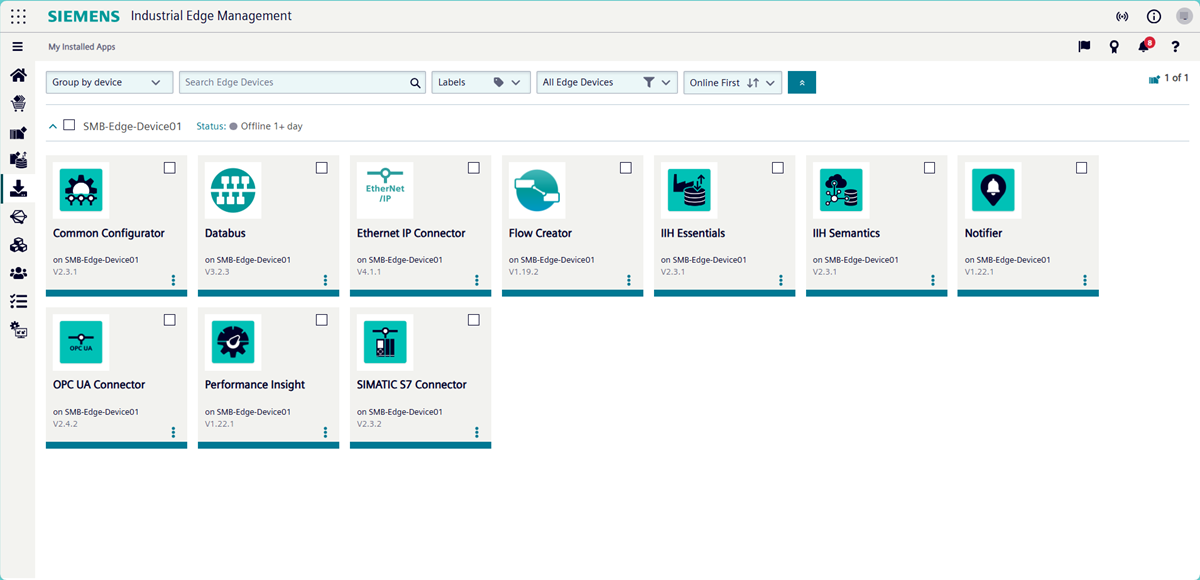
Independent of your individual use case, IE Devices need certain IE Apps to structure field data into a usable format for use in other IE Apps or solutions. Install the following IE Apps for proper functionality:
- Common Configurator - Configures all connector apps.
- Connector app - Fetches data from the IE Device. Install the corresponding connector for the PLC suited for the IE Device and use case.
- Ethernet IP Connector (optional and not included with the platform, suited for non-Siemens PLCs)
- OPC UA Connector
- SIMATIC S7 Connector
- Other connector app suited to the IE Device and use case
- Databus - A general MQTT broker that makes connector data available to other IE Apps on the IE Device. Databus is available in Industrial Edge Hub by default.
- IIH Essentials - Database for the IE Device that stores data and creates the asset model.
The first 100 datapoints for IIH are free of charge.
Siemens recommends Flow Creator for debugging and testing.
Additionally, install Databus Configurator on the IEM instance.
Purchasing IE App licenses on the Marketplace
Buy ready-made apps, connectivity services, and other offerings from the Industrial Edge Marketplace.
- Open the Industrial Edge Marketplace. For customers located in China, use Marketplace China.
- In the top right corner, click "Login / Sign up". The Siemens Log In page opens.
- Log in with the user details for the IEM instance and IE Device you wish to equip. Click "Continue".
- You may see an Terms and Conditions page. Click the checkbox to confirm your agreement to the updated terms and conditions. Click "Confirm". The Marketplace home page opens.
- Search for the IE apps you wish to purchase. Add your preferred products to the cart.
- Complete the ordering process to add them to your IE Hub.
After a successful IE App purchase, Siemens Marketplace sends an email to the IE Hub admin, confirming that the apps have been provisioned to the IE Hub.
To check whether the purchase was successful in your IE Hub:
- Log in to IE Hub.
-
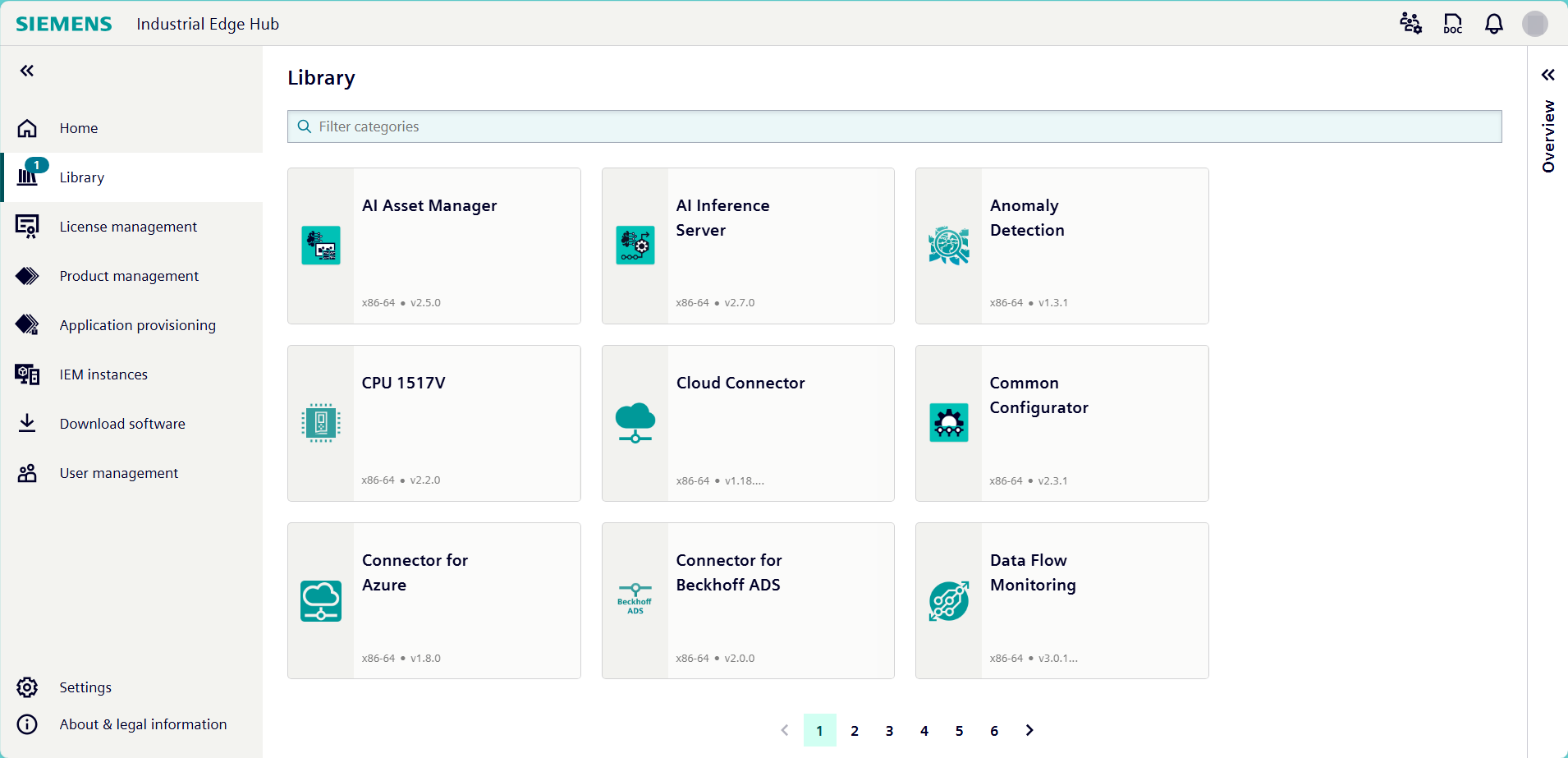
Click "Library" from the left navigation pane. The "Library" page opens, displaying tiles of available IE apps.
Installing an IE App
Once you have purchased an IE App from the Marketplace, install it on an IE Device. The process remains the same for all configurations of Industrial Edge Management and for both physical and virtual IE Devices.
The video below guides you step by step through the process of installing apps on an IE Device.
Copying an IE App from IE Hub to the IEM catalog
After purchasing an IE App license, Siemens Marketplace automatically distributes the IE App to the Industrial Edge Hub associated with the purchasing account. To install an IE App on an IE Device, first copy the IE App from IE Hub to the Industrial Edge Management catalog.
- Log in to IE Hub.
-
Click "Library" from the left navigation pane. The "Library" page opens and displays tiles of available IE Apps.
-
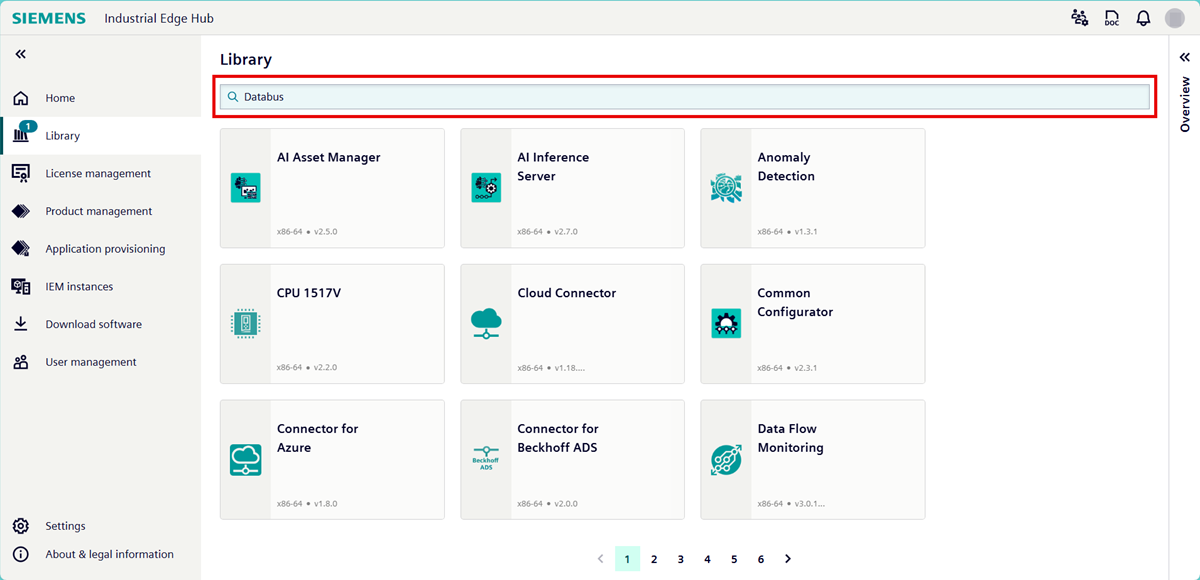
Use the search bar or filter to find the IE App you want to copy to the IEM instance.
-
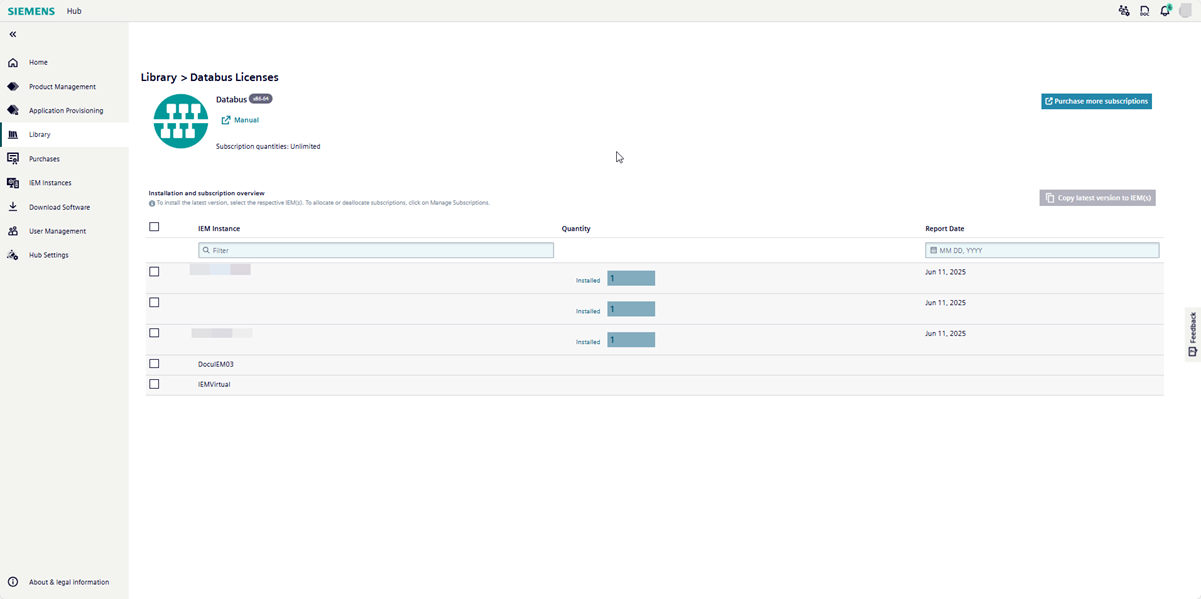
Click the tile of the IE App you want to copy. The IE App product details page opens and lists all IEM instances connected to IE Hub.
-
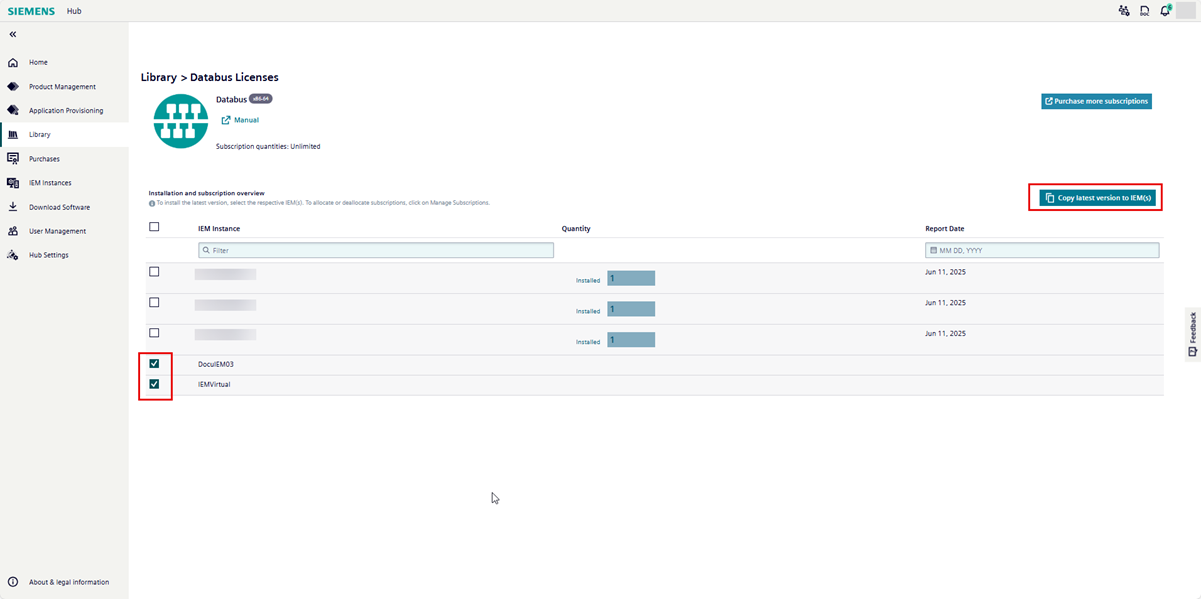
Select the instance by using the checkbox on the left.
-
Click "Copy latest version to IEM".
-
Click "Copy" to confirm.
- Repeat steps 2-7 for each IE App you want to copy to the IEM instance.
To check whether the apps have been copied successfully to IEM:
- Log in to IEM.
-
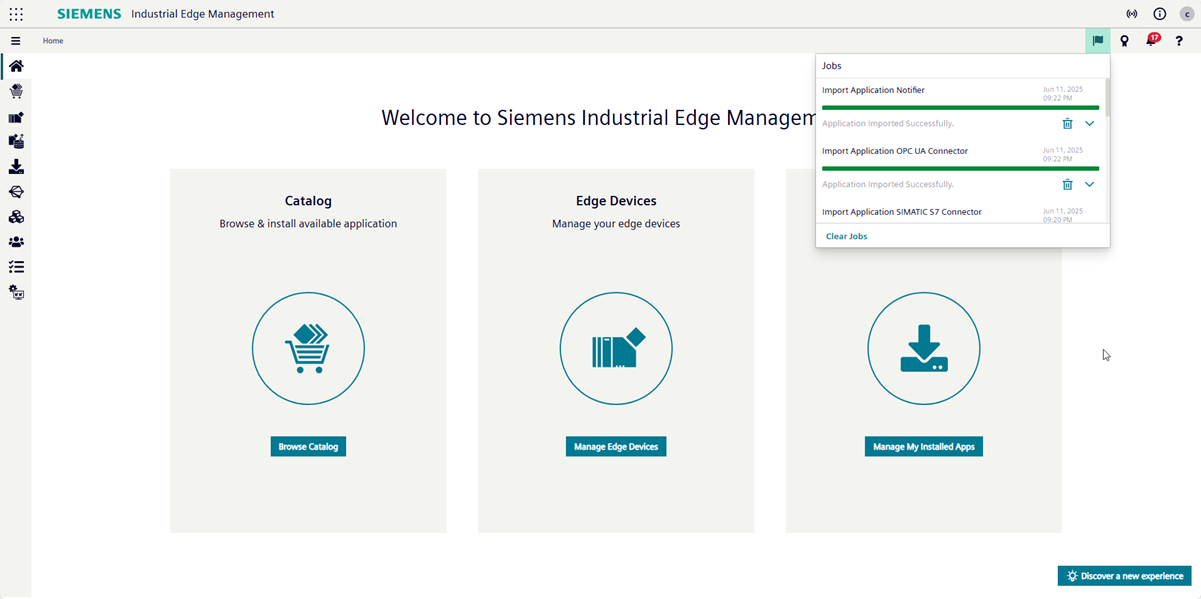
Click the "Job Status" flag in the top-right corner. A list displays the copy progress for each IE App.
NOTICE
IE App installation time depends on your internet speed and network configuration.
IEM lists the IE Apps in the "Catalog" when the upload completes.
Installing an IE app from the IEM to an IE Device
After copying an IE App to the IEM catalog, install the IE App on the IE Device. This process is the same for IEM Cloud, IEM Virtual, and IEM Pro.
- Log in to IEM.
-
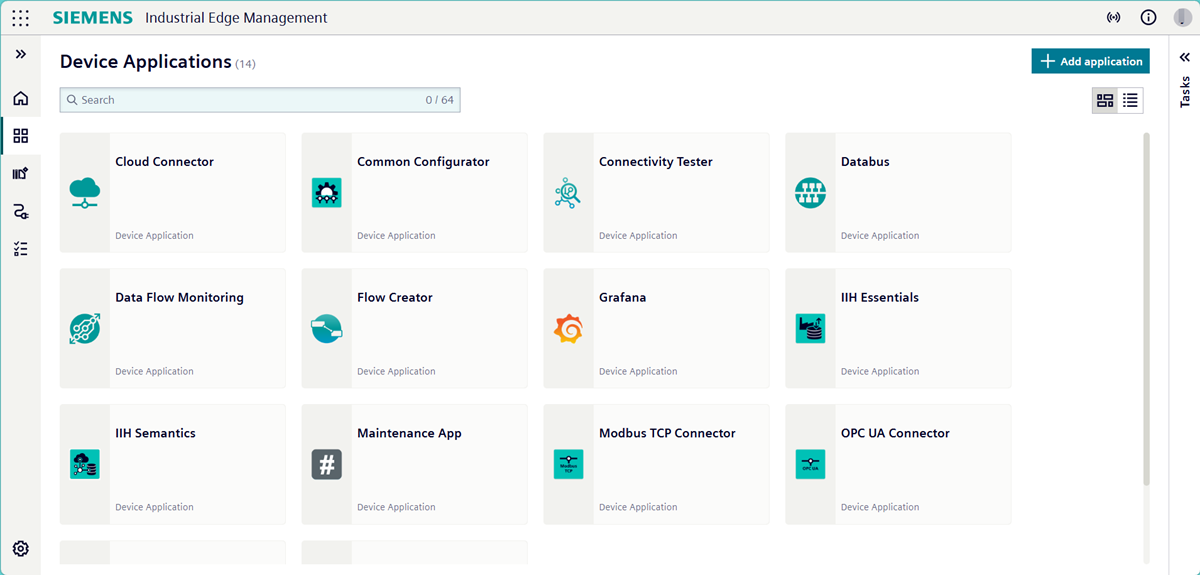
In the left navigation pane, click "Applications > Device". The "Device Applications" page opens, displaying tiles of available IE Apps.
-
Click the tile for the IE App you wish to install. The IE App details page opens.
-
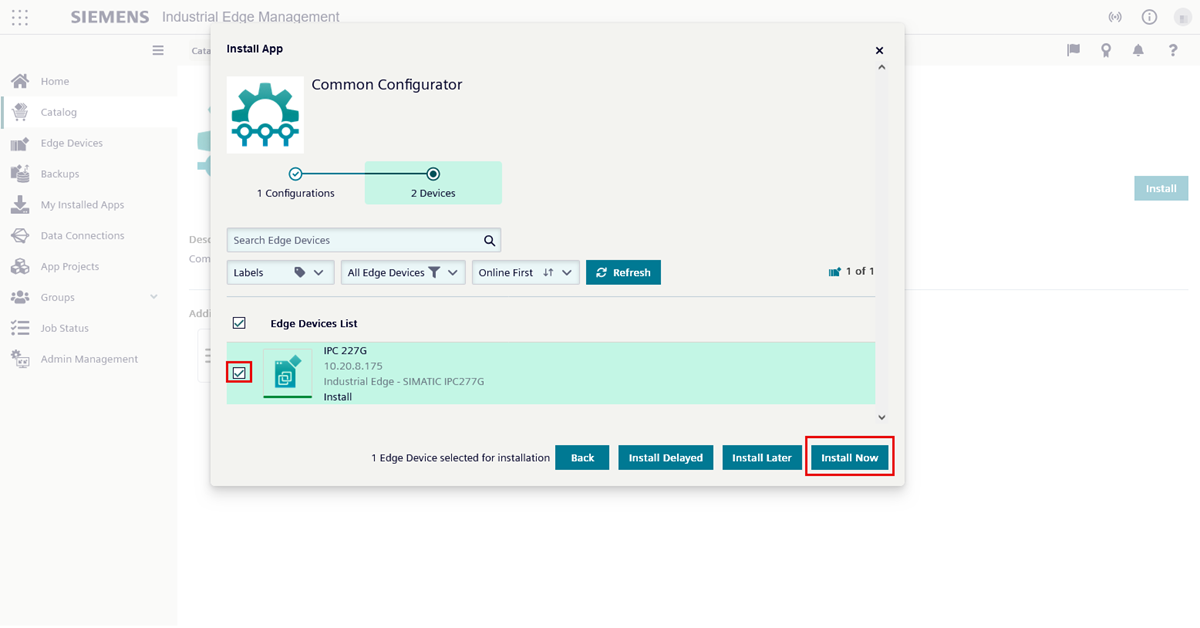
Click "Install on Device". The "Install on devices" page opens, listing available IE Devices.
-
Click the checkbox to select the IE Device. Additional information about the selected IE Device appears in the right side of the screen.
-
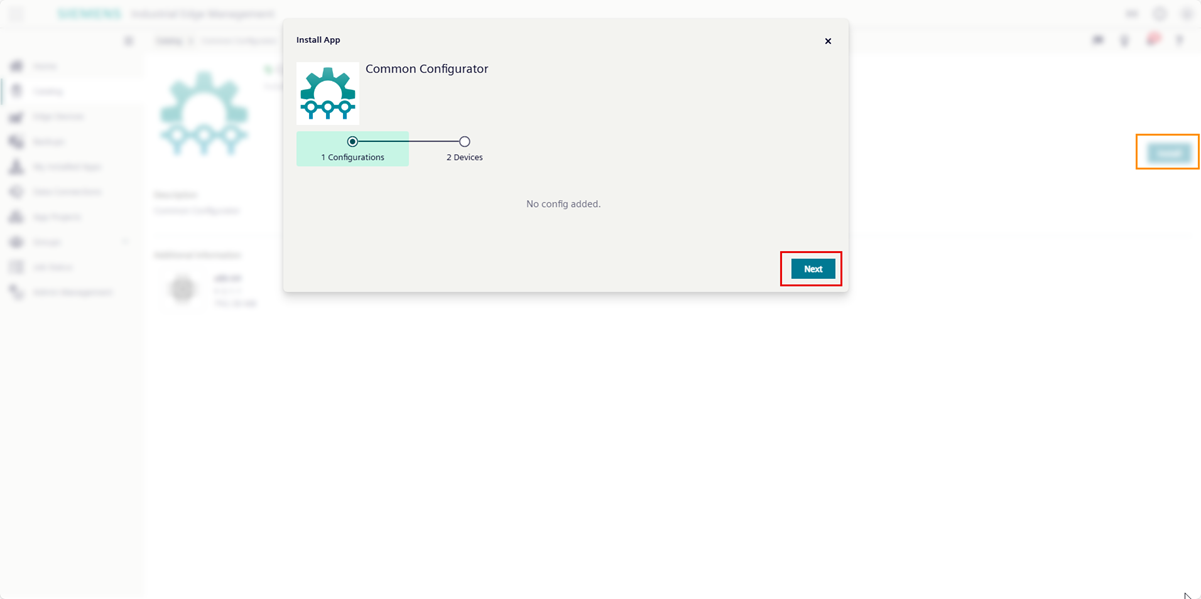
If you wish to add a configuration file, click the checkbox next to the configuration type and input the configuration in the available text box.
-
Click "Install". IEM installs the IE App on the IE Device.
-
Repeat steps 2-7 for each IE App you want to copy to the IE Device.
- In the left navigation pane, click "Job Status". The "Jobs" page opens, listing the installation progress for each IE App.
To verify that all IE Apps installed successfully on the IE Device:
- In the left navigation pane, click "Devices > Overview". The "Devices" page opens.
-
Click the IE Device. The IE Device page opens, listing all installed apps under the "Installed applications" tab.
Launching an IE App on your IE Device
After installing an IE App on an IE Device, log in to the device UI to launch.
- Open the web browser on your local computer.
- Enter the IP address of the IE Device with the HTTPS protocol, i.e.
https://<ip address>. The screen displays the IE Device UI login screen. - Log in to the Device UI.
- Click "Apps" from the left navigation pane. The "Apps" page opens.
- Click on the tile of the IE App you wish to launch. The selected IE App launches in a new tab.
What's next?
Proceed to Installing management IE Apps.