Onboarding a physical Industrial Edge Device
Physical IE Devices process data locally in industrial automation environments. They are physically located near the automation equipment such as sensors, controllers, and gateways that collect and analyze data locally.
This tutorial uses the SIMATIC IPC 227G to illustrate how to onboard a physical IE Device.
Prerequisites for onboarding a physical IE Device
Software requirements
- You have IE Hub Access.
- You have configured your IEM.
- You have an existing network setup.
- IP plan ready, either static or static through DHCP.
- Recommendations:
- Use a provided DNS server for name resolution.
- Use a provided NTP server for time synchronization.
Hardware requirements
- IE Device
Connecting the physical IE Device
The IE Device requires network access to connect to the Industrial Edge Management instance. For an IEM Virtual deployment, ensure the IE Device can reach the IEM. For IEM Cloud, ensure the IE Device has internet access to reach IEM Cloud.
- Plug an Ethernet cable into the IPC's port.
- Establish an IEM-to-IE-Device connection.
- Connect a screen to the IE Device.
- Turn on the IE Device.
-
When the IE Device finishes booting up, the screen displays the IE Device IP address. Note down the IP address. The DHCP on your network determines the IP address. If no IP address is shown, you might not have a DHCP server available. In this case, refer to Onboarding a physical IE Device via a USB stick.

-
Establish connectivity between your local computer, IEM, and the IE Device so you can reach the user interfaces from your computer.
Creating the configuration file for a physical IE Device
IE Devices require a configuration file from Industrial Edge Management for the onboarding process. This procedure is similar for IEM Cloud, IEM Virtual, and IEM Pro.
- On the local computer, open Industrial Edge Management in a browser.
- If required, log in.
-
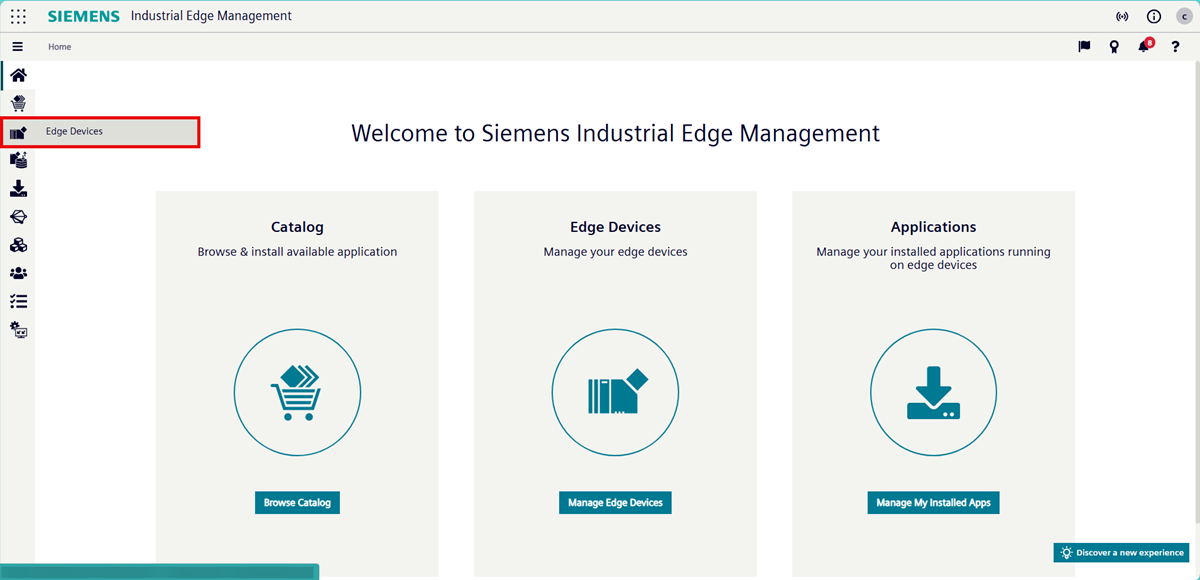
Click "Edge Devices". The "Edge Devices" page opens.
-
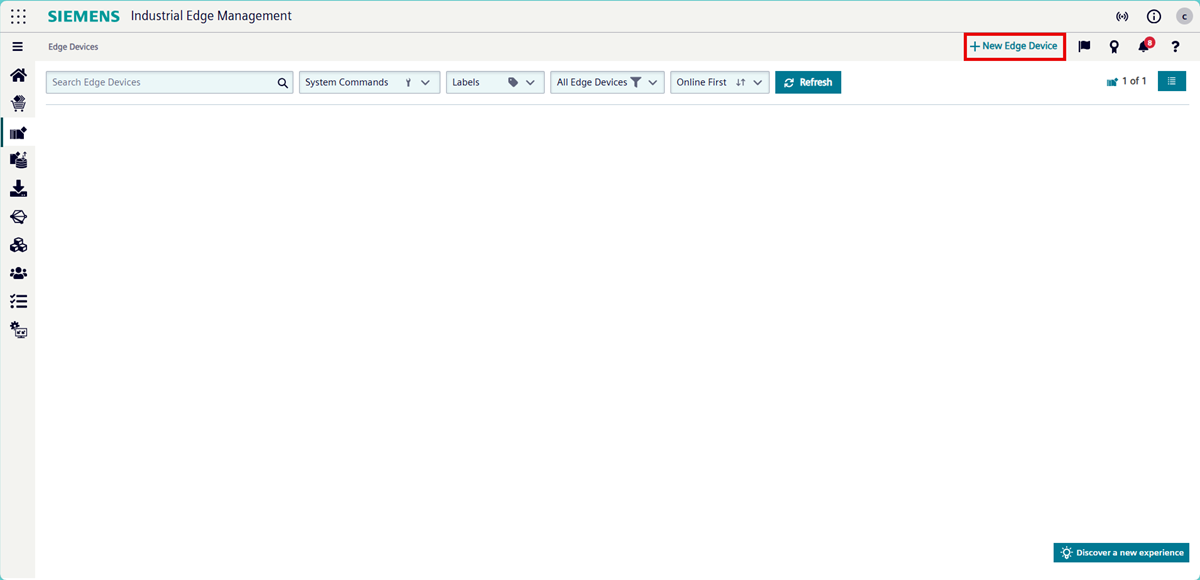
Click "+ New Edge Device". The "New Edge Device" pop-up opens.
-
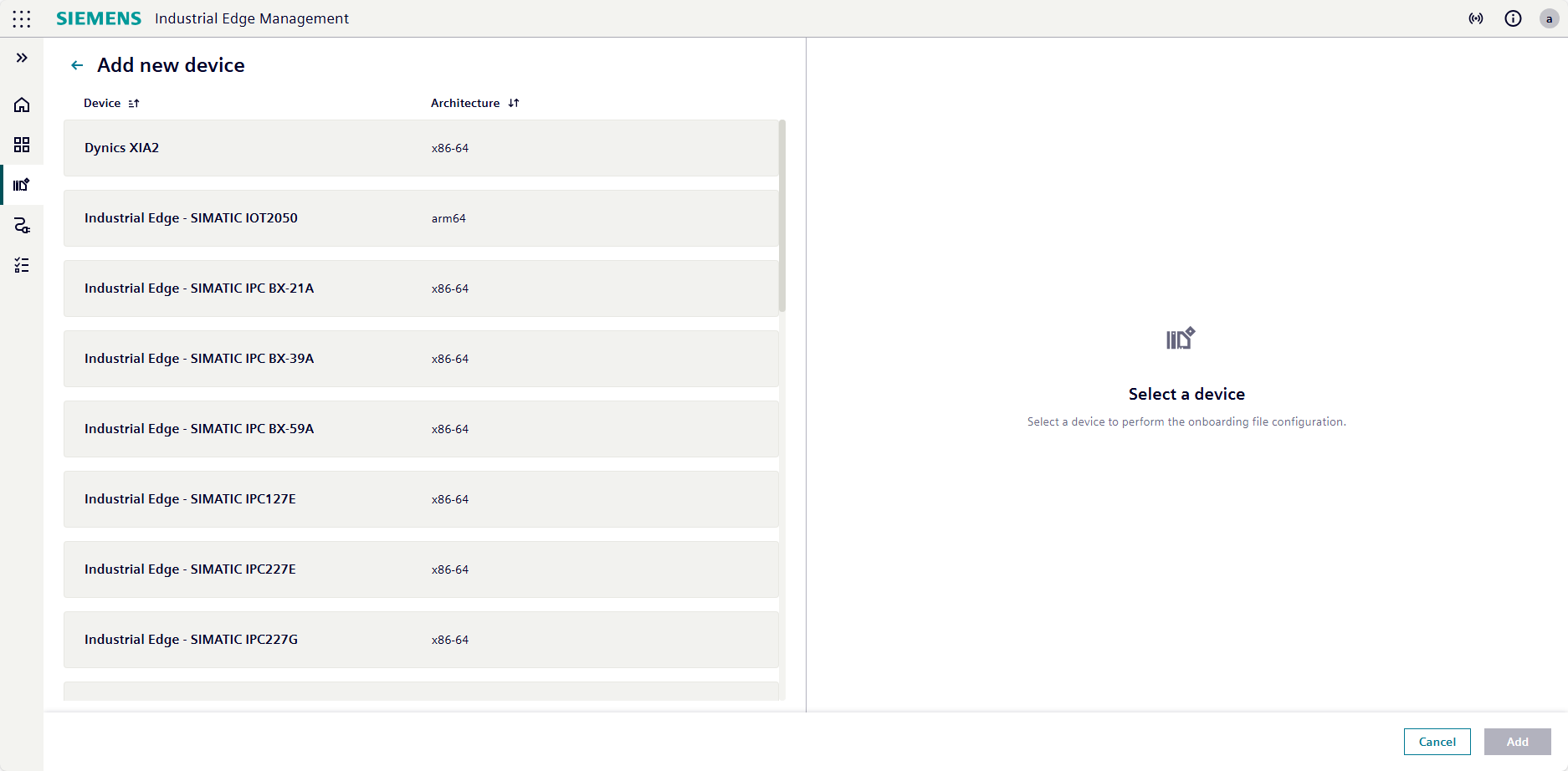
Select the corresponding device type from the list displayed.
-
Define the following information:
Field Input IE Device Name Enter a unique device name.
The device name must be 3–64 characters long and may only contain alphanumeric characters and.,+,-, and_.IE Device Username (Email) Enter the email address that should be used to log in to the device. IE Device Password Enter the password that should be used to log in to the device.
The password must be at least 8 characters long and contain at least one capital letter, special character, and number.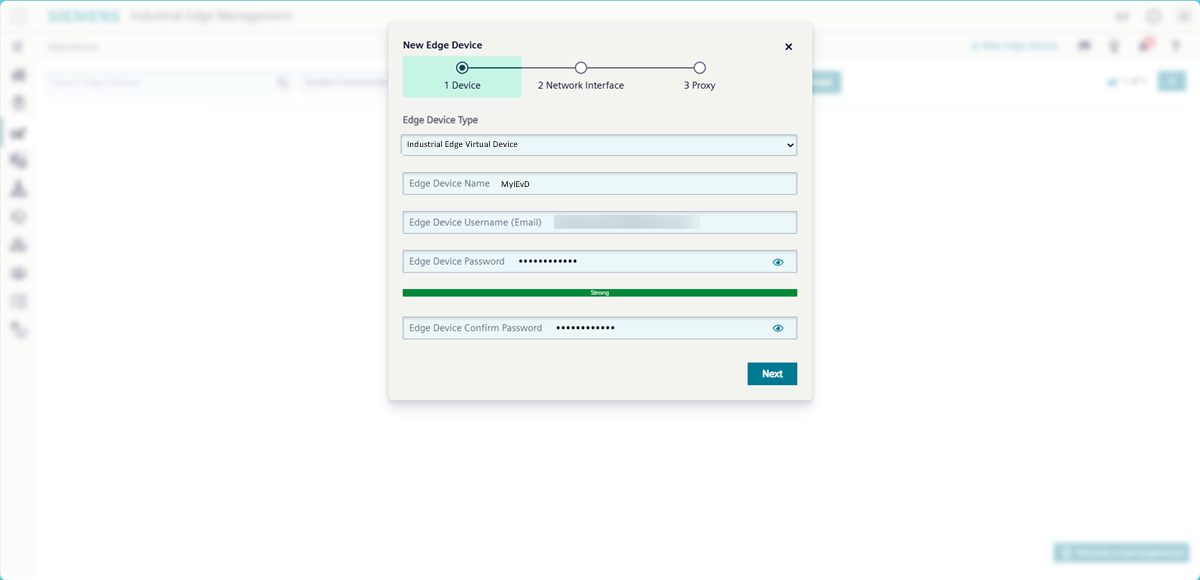
Credentials cannot be recovered
Note down the credentials or store them in a password manager.
-
Setup the expiration time of onboarding file.
- Expand the "Network Interface" area. Click "Add network interface".
-
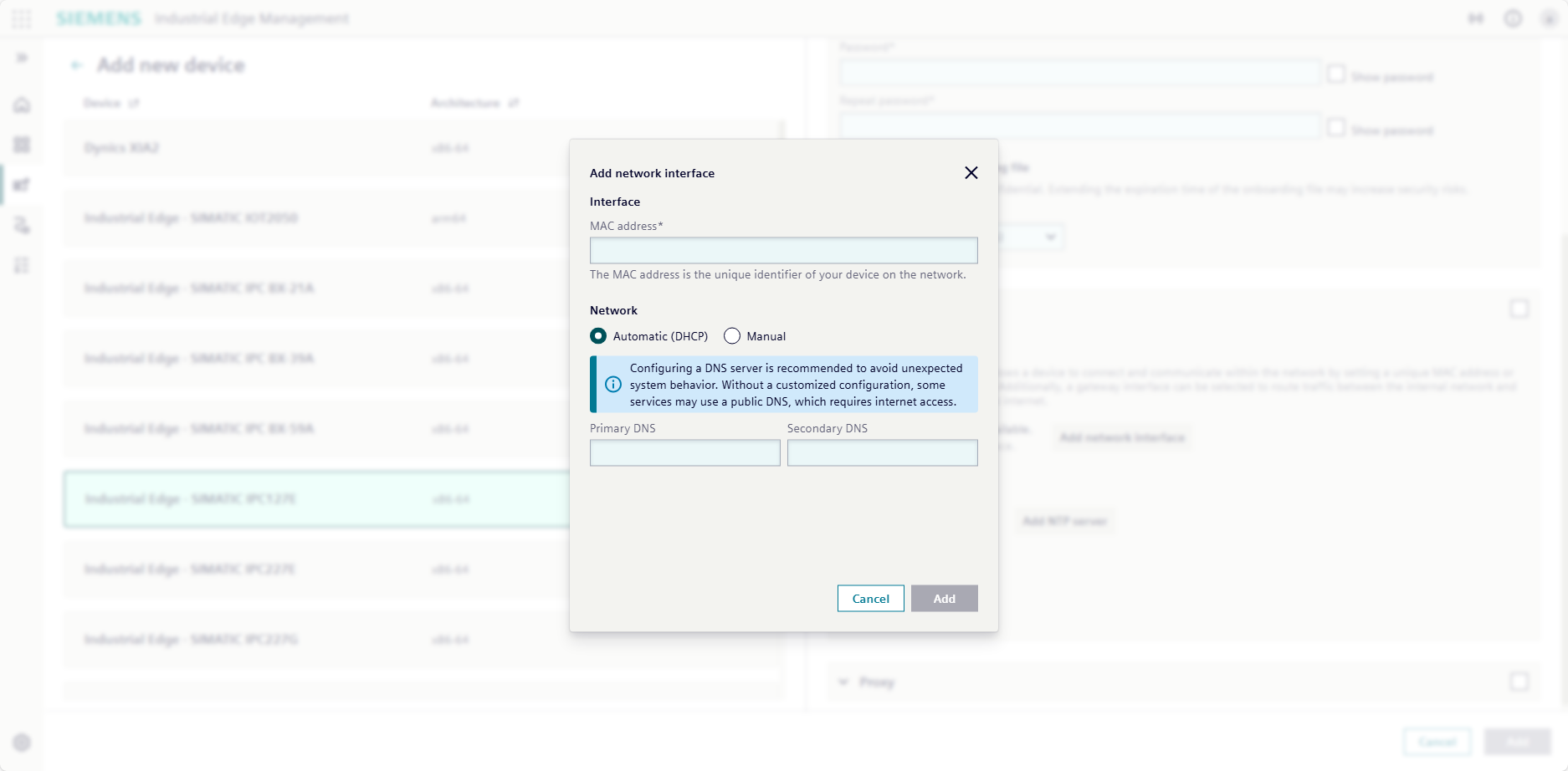
If using DHCP, select "Automatic (DHCP)" and when needed, configure a DNS server.
-
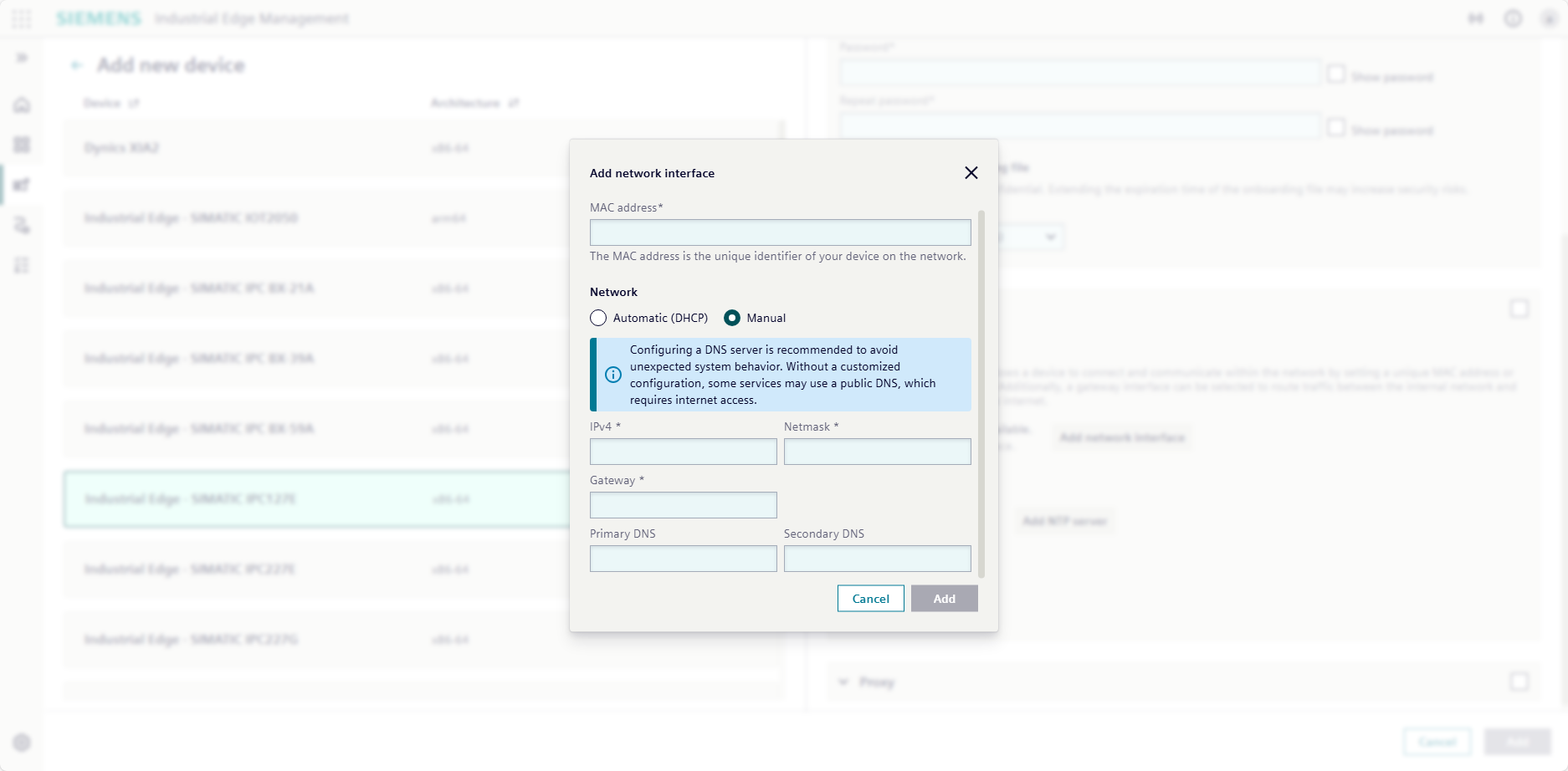
If using a static IP address, select "Manual" and fill the mandatory information.
-
The network configuration includes setting a Network Time Protocol (NTP) server. The NTP server is responsible for time synchronization. To set a NTP server, click "Add NTP server" and enter your network's NTP server or use a public NTP server such as
pool.ntp.org.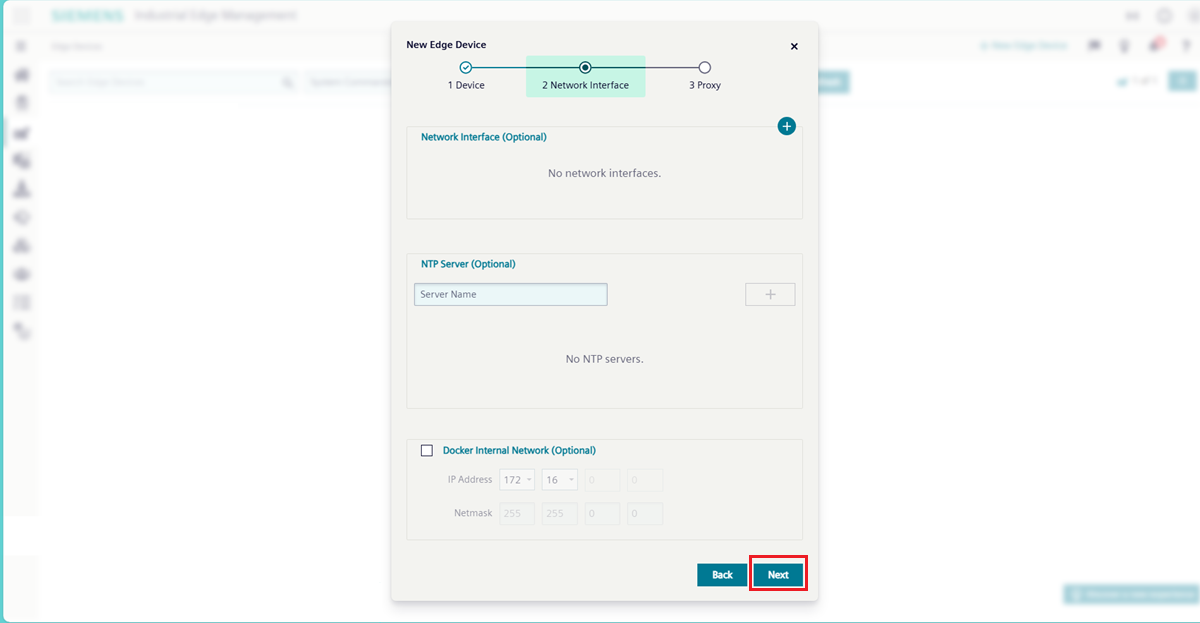
-
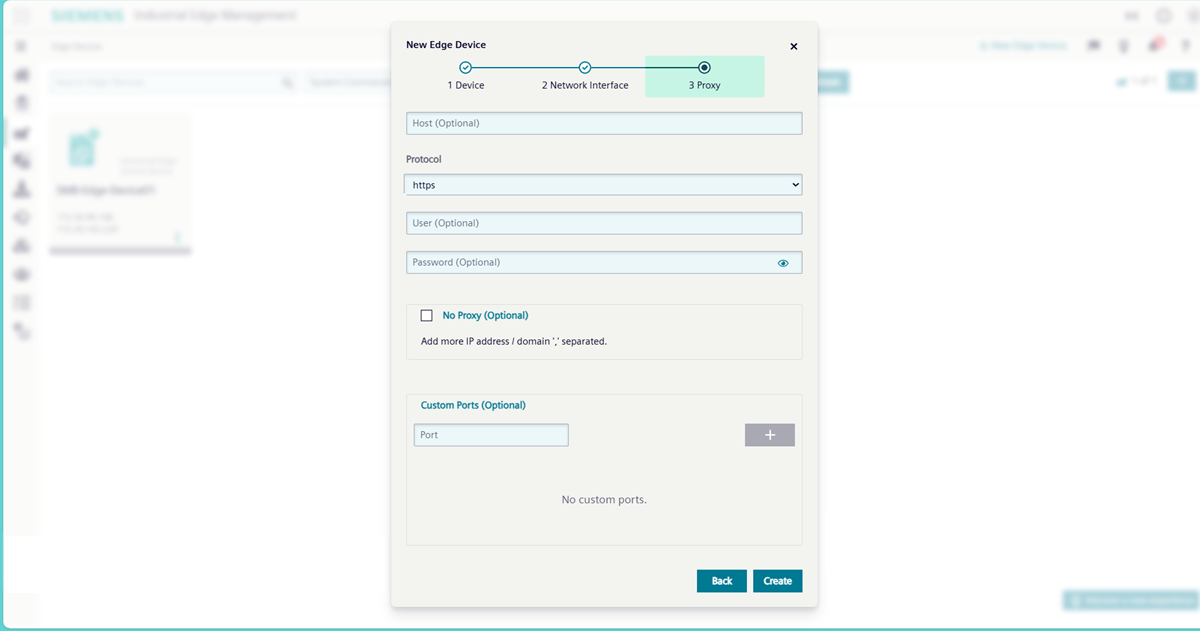
If needed, expand the "Proxy" area and specify the configuration for your proxy. If you do not have a proxy, leave the fields blank.
-
Click "Add". The configuration file downloads according to your browser settings. The configuration file follows the naming convention of
device-<deviceID>.Valid for one hour
The configuration file is only valid for one hour by default. After one hour, the file expires and you must download a new configuration file.
-
IEM displays the "Edge Devices" page with the new IE Device listed.
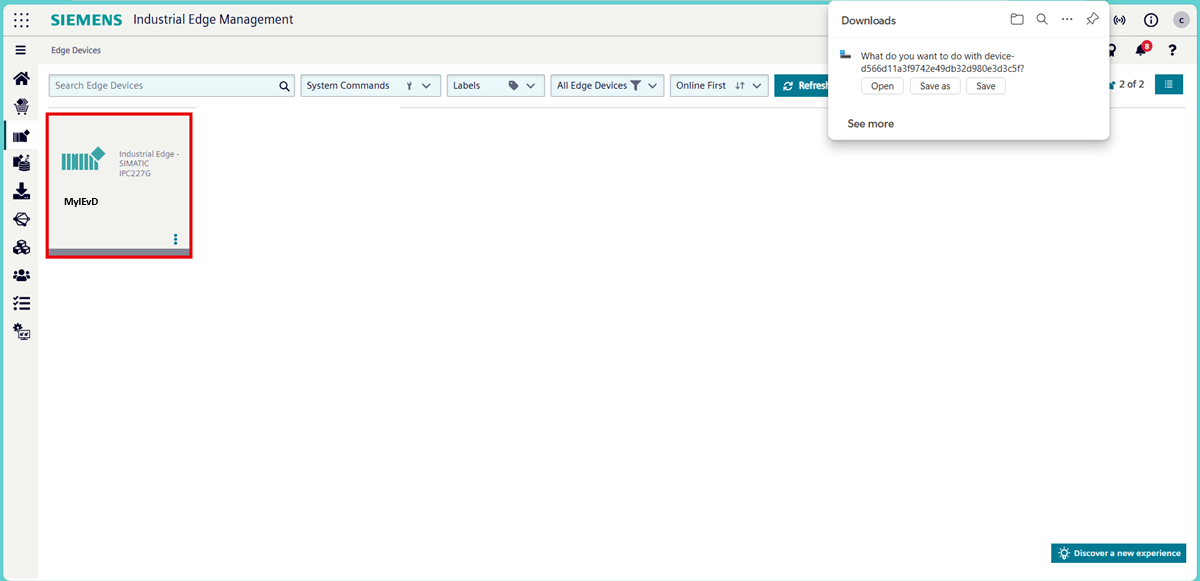
Once the configuration file downloads, proceed directly to one of the following onboarding methods:
Siemens recommends onboarding via the IE Device UI for convenience and a faster onboarding process.
Onboarding a physical IE Device via the web browser
- Open the web browser on your local computer.
-
Enter the IP address of the IE Device with HTTPS, for example
https://<ip address>. The browser may display the "Your connection isn't private" warning page because the IE Device uses a self-signed certificate for the UI.
-
Click "Advanced". The screen displays a warning about the server security certificate.
- Click "Continue to XXX.XXX.XX.XXX (unsafe)". The IE Device UI displays the "Activate Edge Device" page.
-
Click "Browse".
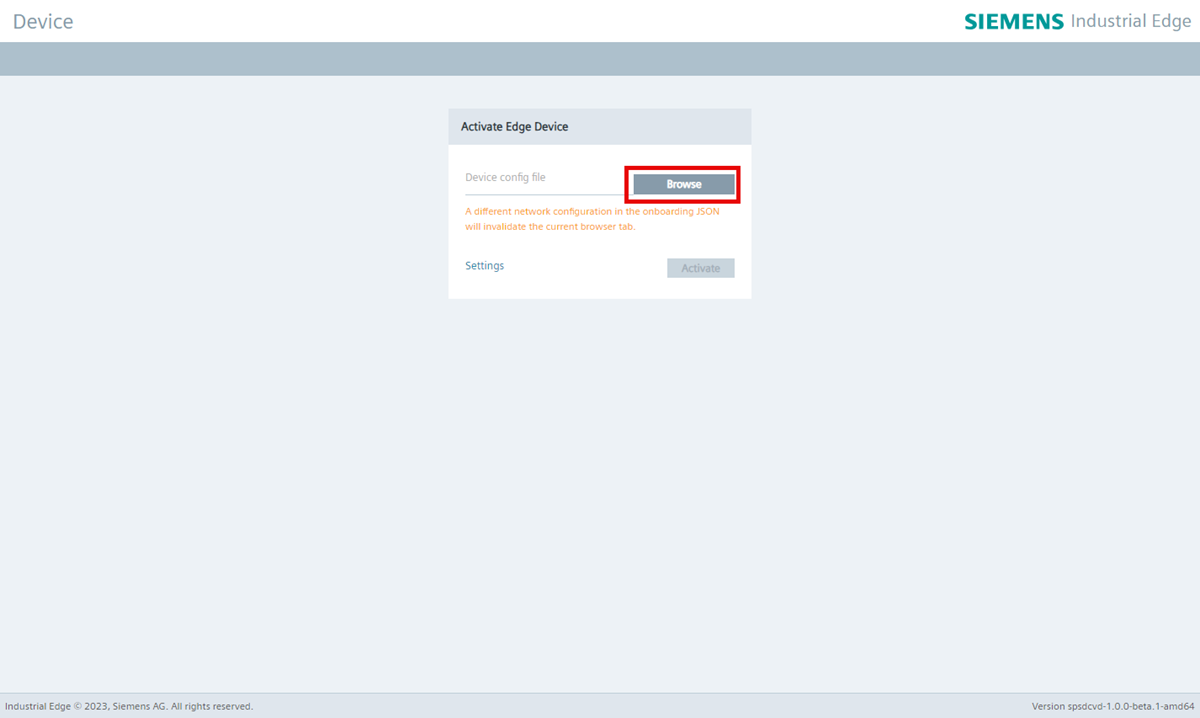
-
Select the configuration file downloaded previously.
-
Click "Activate". The onboarding process begins and the screen displays a progress list. The orange "Maintenance" LED and the green "Running" LED on the IE Device flash during the onboarding process.
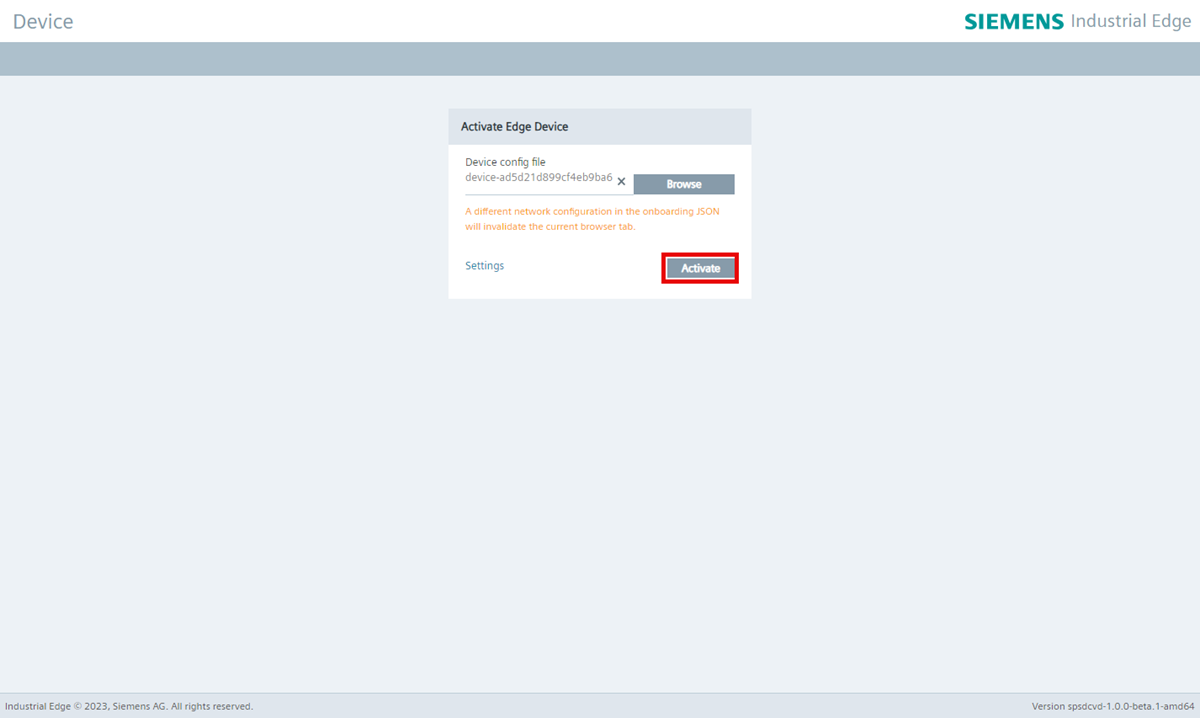
-
When the onboarding completes, the orange "Maintenance" LED stops flashing and the green "Running" LED turns solid. Click "OK". The screen displays the IE Device UI login screen.
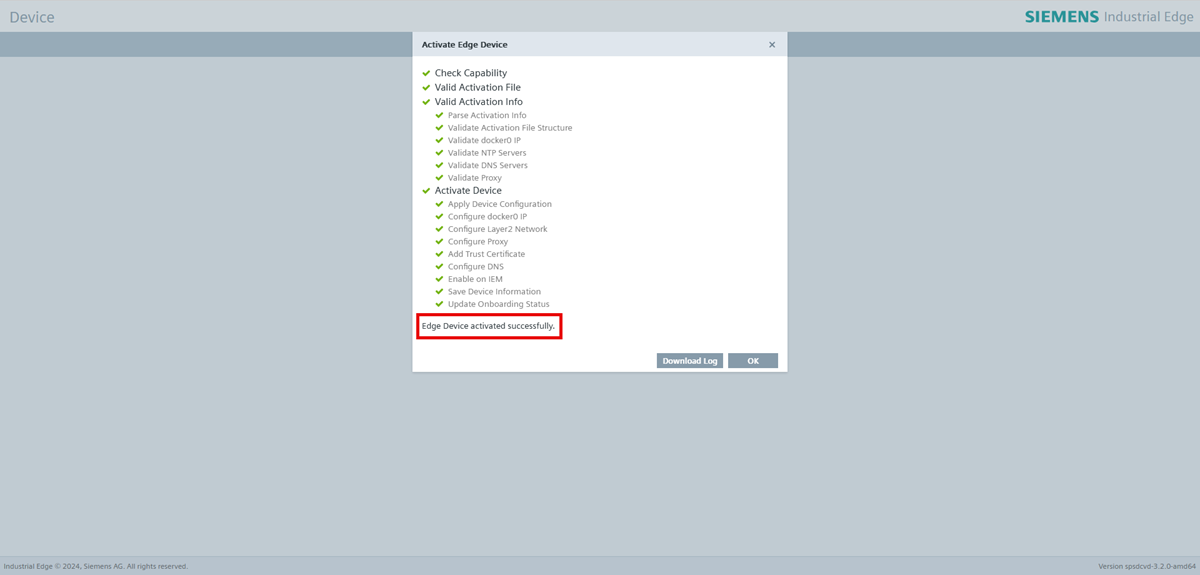
-
Enter the login credentials previously defined in the configuration file. The IE Device logs in.
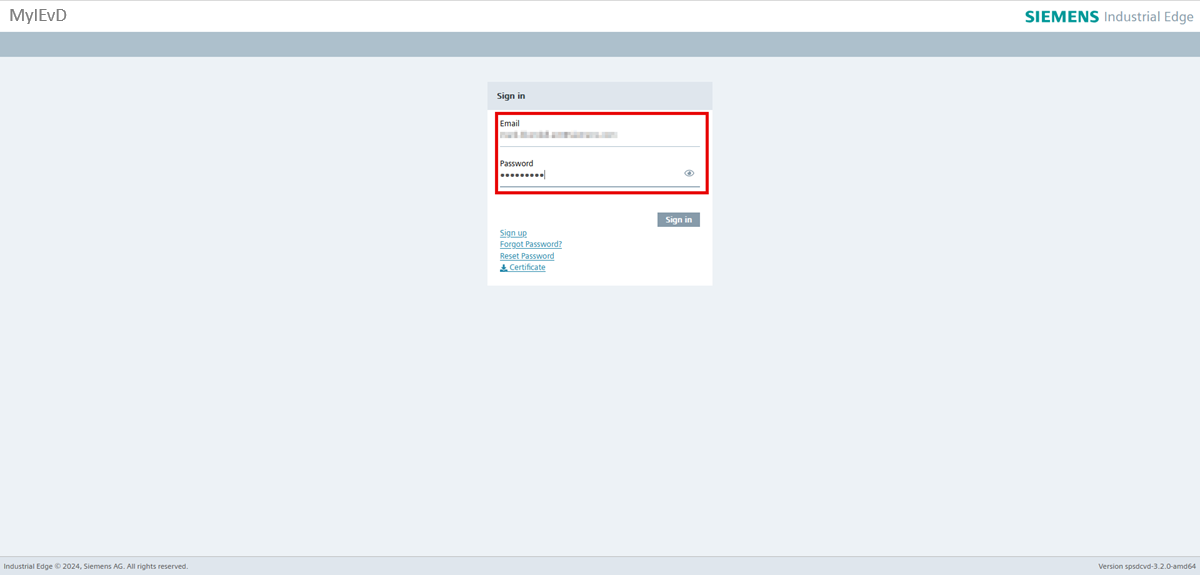
You are now logged in to the device UI and the onboarding process is finished. Proceed to Validating the outcome.
Onboarding a physical IE Device via a USB stick
Use this method only when a static IP address is required or you do not have access to the UI. Otherwise, onboarding via the device UI is more convenient.
- Insert a blank USB stick into your local computer.
-
Create a new partition on the USB stick called
USBONBOARD.NOTICE
For a detailed description of how to create the partition, refer to "Chapter 4: Preparing the USB flash drive" of SIMATIC IPC Industrial Edge Device.
-
Add the configuration file to the partition.
- Eject the USB stick.
- When the green "Running" LED on the IE Device flashes, insert the USB stick into the USB port.
- The onboarding process starts immediately. The orange "Maintenance" LED and the green "Running" LED on the IE Device flash during the onboarding process.
- When the onboarding completes, the orange "Maintenance" LED stops flashing and the green "Running" LED turns solid.
- Remove the USB stick from the IE Device.
- Enter the IP address of the IE Device with HTTPS, for example
https://<ip address>. The browser may display the "Your connection isn't private" warning page because the IE Device uses a self-signed certificate for the UI. -
Click "Advanced". The screen displays a warning about the server security certificate.
-
Click "Continue to XXX.XXX.XX.XXX (unsafe)". The screen displays the IE Device UI login screen.
-
Enter the login credentials previously defined in the configuration file. The IE Device logs in.
You are now logged in to the device UI and the onboarding process is finished. Proceed to Validating the outcome.
Validating the outcome
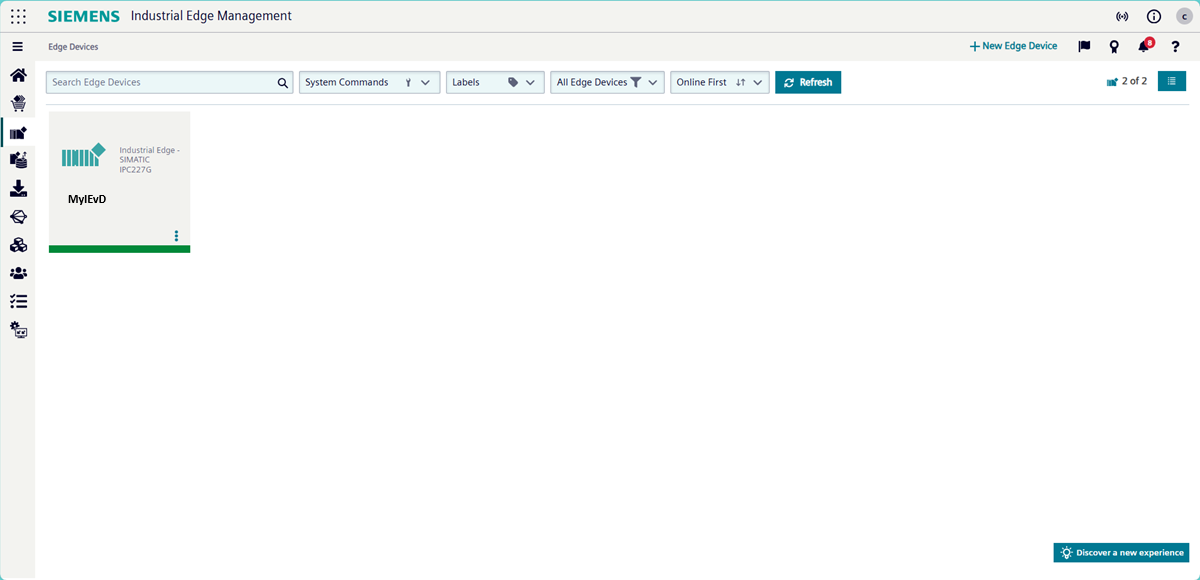
If you can log in to the device, the onboarding process was successful. To confirm the onboarding process, open IEM and click "Edge Devices". The onboarded IE Device appears to indicate it is online.
More information
Refer to the Industrial Edge documentation for more information about managing the onboarded IE Device.
What's next?
Proceed to Setting up IE Apps.