Creating an asset model
Tags are data points that are fetched from the IE Device. Connector apps configure and deploy tags. Before tags can be used by other IE Apps, first collect and store tags in an IIH Essentials asset model.
Industrial Edge uses assets as the main modeling objects to recreate your system structure and to add corresponding attributes. Assets can describe a base class (e.g. Device, MotionDevice, Robot) or a specific asset type for a product line or product model (e.g. Simatic1500SeriesController). Asset models describes an asset independent of the use case.
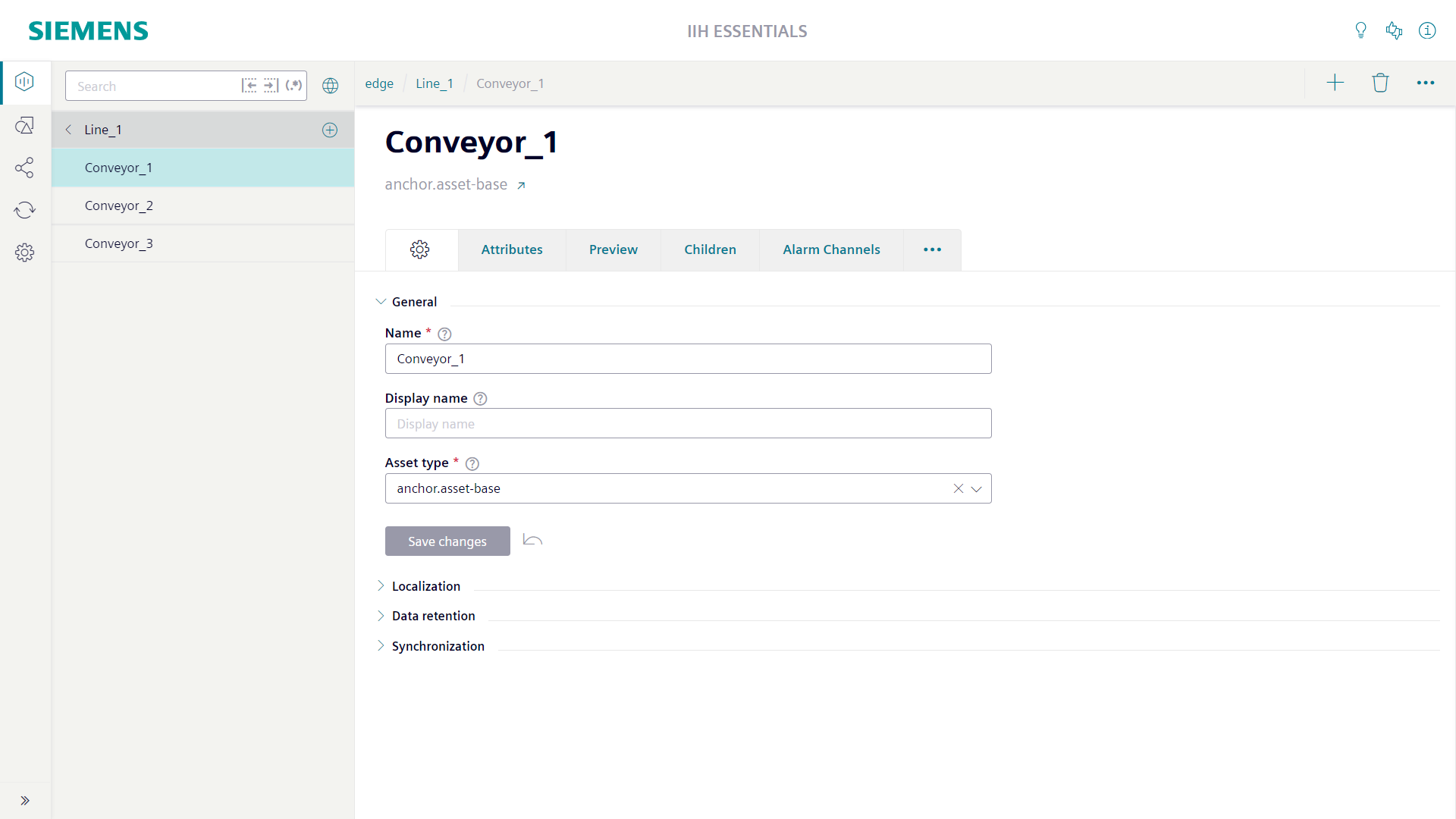
Attributes are the data members of assets and aspects. IIH Essentials lists the attributes of an asset or aspect in the "Attributes" tab. Attributes can be created specifically for an instance or can be inherited from the asset type or aspect type.
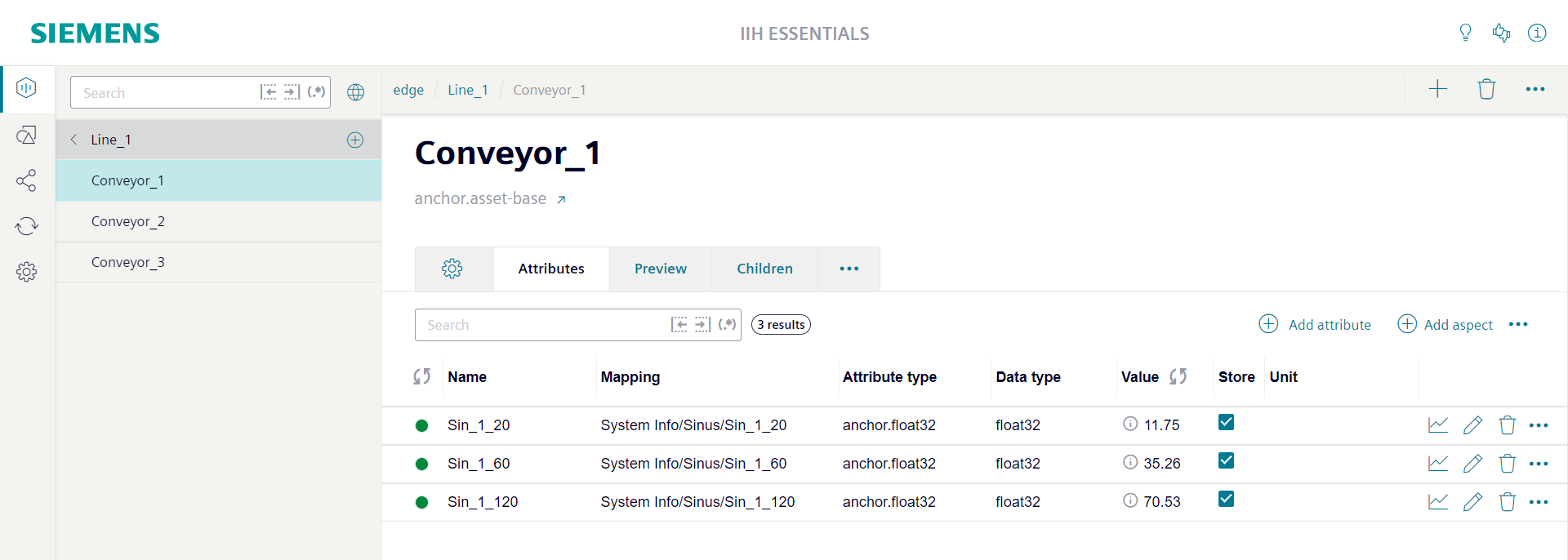
To use asset models, create the asset model in IIH Essentials and define the tags for the asset.
Defining the asset
- Open the web browser on your local computer.
- Enter the IP address of the IE Device with the HTTPS protocol, i.e.
https://<ip address>. The screen displays the IE Device UI login screen. - Log in to the Device UI.
-
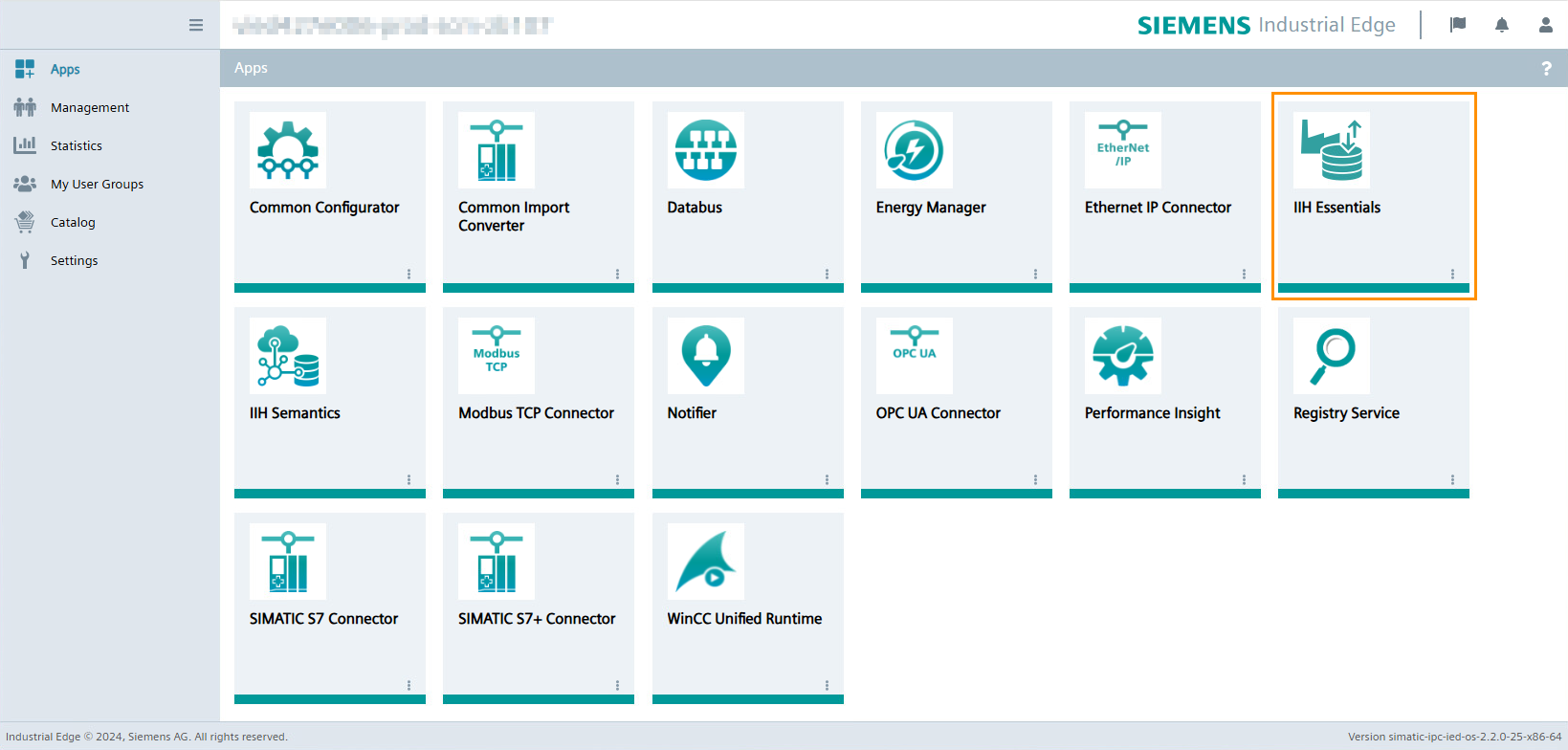
Click the "IIH Essentials" tile. The "IIH Essentials" UI opens.
-
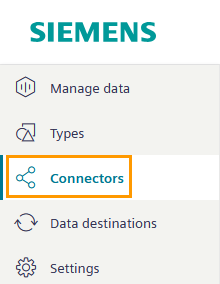
Click "Connectors" from the left navigation pane. A list of connectors appears.
-
Select your connector from the list. Ensure the connector is "Active" and "Connected".
-
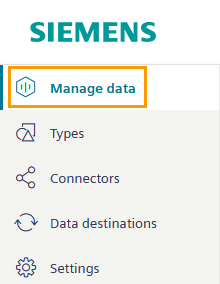
Click "Manage data" from the left navigation pane. The "Manage data" page opens.
-
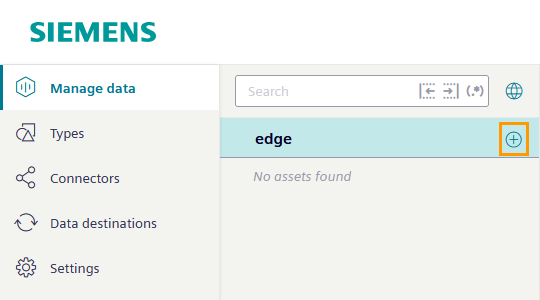
Click the "+" icon next to the listed IE Device you wish to create a new asset from.
-
Provide the asset with a name and display name.
- Select
anchor.asset-baseas the asset type. - Click "Save changes". IIH Essentials creates the asset.
Defining the required tags for the asset
Once the asset is created, define the tags for the asset.
- Select the asset from the tree.
-
Click "Add attribute". The "Add attribute" page opens.

-
Under "Source type", select
Connector. IIH Essentials lists the available connectors.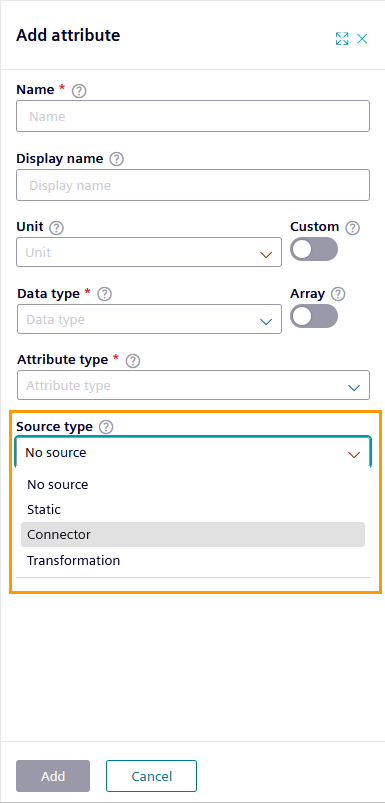
-
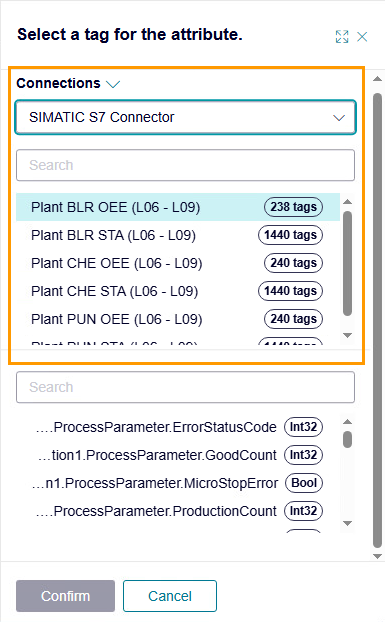
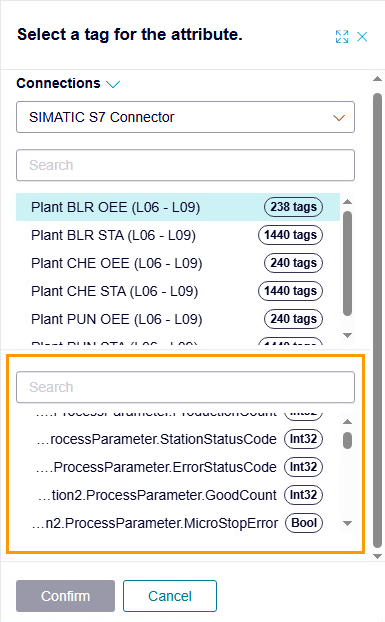
Under "Connector", select your connector and the corresponding connection. IIH Essentials lists the connector's tags at the bottom of the panel.
-
Select the tags from the list that you wish to collect and store in IIH Essentials.
-
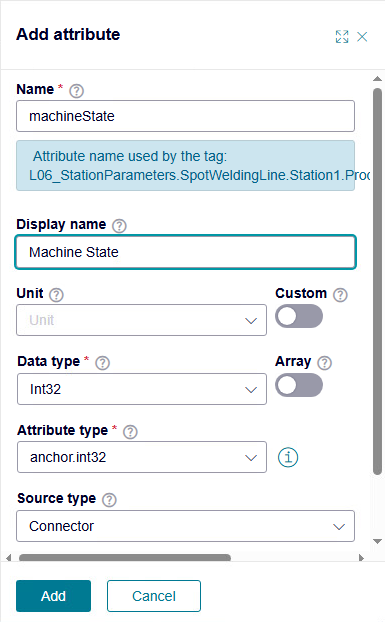
Click "Confirm". IIH Essentials adds the information from the tag to the "Add attribute" view.
-
If required, change the "Name" and "Display name" of the tag.
-
Click "Add". IIH Essentials adds the tag to the asset.
- Repeat steps 2–8 to add more tags.
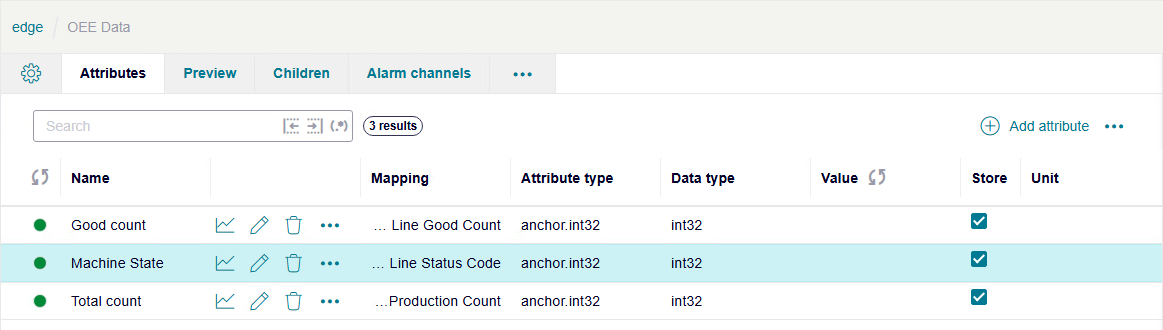
IIH Essentials lists the added tags and their values on the IE Device's "Attributes" page.
What's next?
You have successfully set up Industrial Edge, connected it to your environment, and prepared the asset model so that you can start implementing your use cases.
Refer to Industrial Edge Tutorials for more examples on how to use and define assets in different Industrial Edge use cases.