Setting up Industrial Edge Management Cloud
Industrial Edge Management Cloud (IEM Cloud) is an Industrial Edge Management (IEM) instance hosted on Siemens Cloud infrastructure. It provides easy setup, secure and reliable operation, and automated update services. IEM Cloud handles the underlying infrastructure and operational tasks such as setting up Kubernetes clusters and managing network topologies.
Prerequisites for IEM Cloud
- You have ordered Industrial Edge Hub Access.
- You have ordered Industrial Edge Management Cloud.
Creating an IEM Cloud instance in your IE Hub
- Open Industrial Edge Hub.
- Click "IEM instances" from the left navigation pane. The "IEM instances" page opens.
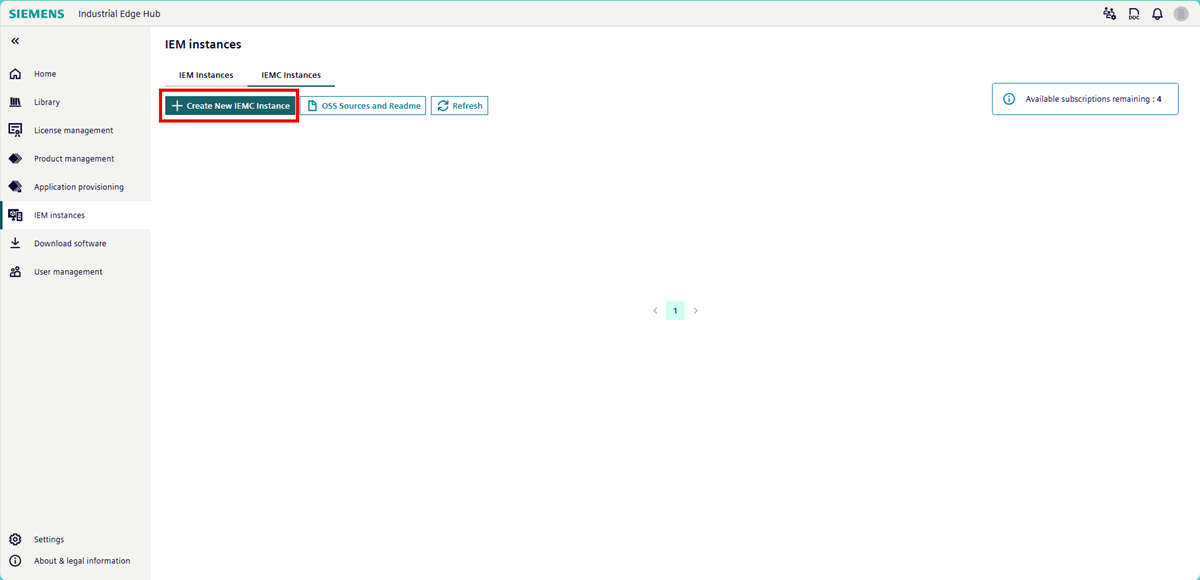
- Click "IEMC Instances". The page displays the available IEMC instances.
-
Click "Create New IEMC Instance". The "Create IEMC Instance" page opens.
-
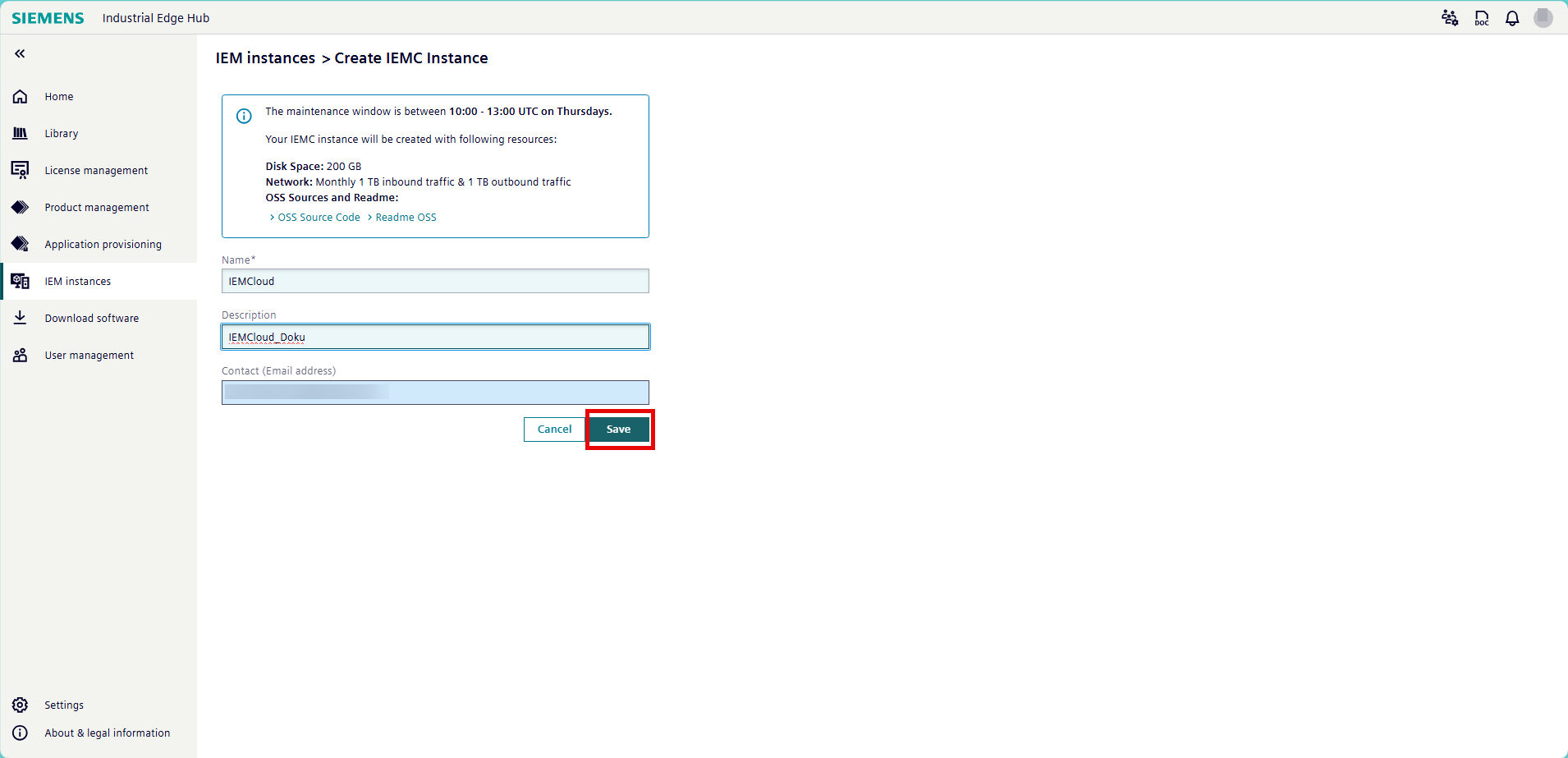
Give your IEM Cloud instance a name, a description, and an email address for the contact.
-
Click "Save". A status pop-up appears and displays the IEM Cloud instance creation process.
-
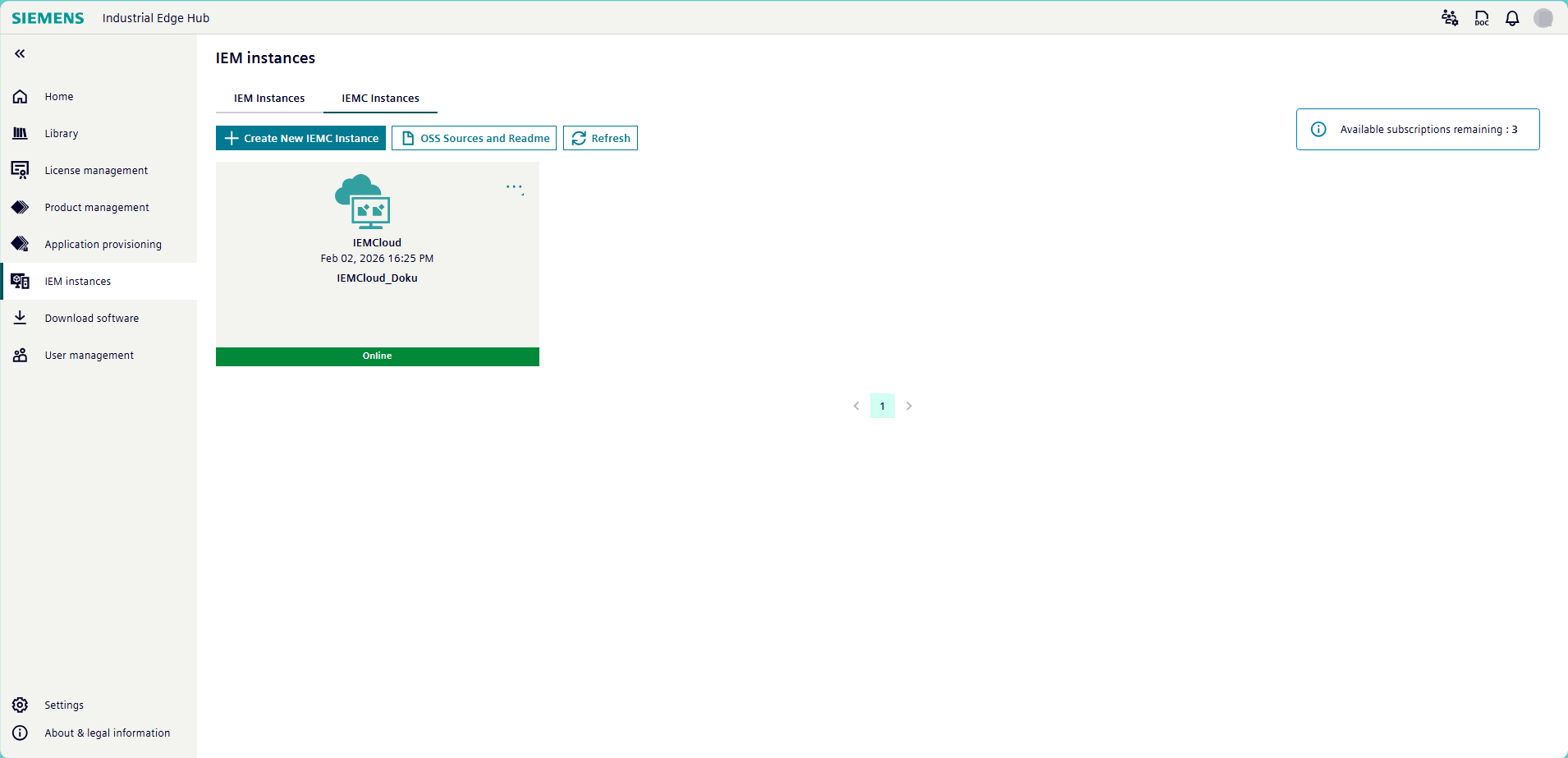
Navigate back to "IEM instances". When IE Hub finishes installing the IEM Cloud instance, its status switches from "Installing" to "Online".
Editing passwords for standard users and configuring access management
Passwords not recoverable
The initial passwords for your IEM Cloud instance can only be viewed once. Make sure to note them down correctly or store them in your password manager.
By default, the IEM Cloud instance includes two standard users called customer_admin and iem_user with temporarily assigned passwords. Set up a new password for these users and configure IEM Cloud's Identity Access Management according to your desired settings.
- Open Industrial Edge Hub.
- Click "IEM instances" from the left navigation pane. The "IEM instances" page opens.
- Click "IEMC Instances". The page displays the available IEMC instances.
-
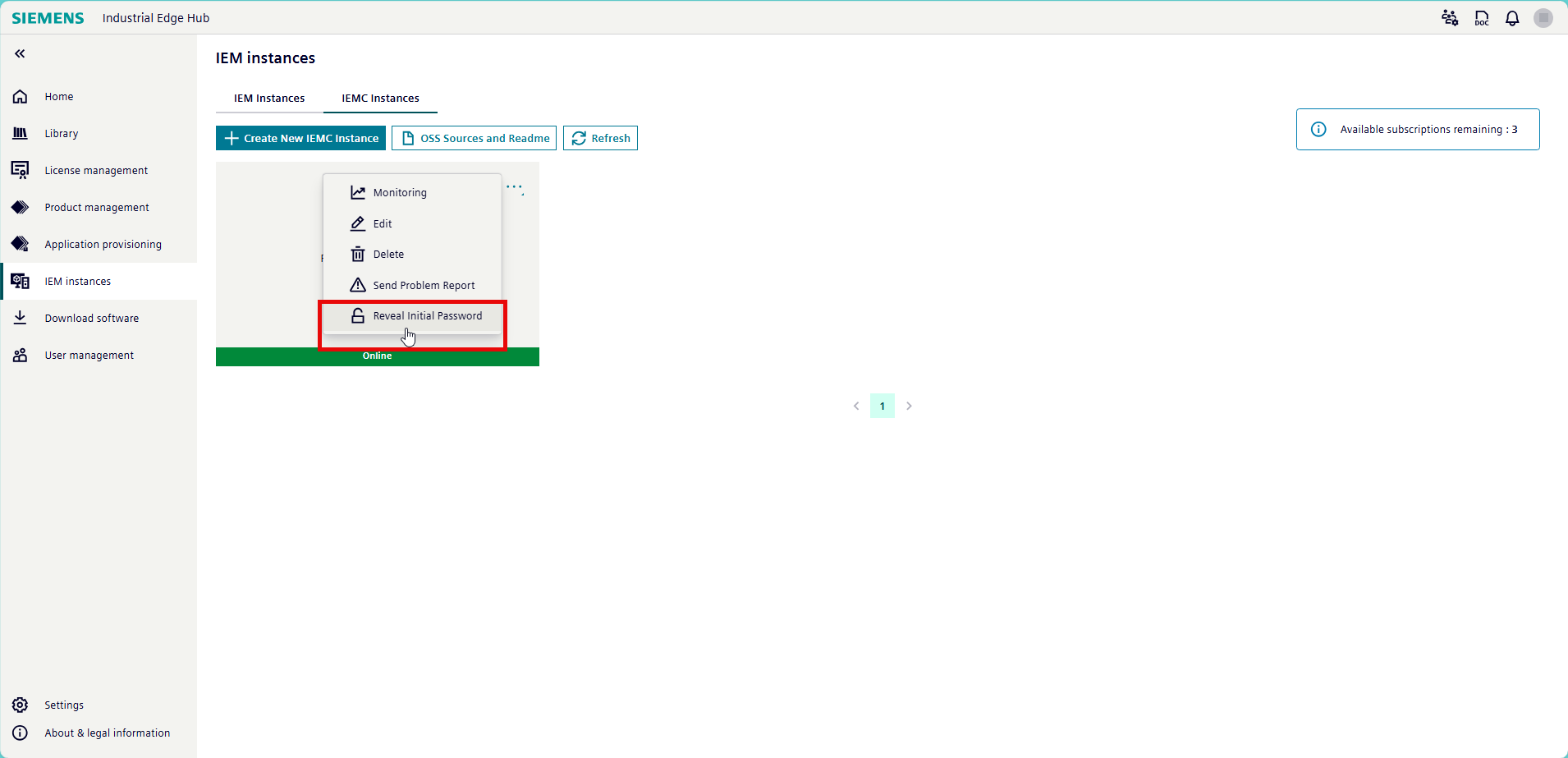
Click the "..." button for the IEM Cloud instance tile. A menu appears.
-
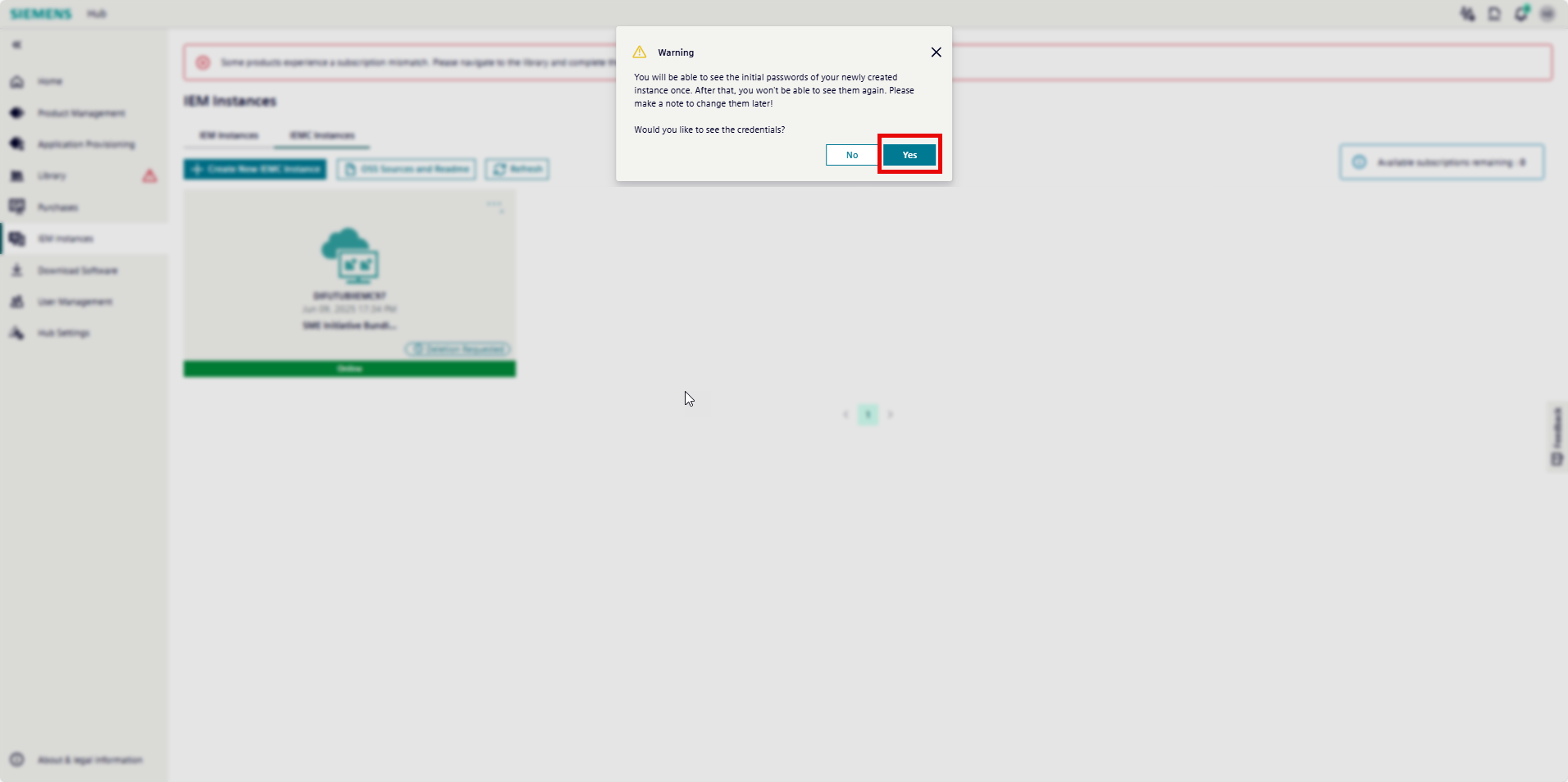
Click "Reveal initial password". A warning appears. You will only be able to view the username and password once.
-
Click "Yes".
- Note down the passwords or store them in your password manager.
- Open Industrial Edge Management by selecting the tile.
-
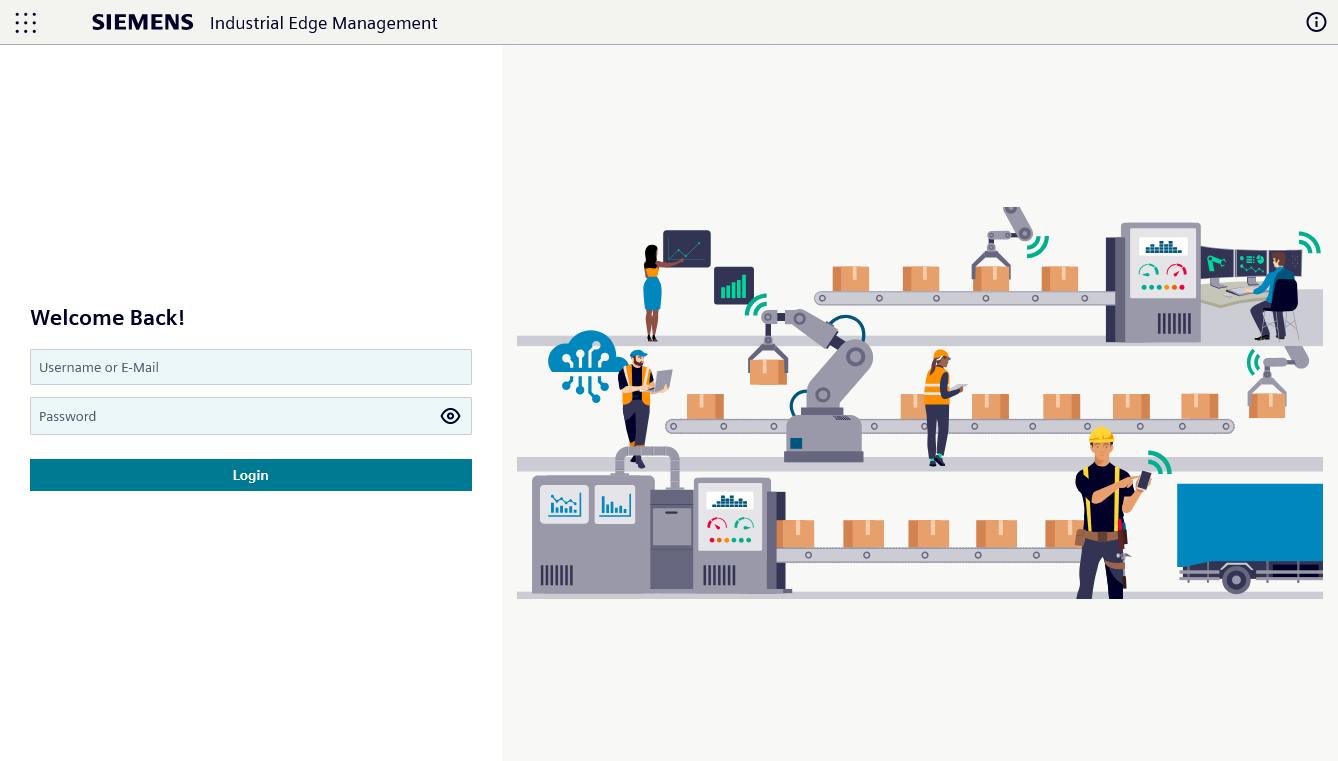
Log in with the initial username and password noted in step 7. Click "Login".
-
Update the password.
- Repeat steps 9-10 for the second user.
Validating the outcome for IEM Cloud
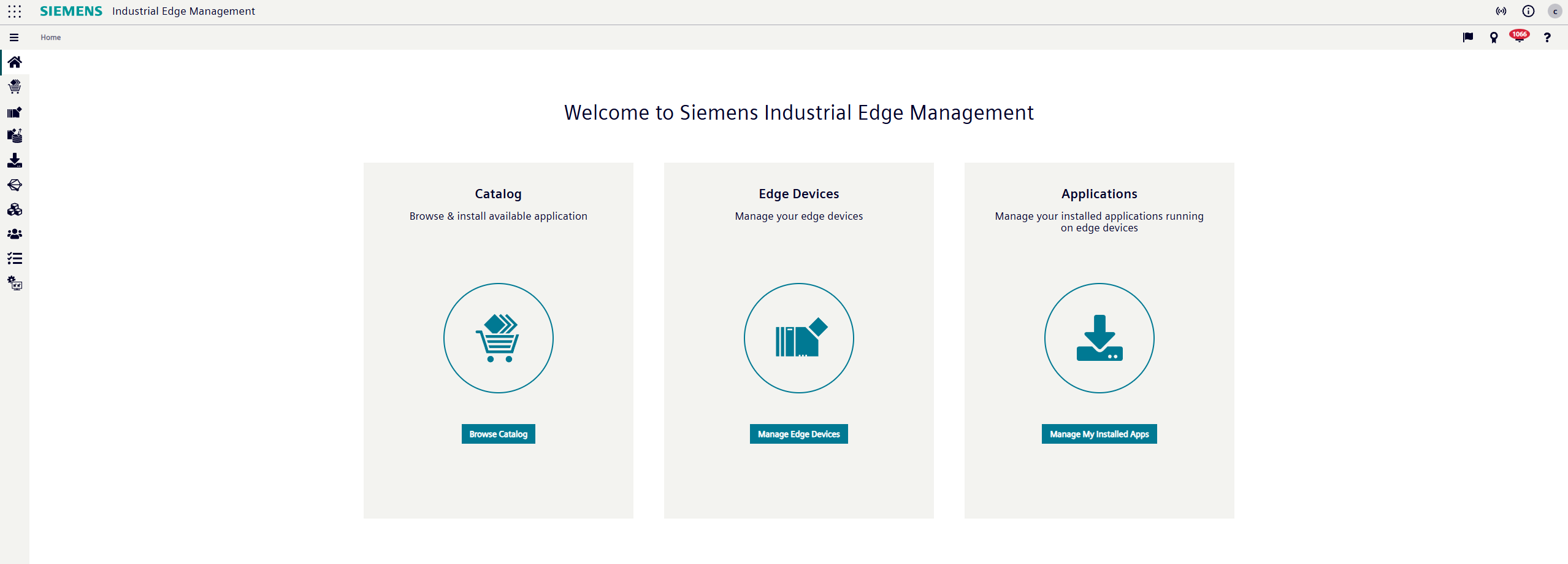
When everything is completed successfully, you should see the IEM Cloud launchpad after logging in. IEM Cloud is now fully set up.
What's next?
After setting up your IEM instance, proceed to Choosing your Industrial Edge Device.